
How to use Ondo Tokens on Morpho with Enkrypt

Morpho is a decentralized finance (DeFi) lending and borrowing protocol that acts as an open, permissionless infrastructure layer, optimizing onchain credit markets to give users better return rates and asset efficiency. It matches lenders and borrowers directly through smart contracts, often improving yields for suppliers and reducing costs for borrowers, and can integrate with or replace traditional pool-based lending platforms. Morpho also enables developers to build custom lending markets and financial products, all governed by its community and transparent onchain rules.
Ondo Global Markets (Ondo GM) is a tokenization platform designed to provide onchain exposure to publicly traded securities. Tokenized stocks are digital tokens that represent real company shares. Unlike regular stocks, these tokens live on the blockchain and can be held, managed, and traded directly in crypto wallets. Ondo tokens are permissionless and can be used across many DeFi platforms like Morpho.
Enkrypt is a multichain, non-custodial, and open-source web3 browser wallet built by the team behind MEW (MyEtherWallet). With Enkrypt, users and developers can generate accounts, manage tokens and NFTs, and interact with DApps on Ethereum, Solana, as well as Bitcoin, Substrate and any EVM chains. Follow the instructions in this guide on how to use Enkrypt with Morpho!
Connecting your Wallet
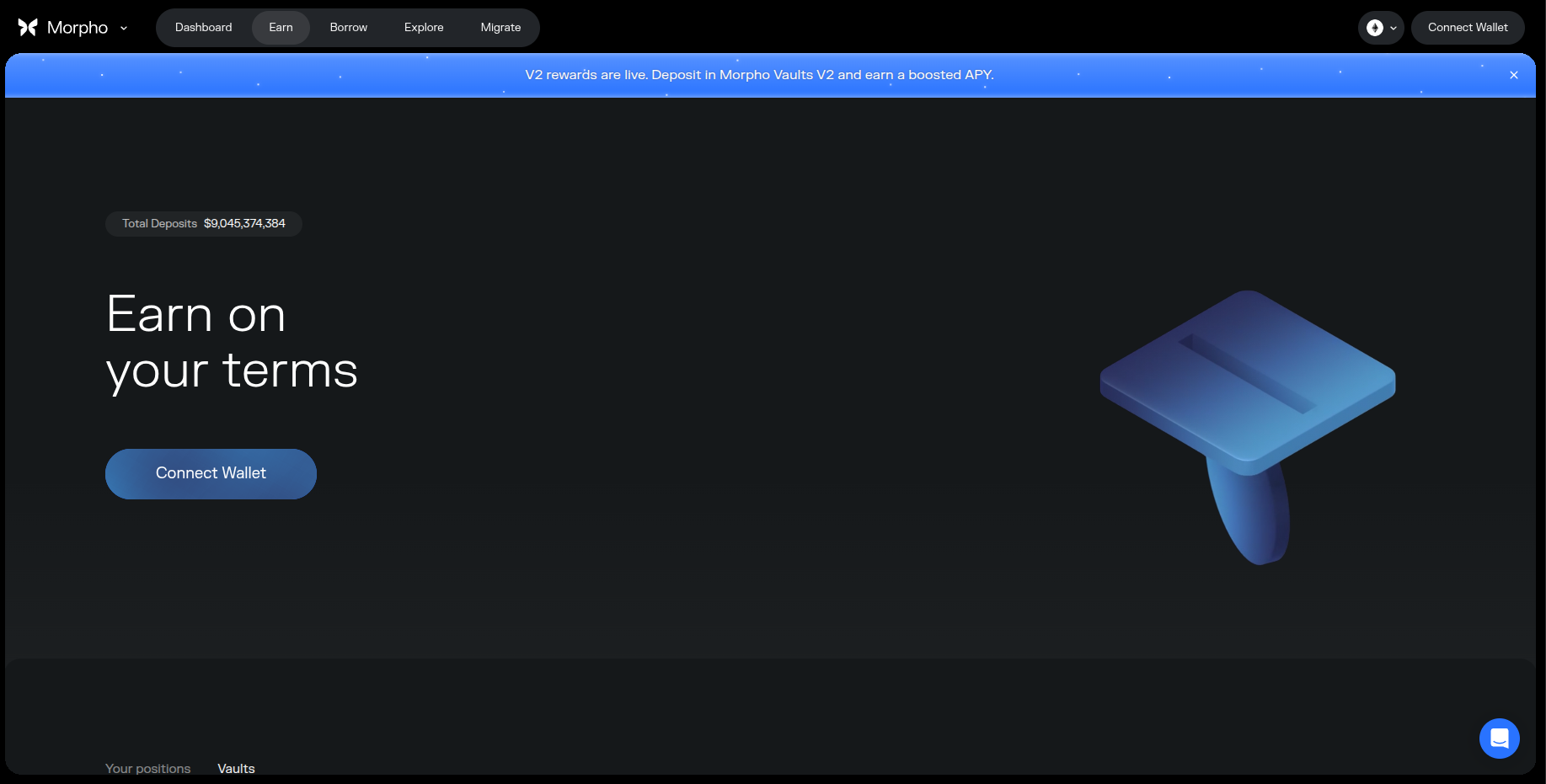
First, head to the Morpho website then click ‘Connect Wallet’.
Disclaimer: Keep in mind Morpho is a third-party DApp and is not affiliated with MEW in any way. Using DeFi involves some inherent risk. Please do your research and proceed at your own discretion.
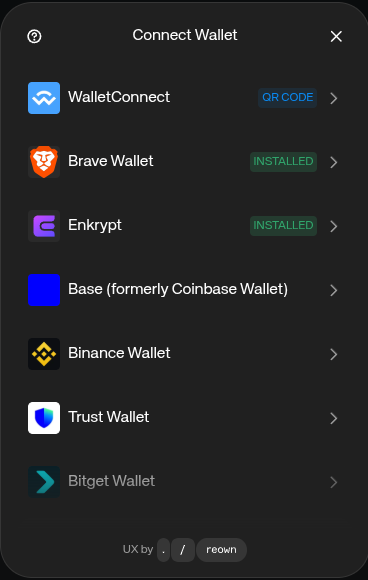
Select the Enkrypt option.
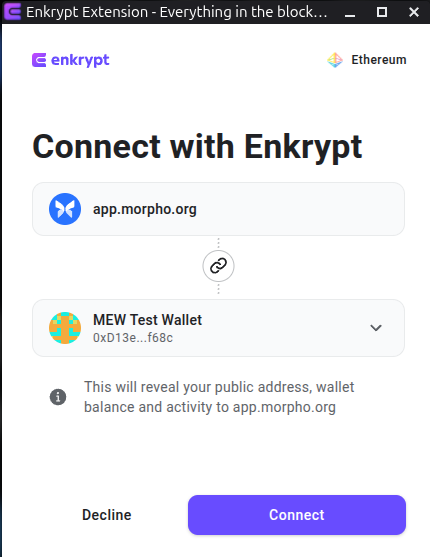
On the Enkrypt pop up, select the account you want to connect with then click ‘Connect’
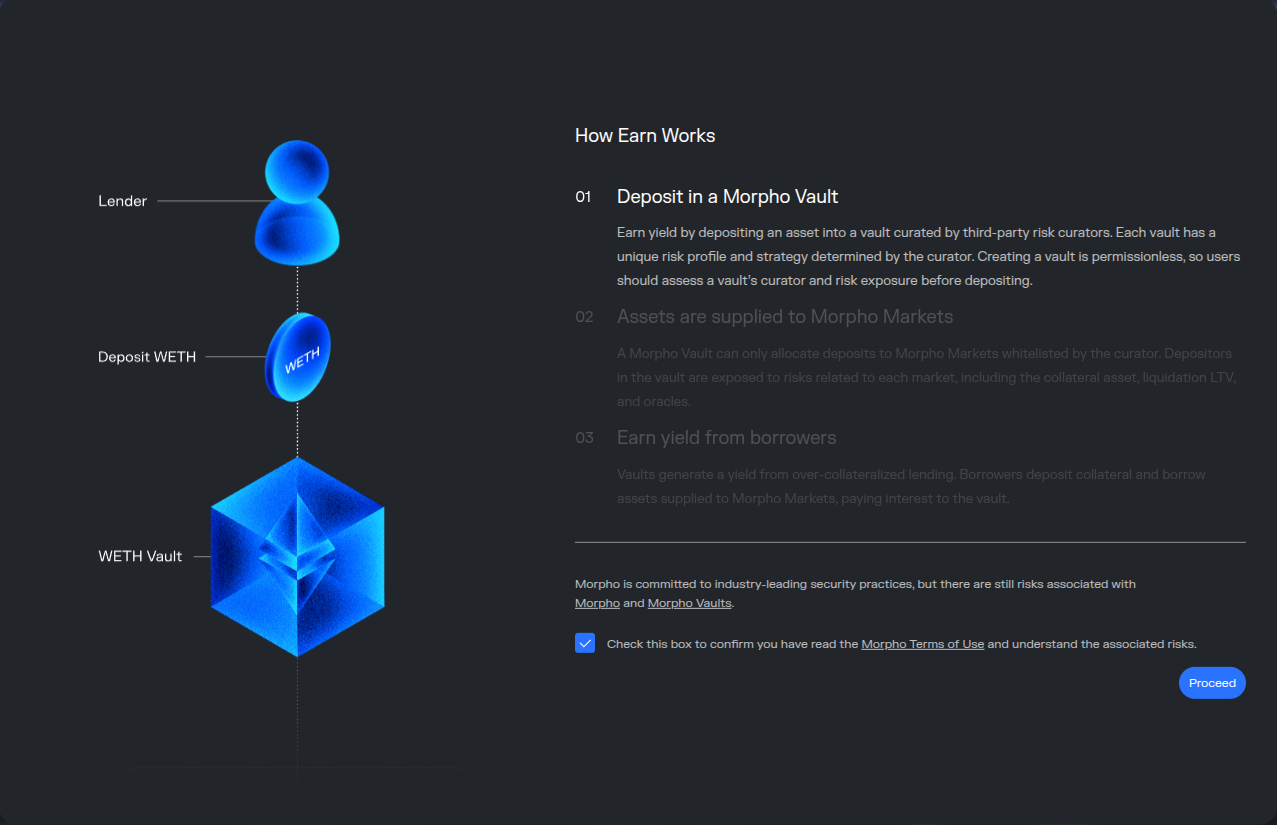
You may get a pop up that explains how the vaults work and will ask you to agree to the terms of use. Review the terms and conditions then check the checkbox and click ‘Proceed’.
Deposit USDC to Gain Exposure to Ondo Tokenized Stocks
Select the ‘Earn’ option in the navigation bar at the top of the page.

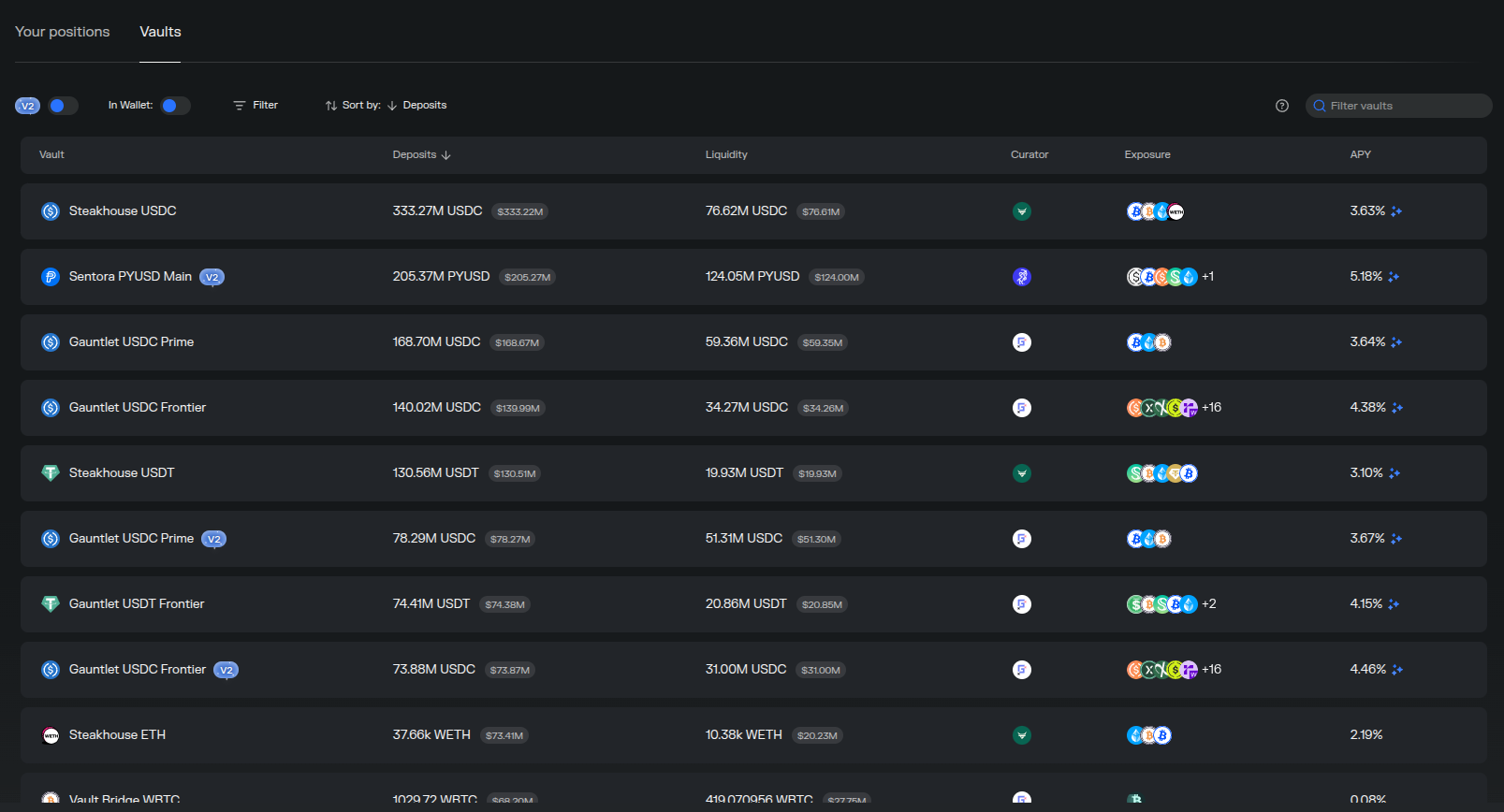
Here you can view all the available vaults you can deposit into. Each vault offers exposure to certain lending markets.
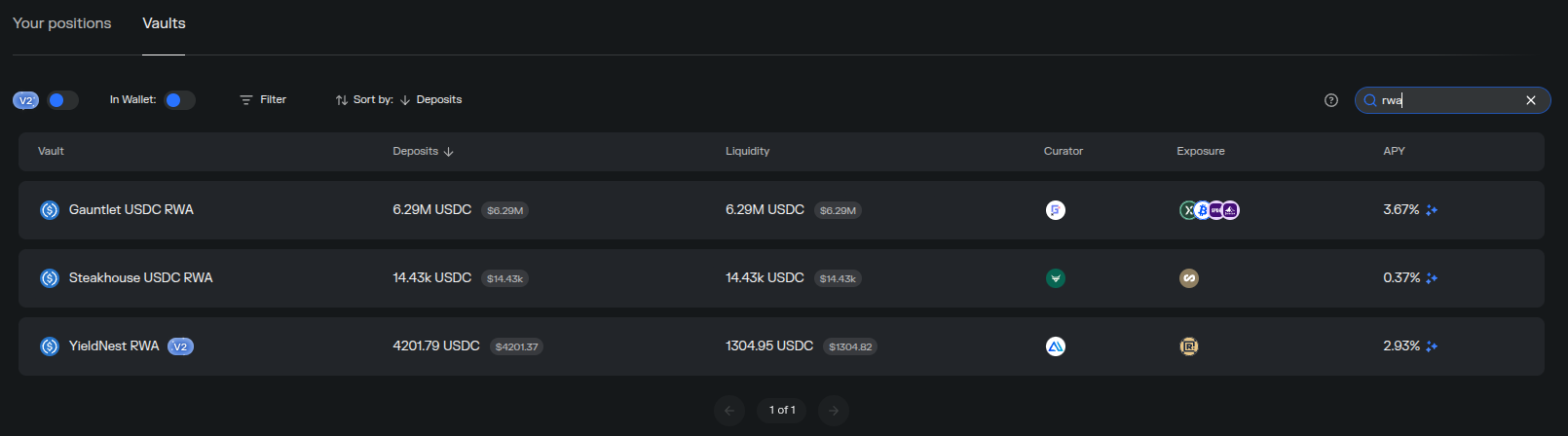
On the right hand side you can search for a certain vault. We will select the one that includes exposure to Ondo tokenized stocks for this example. The Gauntlet USDC RWA vault offers exposure to multiple RWAs including Ondo tokenized stocks.
Here we can see more details about the vault and the deposit form on the right hand side.
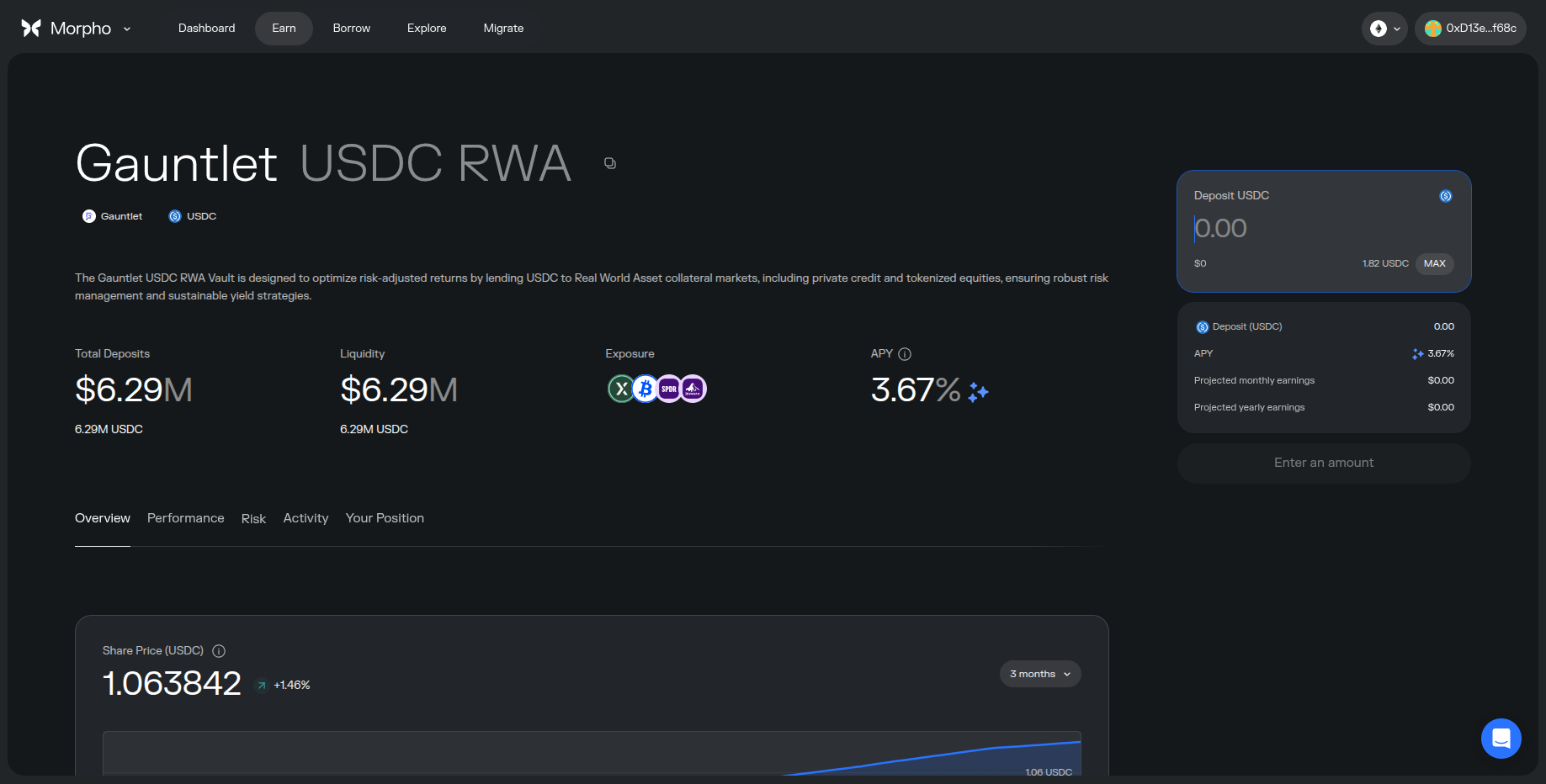
Enter the amount of USDC you want to deposit into the vault then click ‘Deposit’.
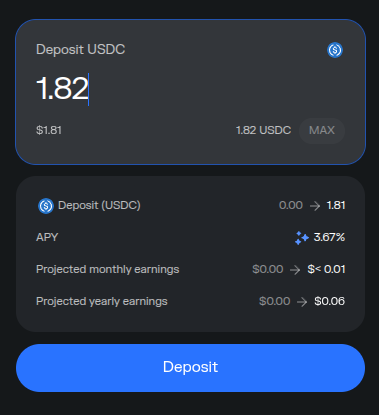
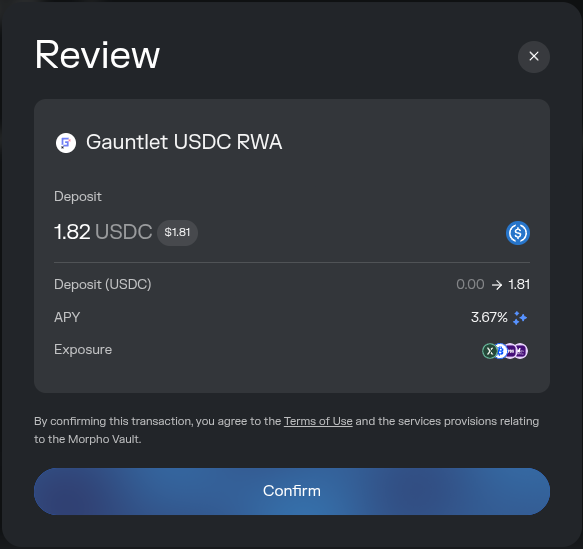
Review your deposit then click ‘Confirm’.
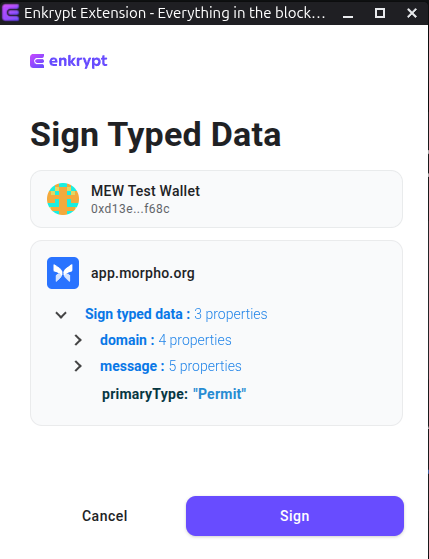
On the Enkrypt pop up, you will be asked to sign a message to permit the deposit of your tokens. Click ‘Sign’ to sign the message.
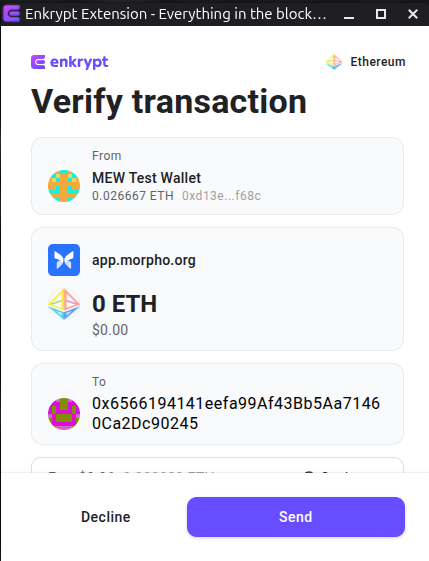
On the Enkrypt pop up, confirm the transaction by clicking ‘Send’.
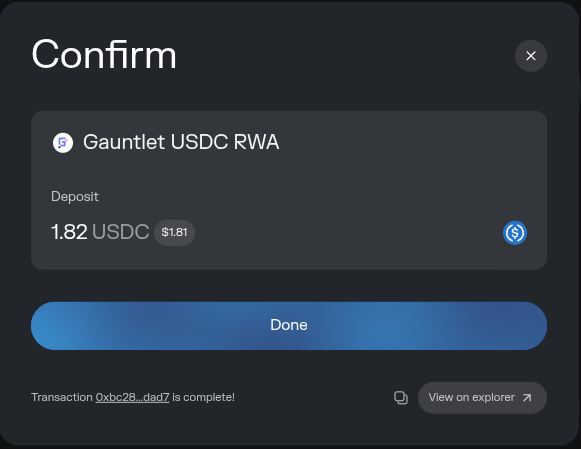
Once the transaction is confirmed on the blockchain you will see the pop up on Morpho say transaction complete at the bottom left.
You have successfully deposited your tokens into the Morpho vault!
Supplying and Borrowing Tokens
Select ‘Borrow’ in the navigation bar located at the top of the page.

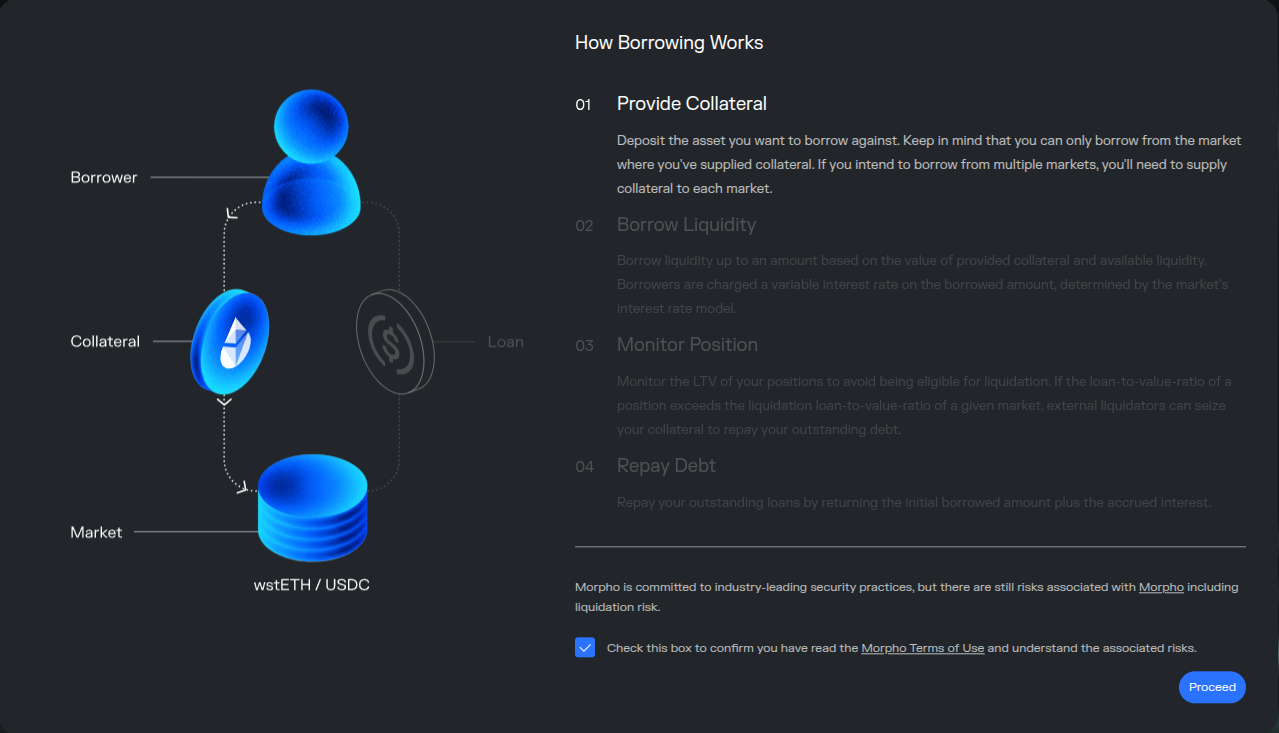
You may get a pop up that explains how borrowing works and will ask you to agree to the terms of use. Review the terms and conditions then check the checkbox and click ‘Proceed’.
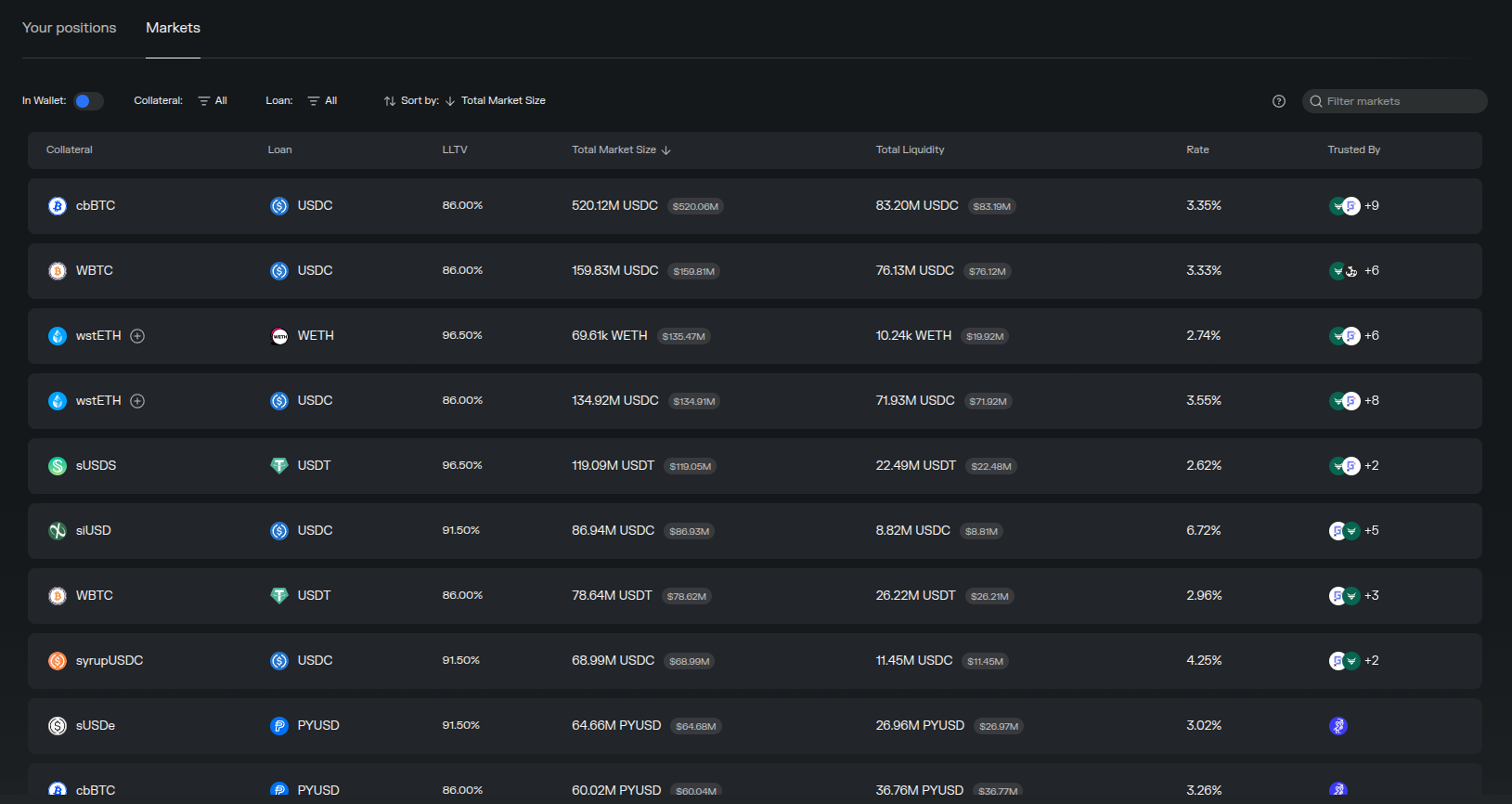
Now you should be able to see all the available tokens you can supply and borrow.
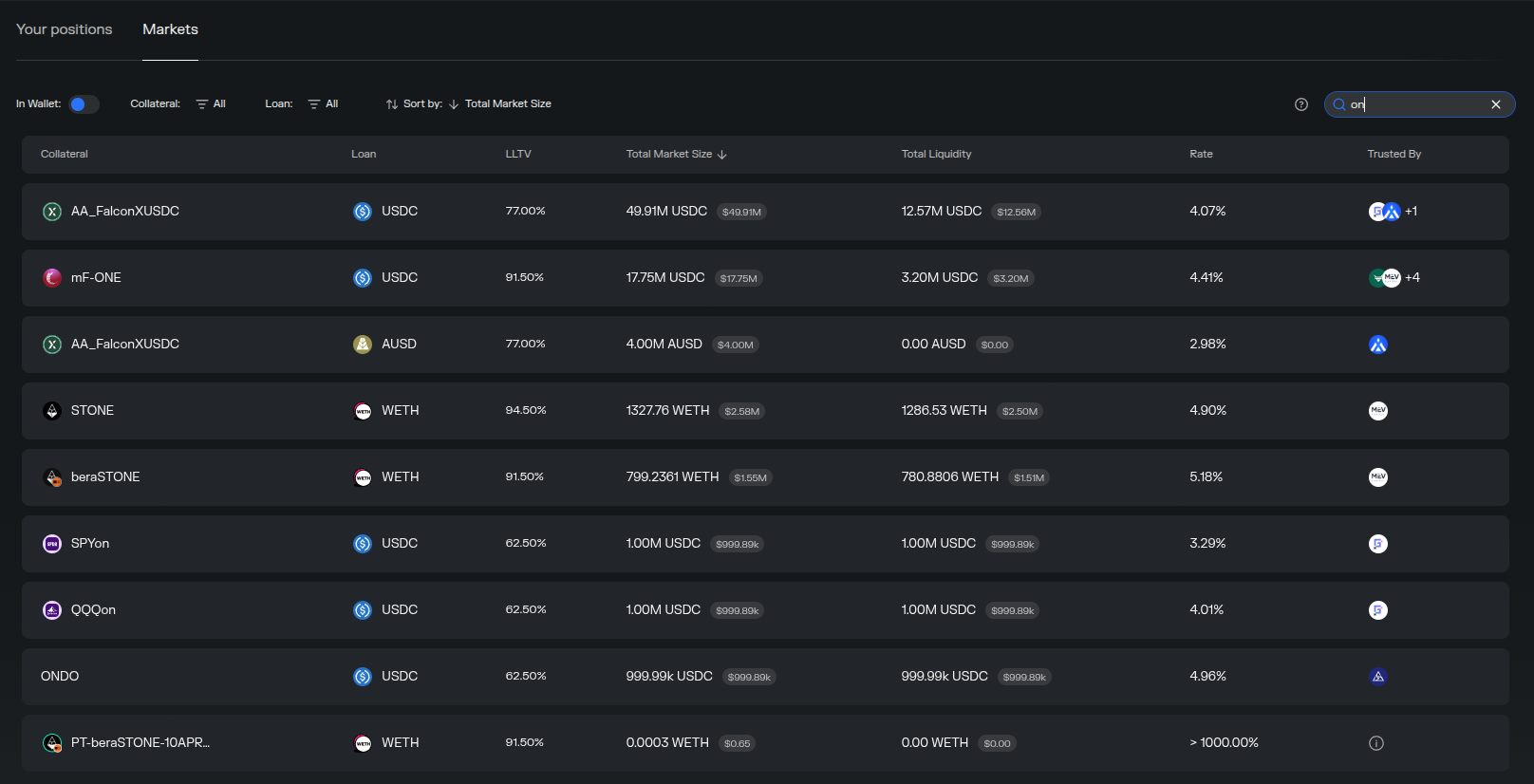
You can use the search bar on the right hand side to search for a specific token you wish to supply and borrow. We will select the SPYon / USDC market for this example.
Here you can see more details about the market. You can supply and borrow tokens by using the form on the right hand side of the page.
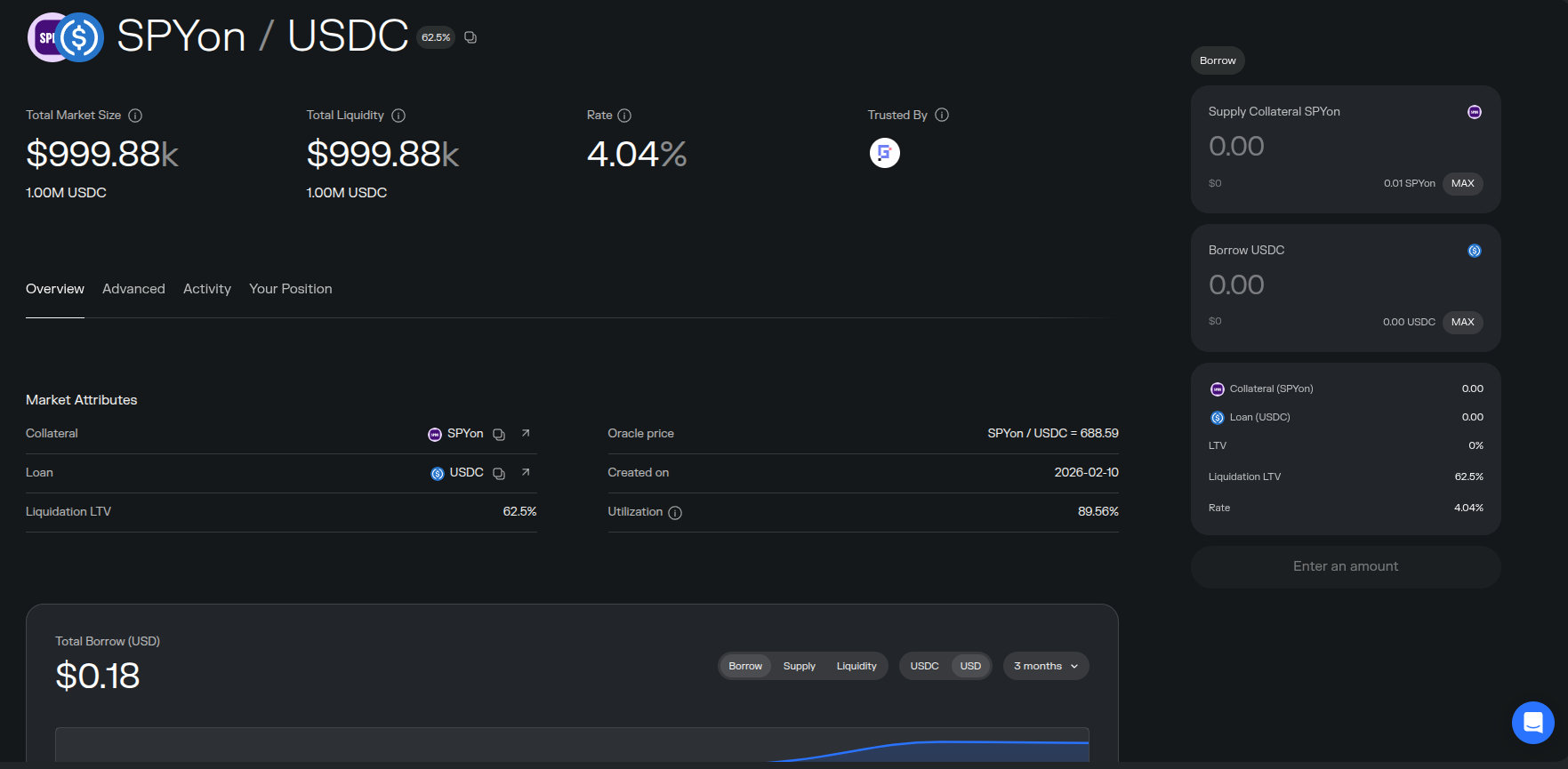
You can choose to only supply your tokens or supply and borrow at the same time.
Enter the amount you want to supply and borrow then click ‘Supply collateral’ or ‘Supply collateral & borrow’.
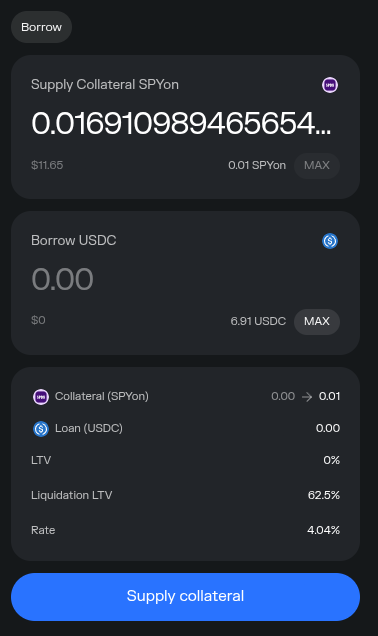
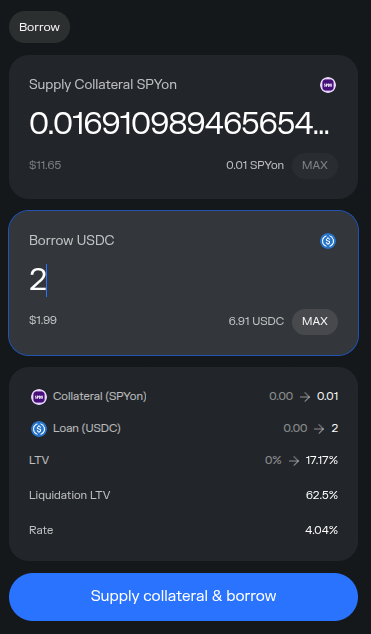
On the pop up, review the transaction then click ‘Confirm’.
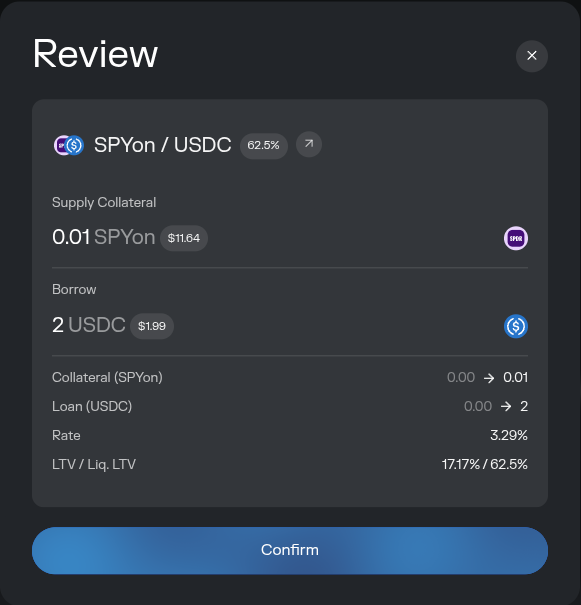
On the Enkrypt pop up, approve Morpho to deposit your tokens into the market by clicking ‘Send’.
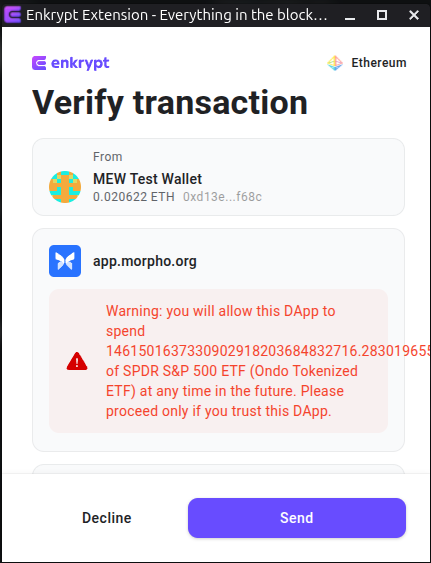
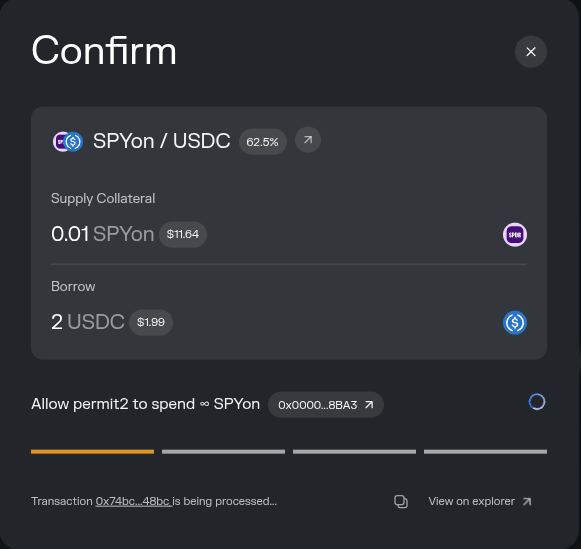
You will need to wait for the approval transaction to confirm on the blockchain. Depending on network usage this may take a few minutes.
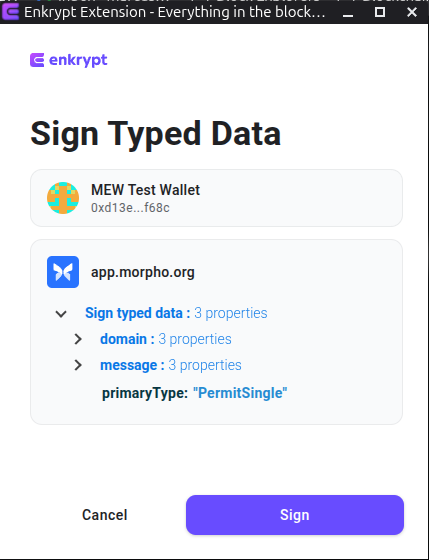
Once the approval transaction is confirmed, you will need to sign the Permit message. On the Enkrypt pop up, click ‘Sign’ to sign the permit message.
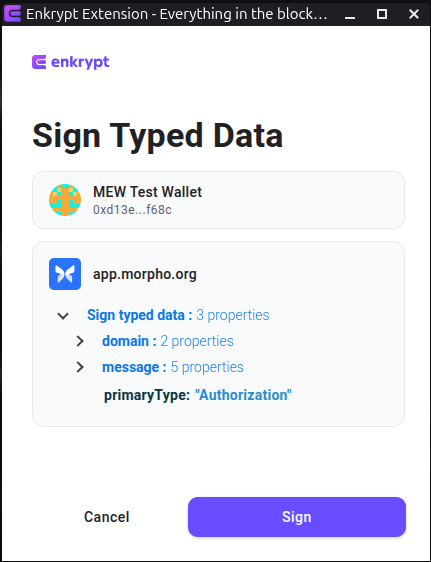
Next you will need to sign the authorization message for the bundler to manage your position. On the Enkrypt pop up, click ‘Sign’ to sign the authorization message.
Now you can send the deposit transaction by clicking ‘Send’ on the Enkrypt pop up.
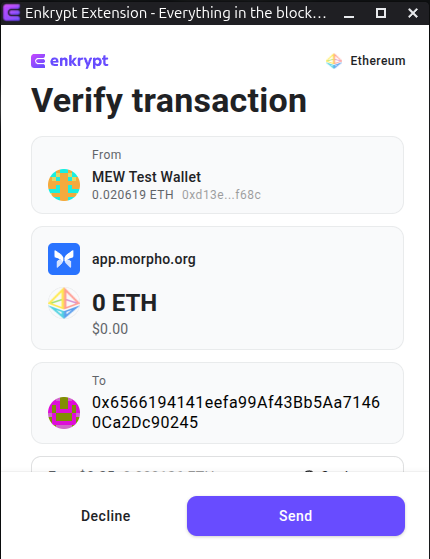
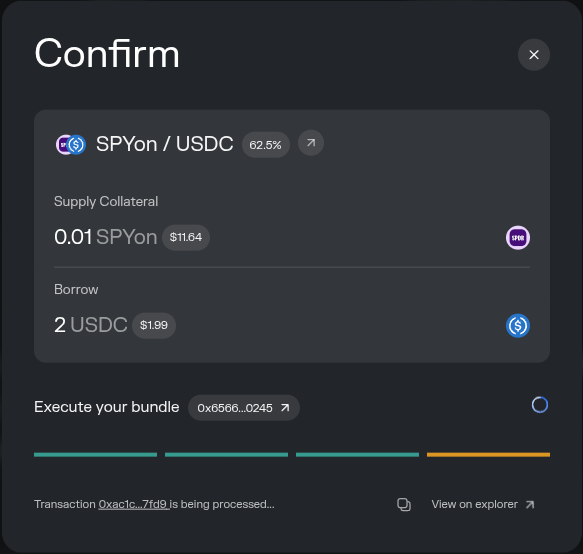
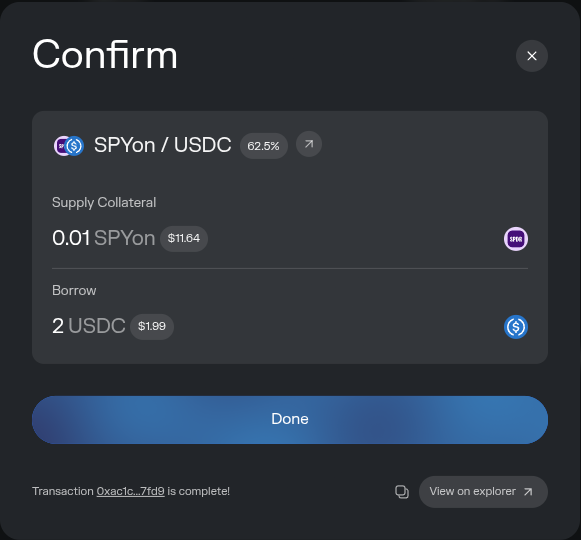
Once you have confirmed the transaction on your Enkrypt wallet you will need to wait for the transaction to be confirmed. Depending on network usage this may take a few minutes but once it is confirmed you should see your transaction is completed at the bottom left of the pop up.
Withdrawing Tokens from Vault
Select the ‘Dashboard’ option in the navigation bar at the top of the page.

Under the Earn section you should see your deposits.
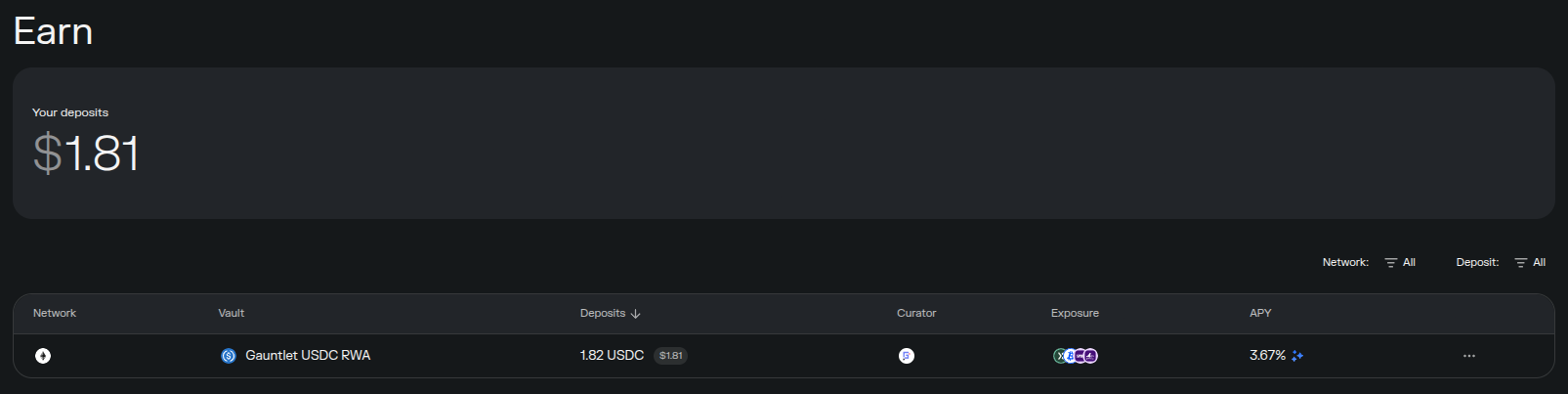
Click on the 3 dots on the right of the vault you want to withdraw from then click ‘Withdraw’.
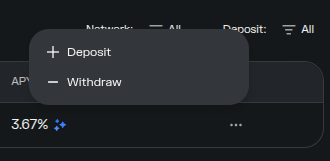
Enter the amount you want to withdraw then click ‘Withdraw’.
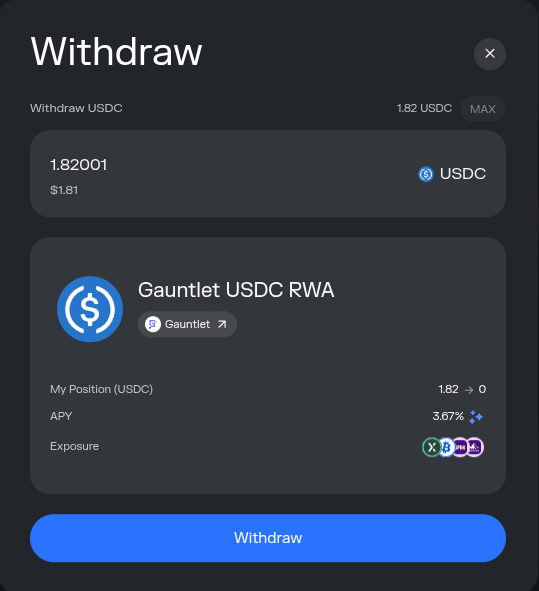
Review your withdrawal then click ‘Confirm’.
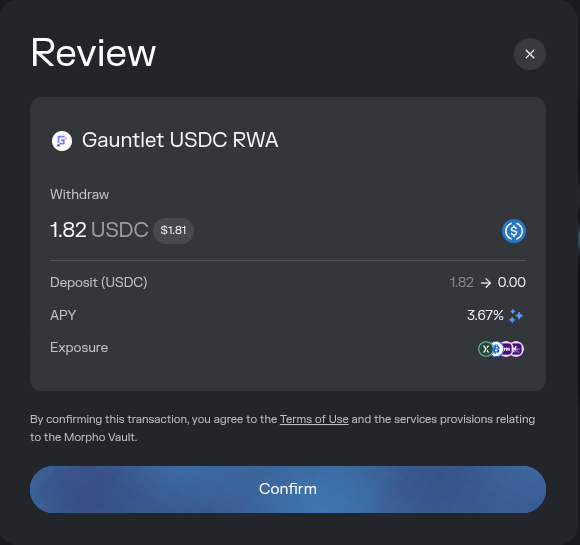
On the Enkrypt pop up, sign the permit message by clicking ‘Sign’.
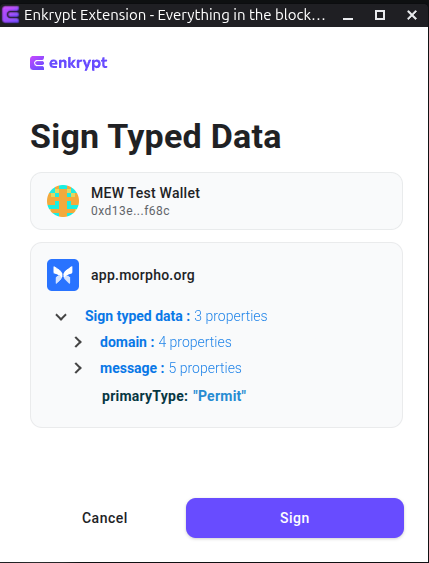
Then confirm the transaction on the Enkrypt pop up by clicking ‘Send’.
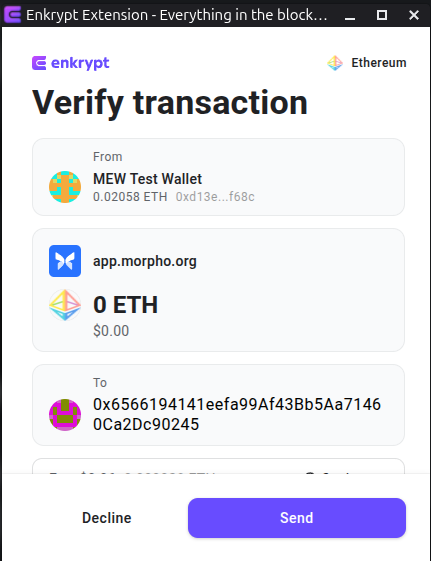
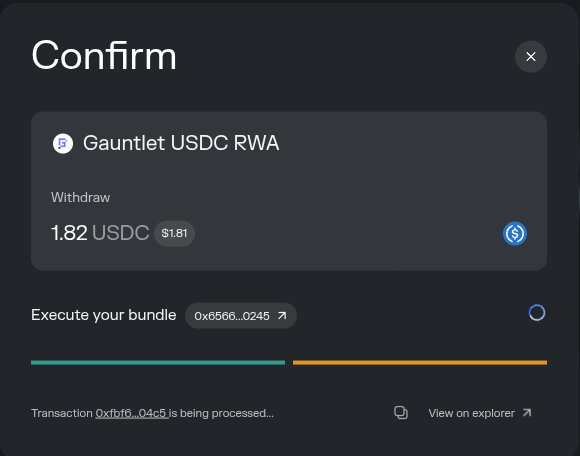
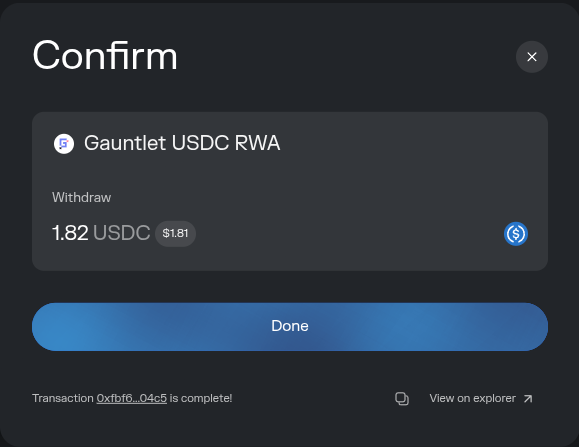
Once you have confirmed the transaction on the Enkrypt pop up, you will need to wait for the blockchain to confirm the transaction. Depending on network usage this may take a few minutes but once it is confirmed you should see your transaction is completed at the bottom left of the pop up.
Repaying your Loan and Withdrawing your Collateral
Select the ‘Dashboard’ option in the navigation bar at the top of the page.

Under the Borrow section you should see your current loans and collateral.
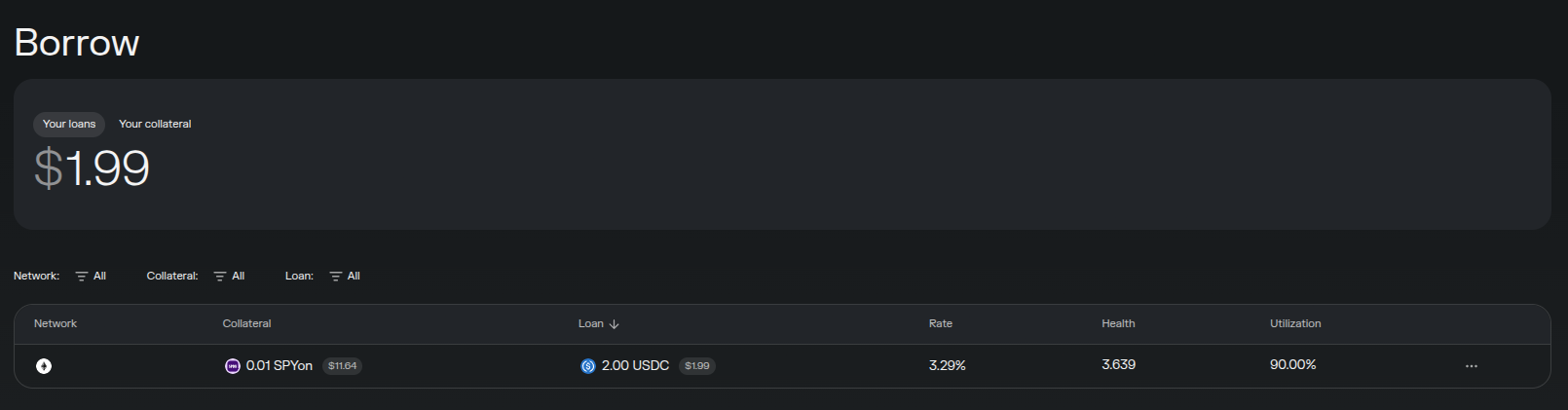
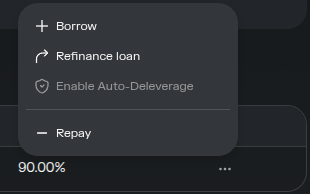
Click on the 3 dots on the right of the position you want to withdraw from then click ‘Repay’.
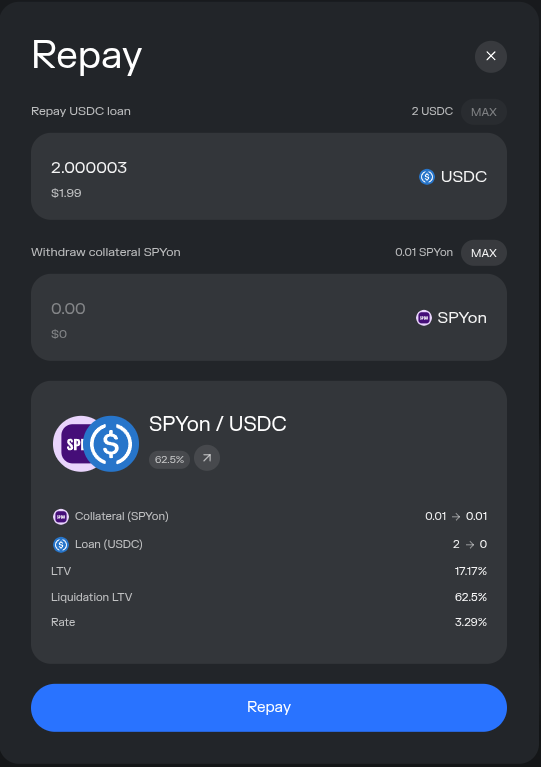
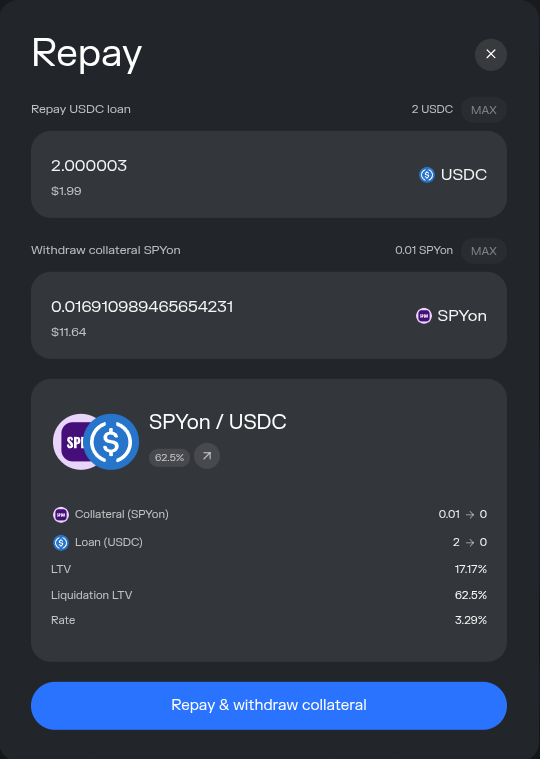
You can choose to only repay your debt or repay and withdraw your collateral. Enter the amount you want to repay and withdraw then click ‘Repay’ or ‘Repay & withdraw collateral’.
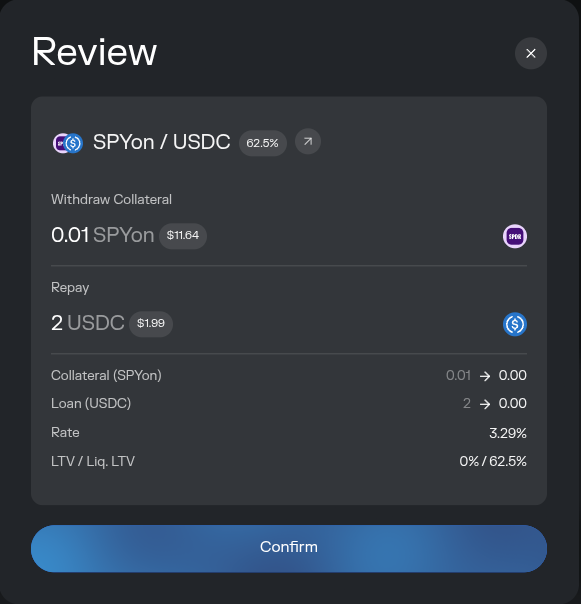
Review the transaction then click ‘Confirm’.
On the Enkrypt pop up, sign the permit message by clicking the ‘Sign’ button.
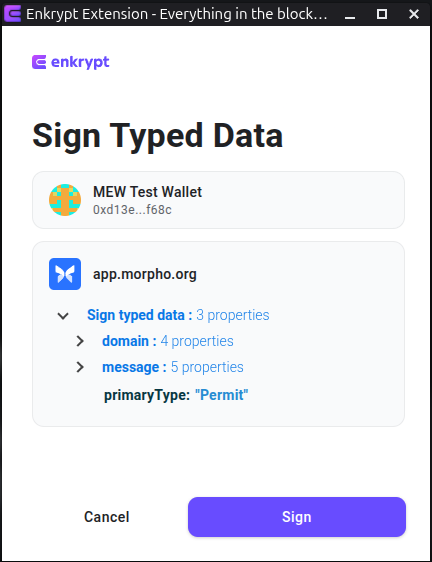
Next, confirm the transaction on the Enkrypt pop up by clicking send.
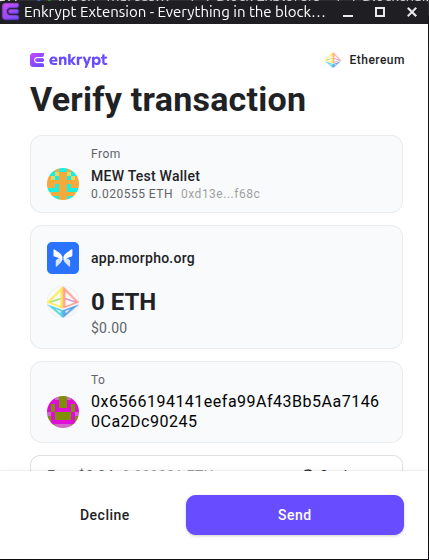
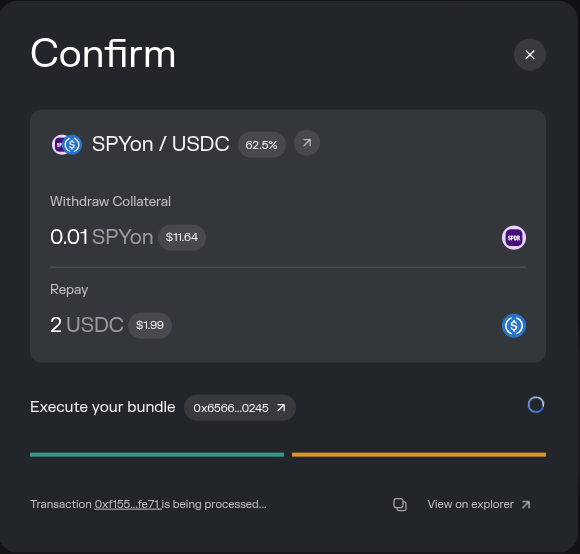
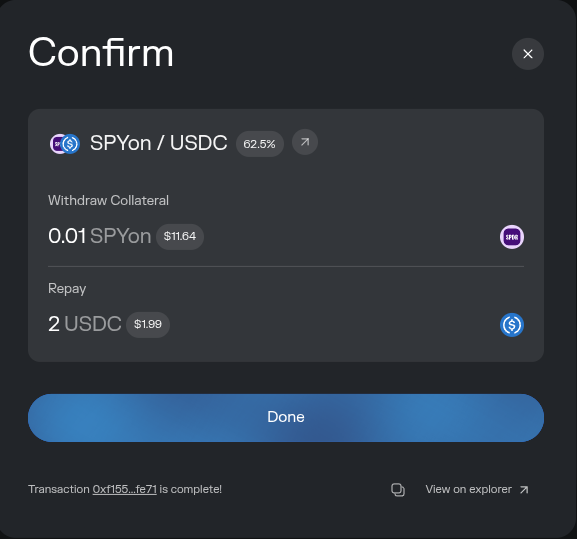
Once you have confirmed the transaction on the Enkrypt pop up, you will need to wait for the blockchain to confirm the transaction. Depending on network usage this may take a few minutes but once it is confirmed you should see your transaction is completed at the bottom left of the pop up.
Thank you for checking out our guide on How to use Ondo Tokens on Morpho with Enkrypt! Make sure to follow us on X(Twitter) and let us know your thoughts. Sign up for our newsletter to stay up to date with MEW releases, and check out our weekly podcast Crypto Currents for the latest news in crypto.