
How to use Ondo Tokens on Euler Finance with Enkrypt
Earn yield on your assets in Euler with Enkrypt. Put your Ondo assets to work in Euler. Lend and borrow on Euler with Enkrypt using this guide!

Euler Finance is a decentralized finance (DeFi) lending and borrowing protocol that lets users supply assets to earn interest or borrow against their crypto collateral. It uses a permissionless risk-adjusted lending market design to offer competitive rates and flexible financing, while managing risk through on-chain parameters and liquidations.
Ondo Global Markets (Ondo GM) is a tokenization platform designed to provide onchain exposure to publicly traded securities. Tokenized stocks are digital tokens that represent real company shares. Unlike regular stocks, these tokens live on the blockchain and can be held, managed, and traded directly in crypto wallets. Ondo tokens are permissionless and can be used across many DeFi platforms like Euler.
Enkrypt is a multichain, non-custodial, and open-source web3 browser wallet built by the team behind MEW (MyEtherWallet). With Enkrypt, users and developers can generate accounts, manage tokens and NFTs, and interact with DApps on Ethereum, Solana, as well as Bitcoin, Substrate and any EVM chains. Follow the instructions in this guide on how to use Enkrypt with Euler!
Connecting your wallet
First, head over to Euler Finance then click ‘Connect’ at the top right of the page.
Disclaimer: Keep in mind Euler Finance is a third-party DApp and is not affiliated with MEW in any way. Using DeFi involves some inherent risk. Please do your research and proceed at your own discretion.
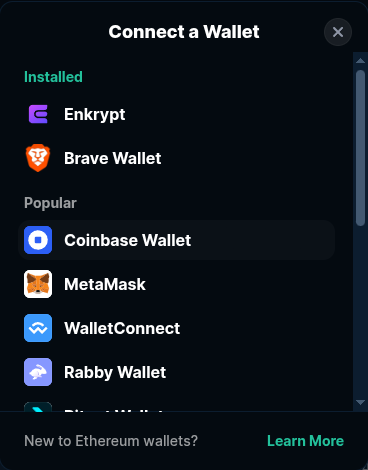
Select the ‘Enkrypt’ option.
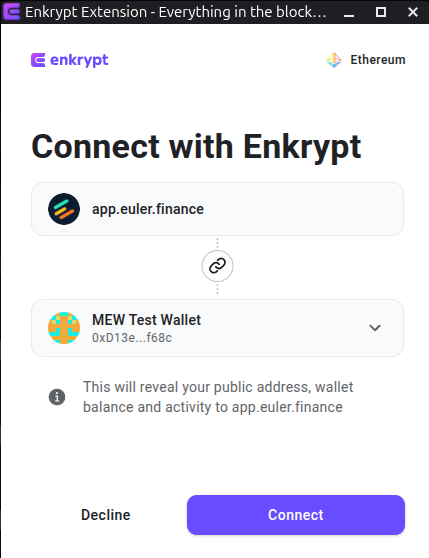
Select the account you want to connect with then click ‘Connect’.
Your wallet is now connected and you should see your wallet address at the top right of the page.

Supplying your Tokenized Stocks
Euler supports many assets for lending and borrowing, but in this guide we will focus on Ondo tokenized stocks. If you don't have any tokenized stock in your wallet yet, you can swap your crypto (ETH, SOL, stablecoins, or other crypto assets you might own) for stocks like APPLon, SPYon, NVDAon and over 200 others right in your Enkrypt wallet.
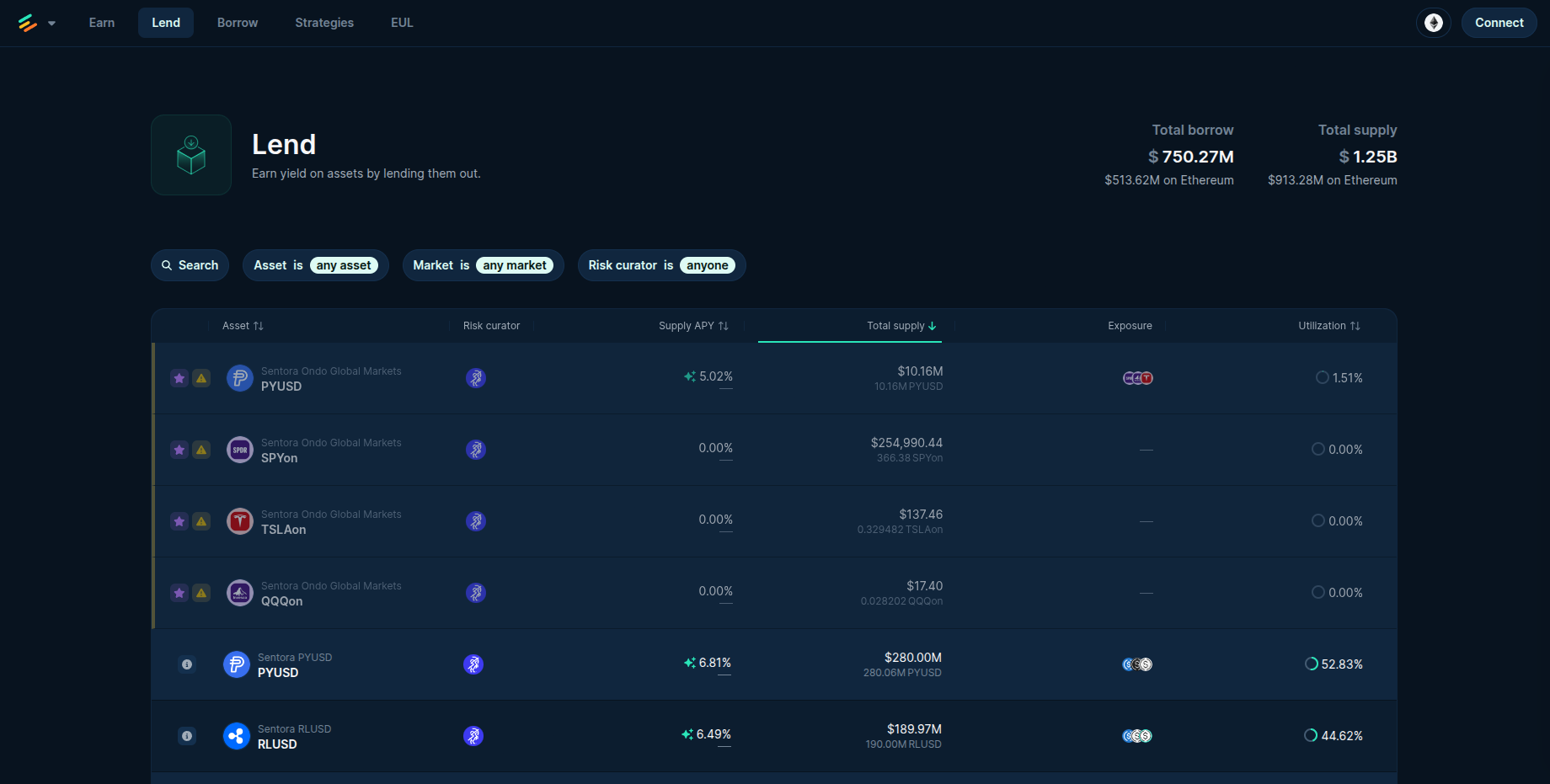
First, select the ‘Lend’ option in the navigation bar.

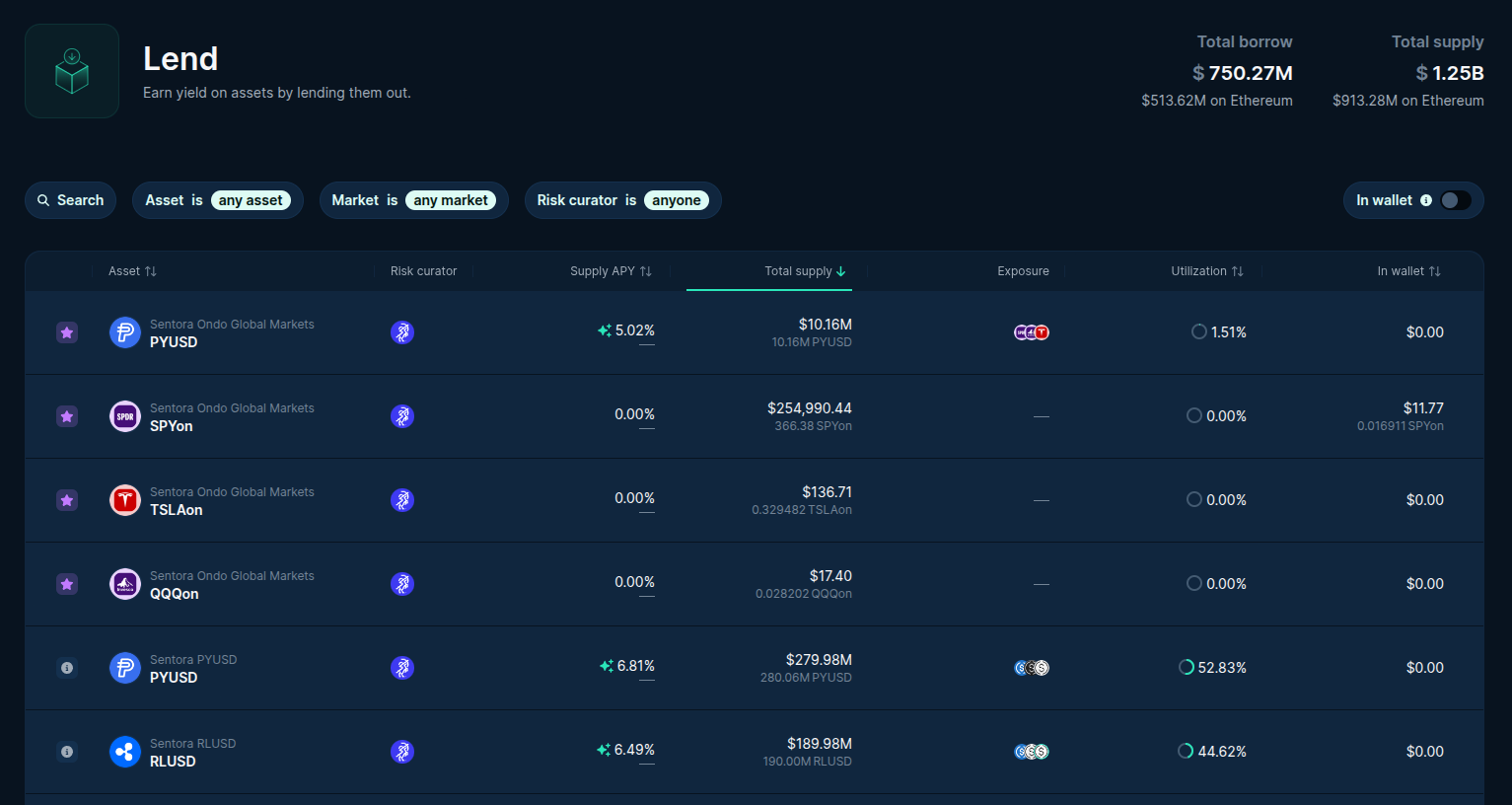
Here you can see the available tokens you can supply. We will select the SPYon market for this example.
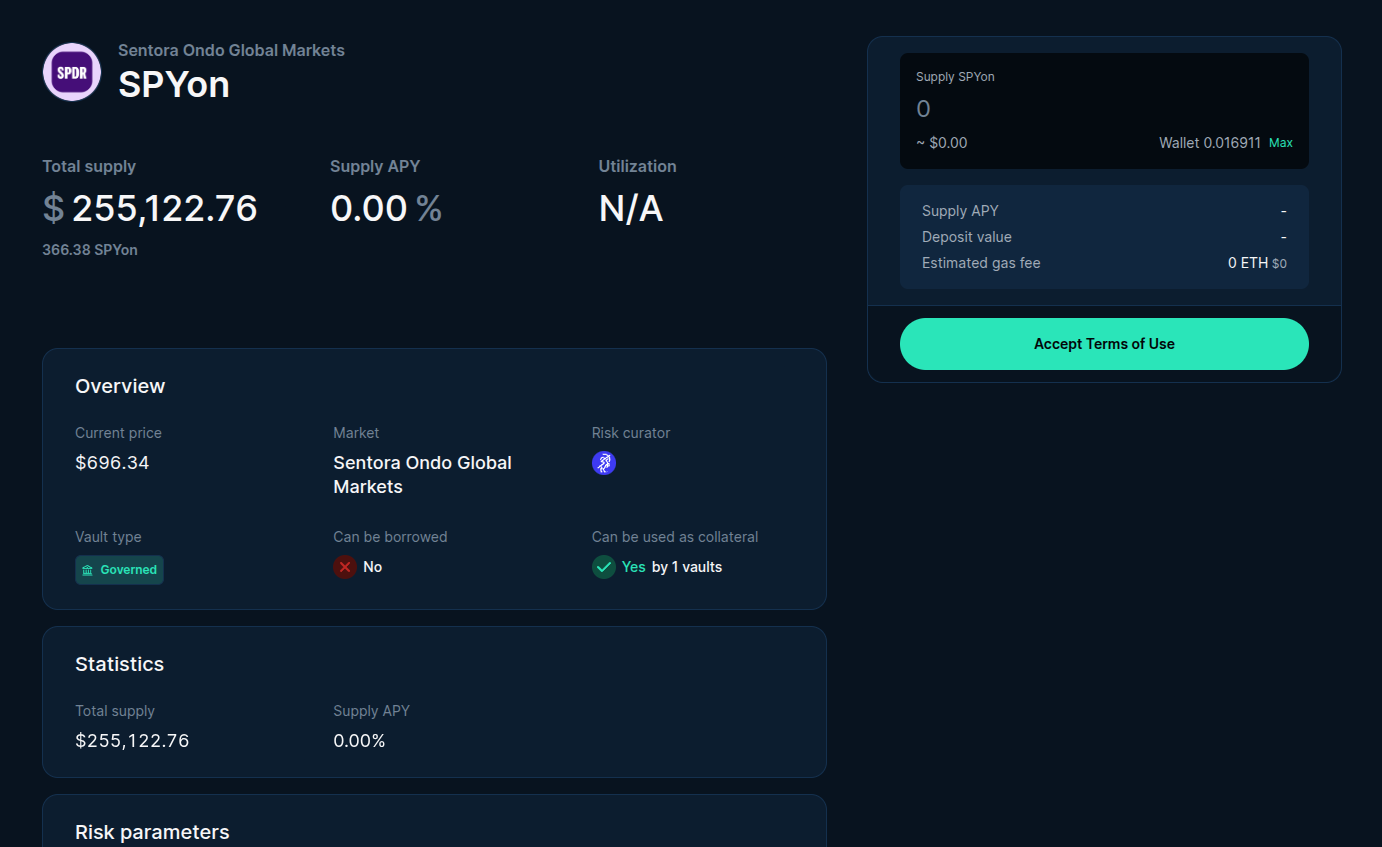
This page will display more information about the market and a deposit form on the right hand side.
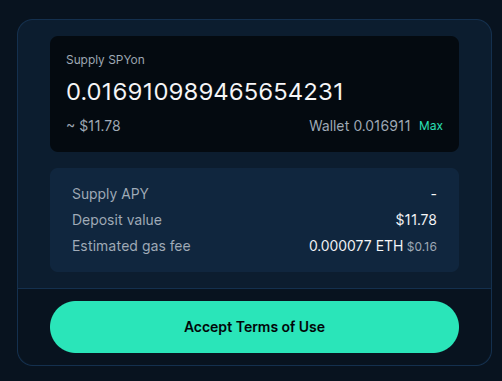
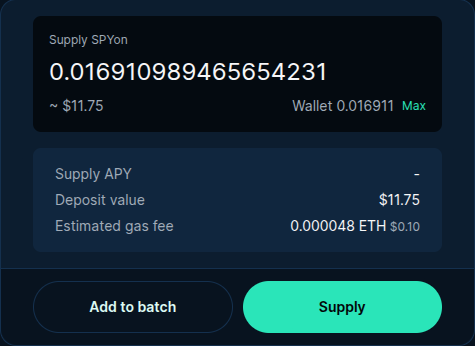
Using the deposit form, you can enter how much you want to supply then click ‘Accept Terms of Use’.
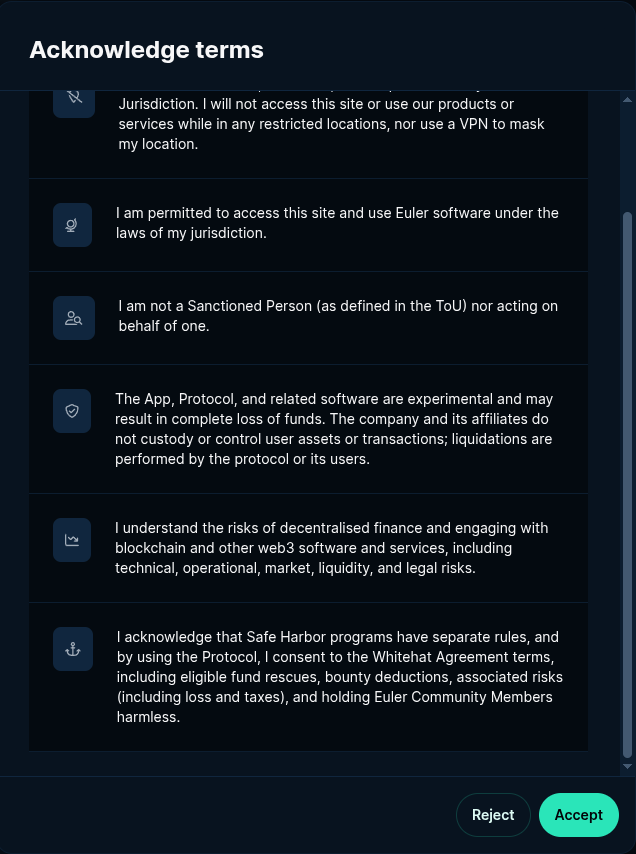
This will bring up the Terms of Use pop up. Review the terms then click ‘Accept’ when you are ready.
After accepting the terms of use you can now click ‘Supply’.
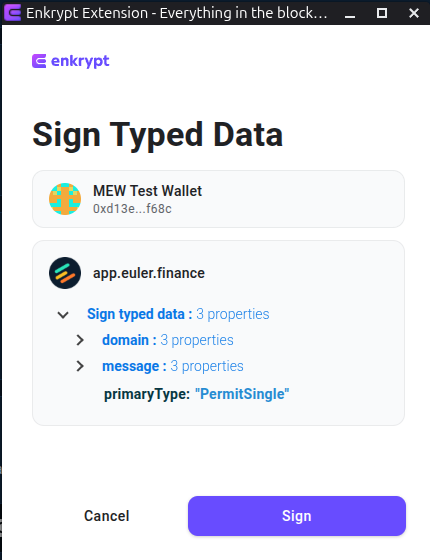
On the Enkrypt pop up, sign the message to permit your tokens to be deposited by clicking ‘Sign’.
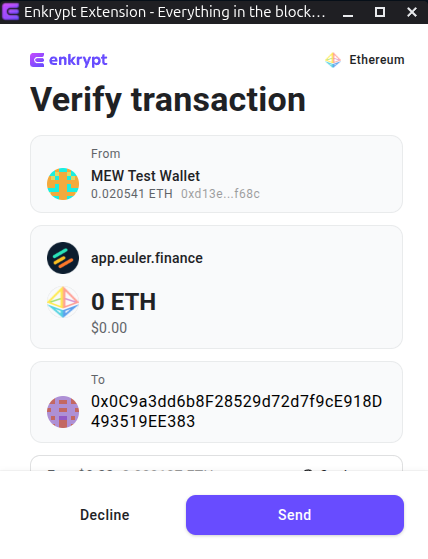
Then confirm the deposit transaction by clicking ‘Send’ on the Enkrypt pop up.
Once you confirm the transaction, you can click the sidebar menu then click ‘Recent’ to view the progress of your transaction.
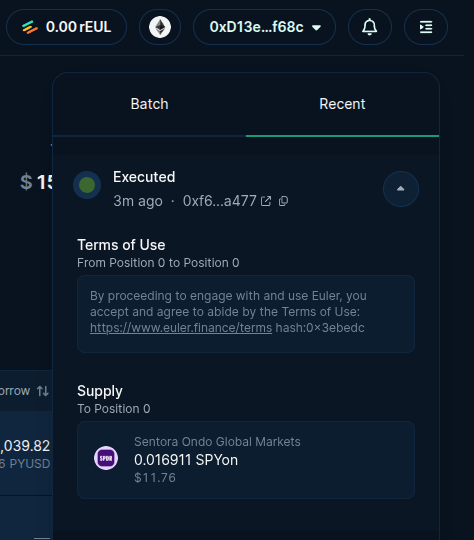
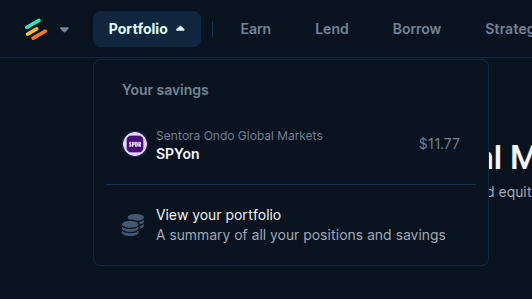
Once the transaction has been executed, you can click the ‘Portfolio’ dropdown to have a quick view of your positions or you can click ‘View your portfolio’ to see more details.
On your Portfolio page, you will be able to manage your portfolio. Under the ‘Savings’ tab you will be able to see all the tokens you have supplied for lending.
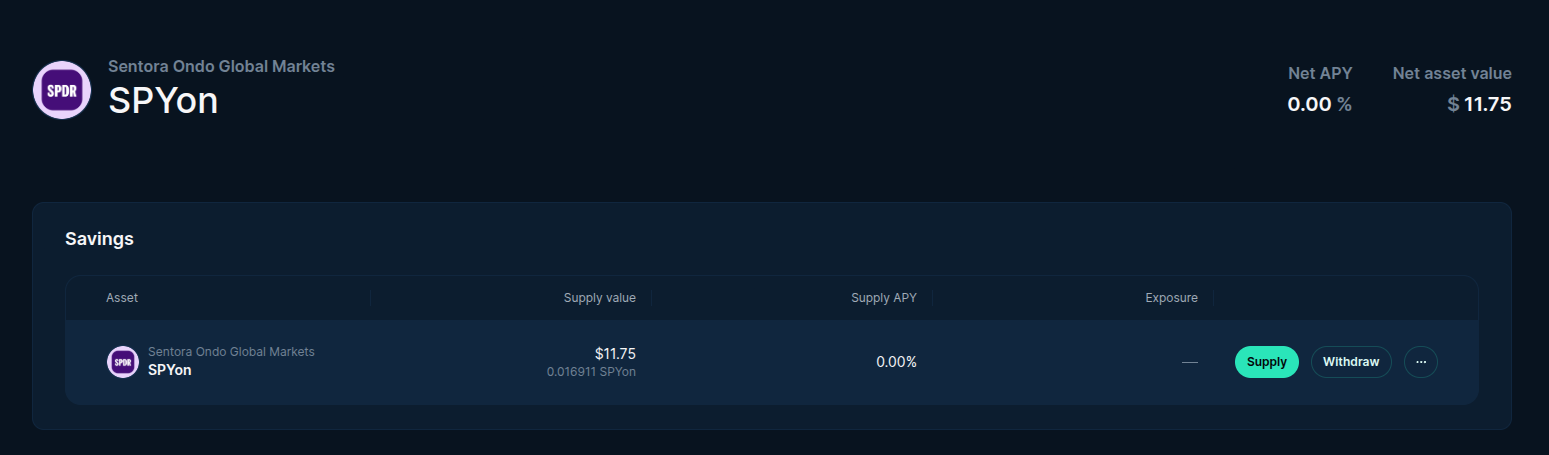
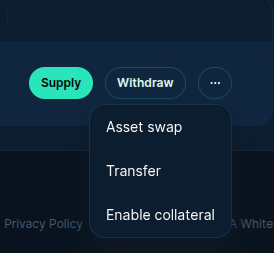
On the right side of your supplied tokens, you can supply more tokens or withdraw and by clicking on the 3 dot menu you will have more options on managing your position.
Borrowing tokens
To borrow tokens, click on the ‘Borrow’ option on the navigation bar.

Here you can view all the available tokens that you can borrow and the collateral asset required to borrow. We will select the SPYon and PYUSD market for this example.
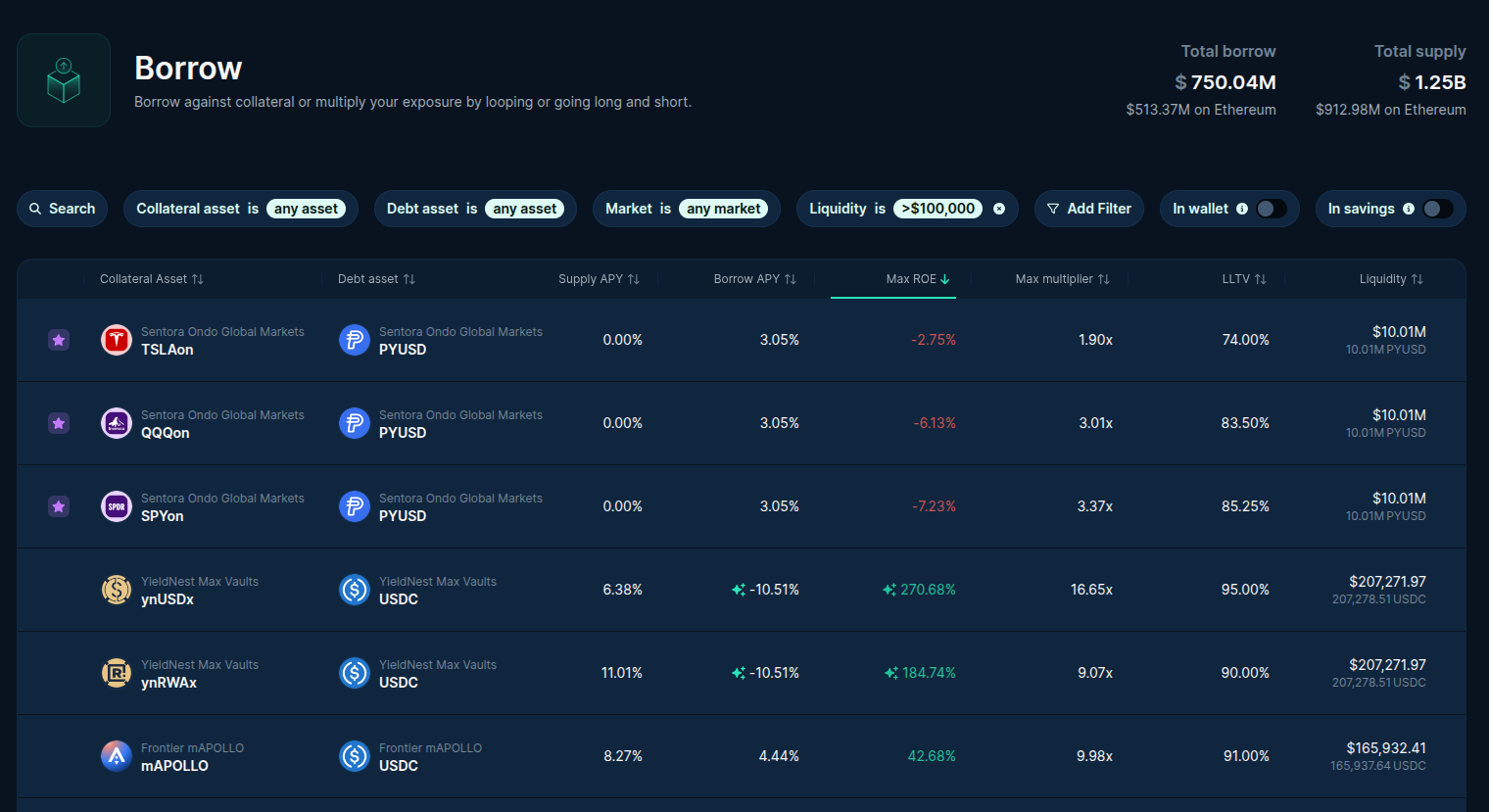
Here you can view more information about the token pairs as well the information about the collateral and debt tokens.
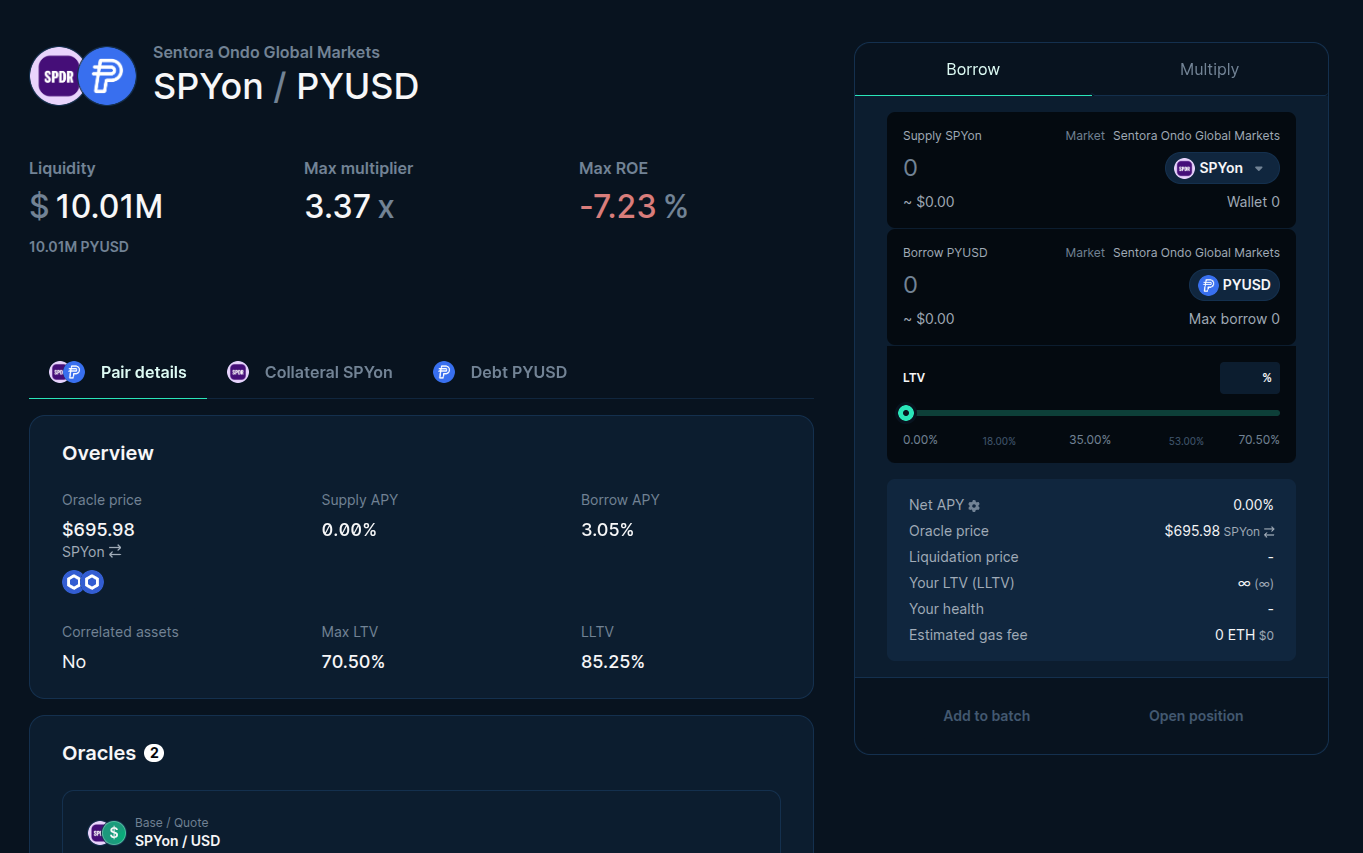
On the borrow form you can select to use the normal borrow method or you can click the ‘Multiply’ tab to switch to the Multiply method.
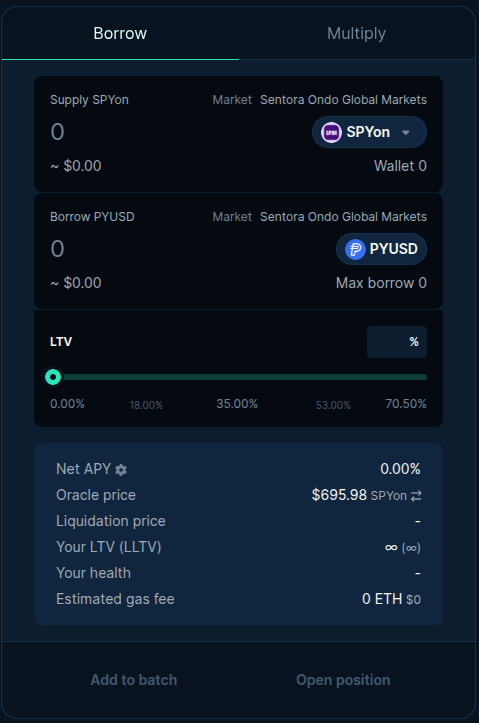
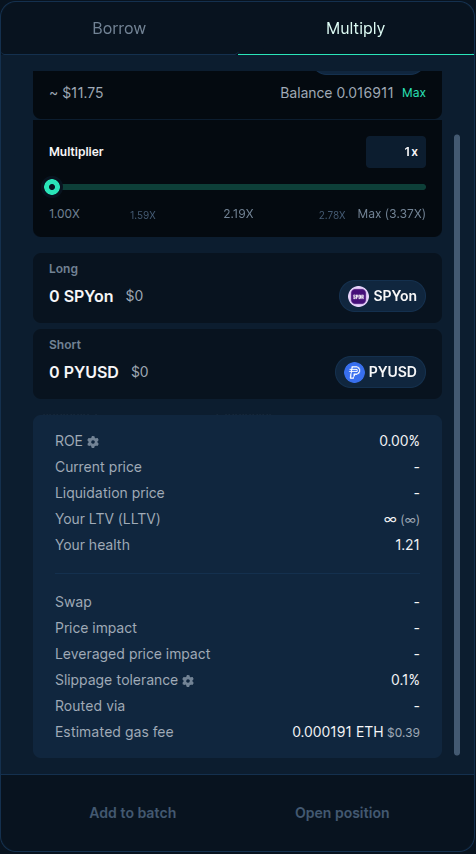
The Multiply borrow allows you to borrow more than you supplied but increases the rate at which liquidation can occur. We will use the regular Borrow method for this example.
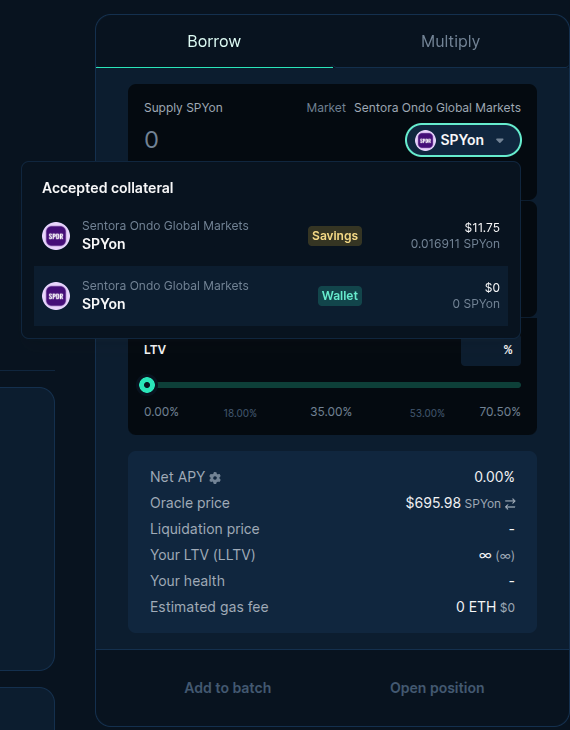
On the collateral token dropdown you can select if you want to supply tokens from your wallet or use your already supplied tokens, if you have any.
Enter the amount you want to supply and borrow then click ‘Open position’.
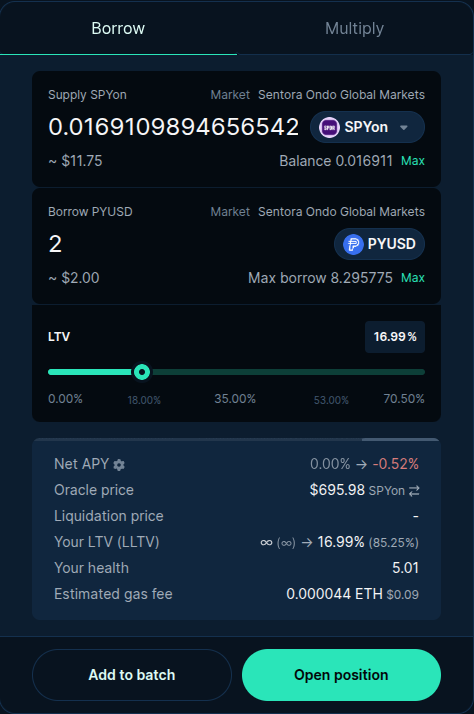
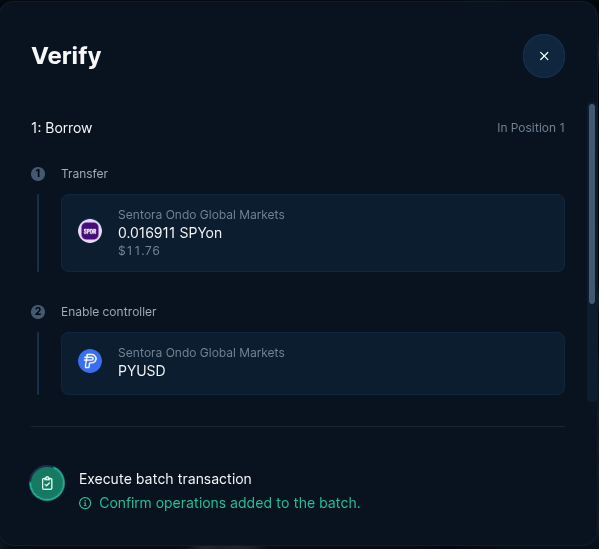
Next the dApp will initiate the batch transaction to supply your tokens and borrow the other tokens.
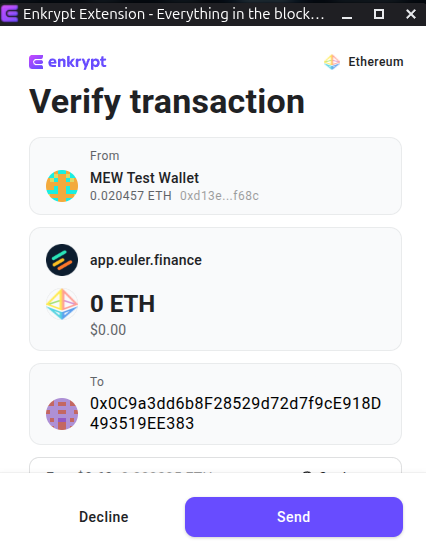
Confirm the transaction on the Enkrypt pop up by clicking the ‘Send’ button.
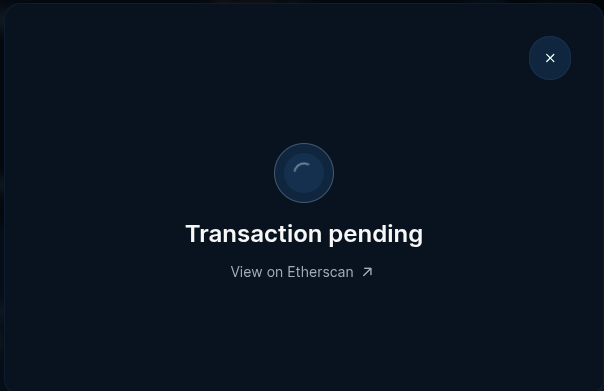
There will be a pop up on the website that will state your transaction is pending.
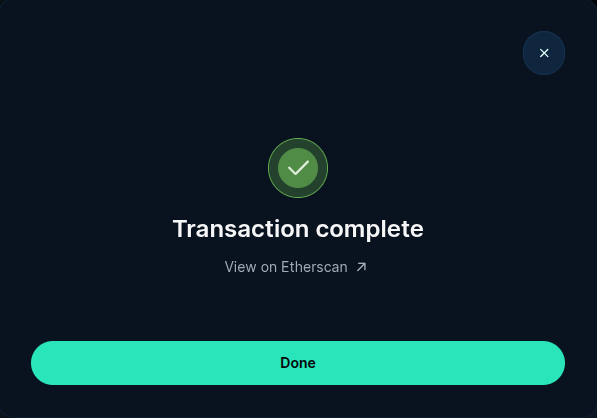
The pop up will state the transaction is complete once it is confirmed on the blockchain. You can click ‘Done’ to proceed.
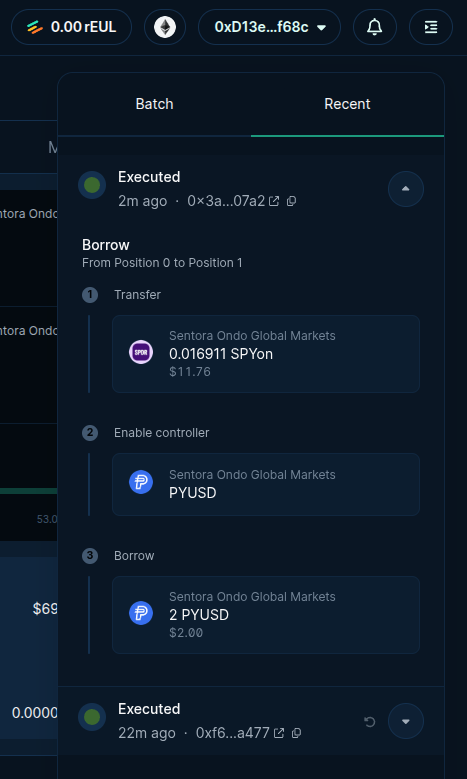
Alternatively, you can view the progress of your transactions by clicking on the right side bar menu then going to the ‘Recent’ tab.
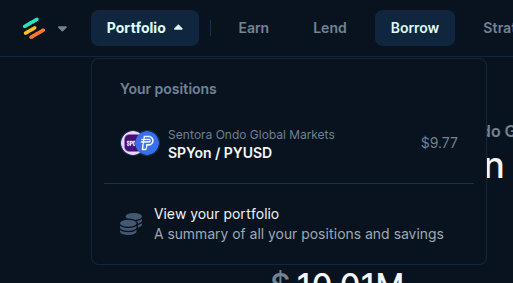
Once the transaction is executed, you can view your position by clicking on the ‘Portfolio’ dropdown.
Repaying your Borrowed Tokens
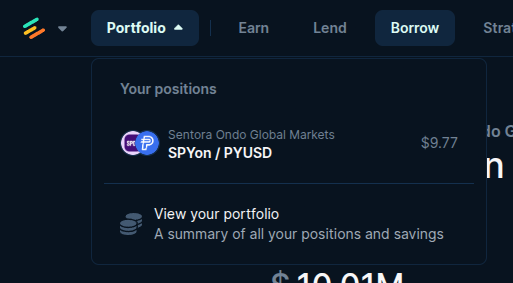
To repay any borrowed tokens, you can click the ‘Portfolio’ dropdown then click on the open position you want to repay or ‘View your portfolio’.
Here you can view more information about your position including the borrowed and collateral tokens.
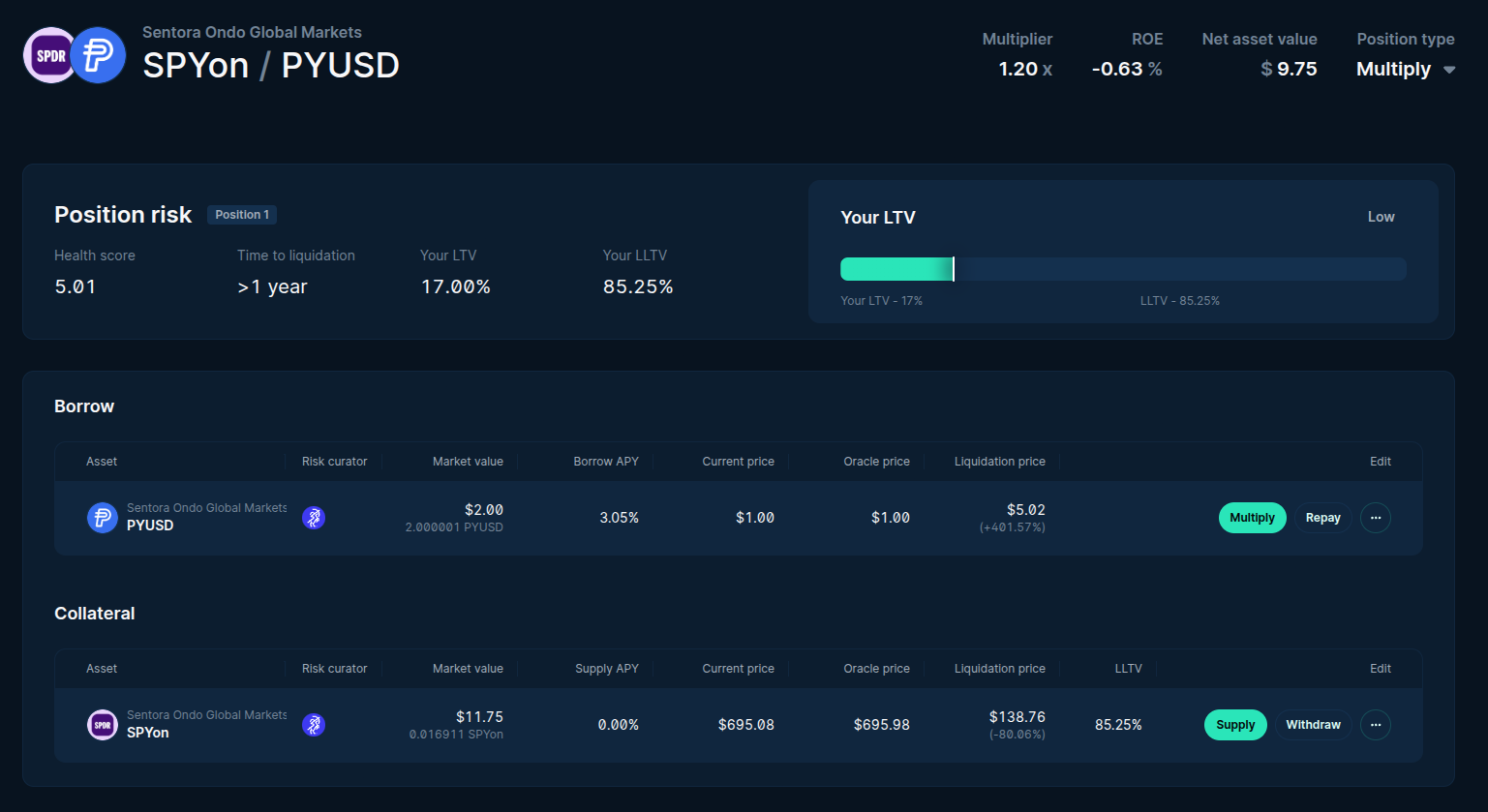
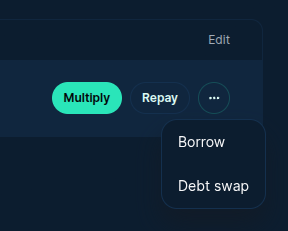
On the right side of the borrowed token, you can switch the borrow method, repay, borrow more or swap the debt to a different debt token. Click ‘Repay’ to continue with the repayment process.
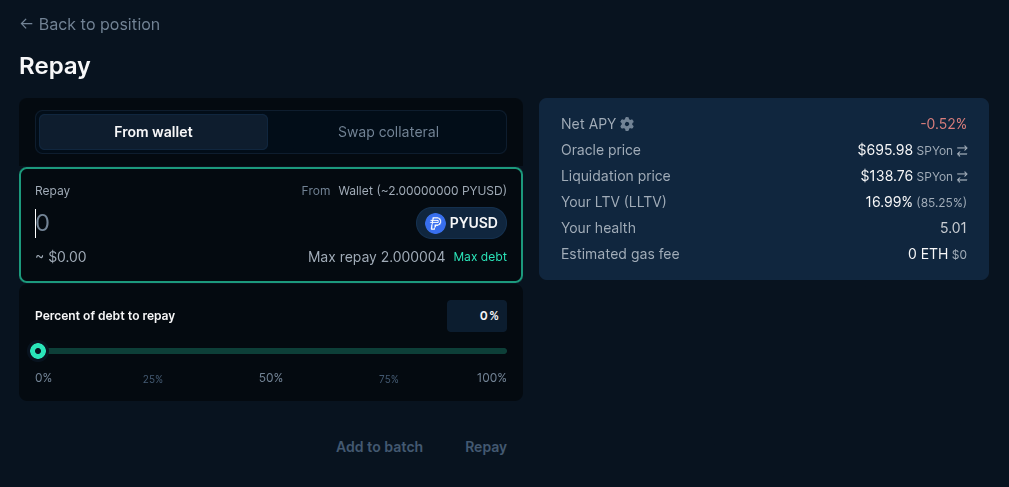
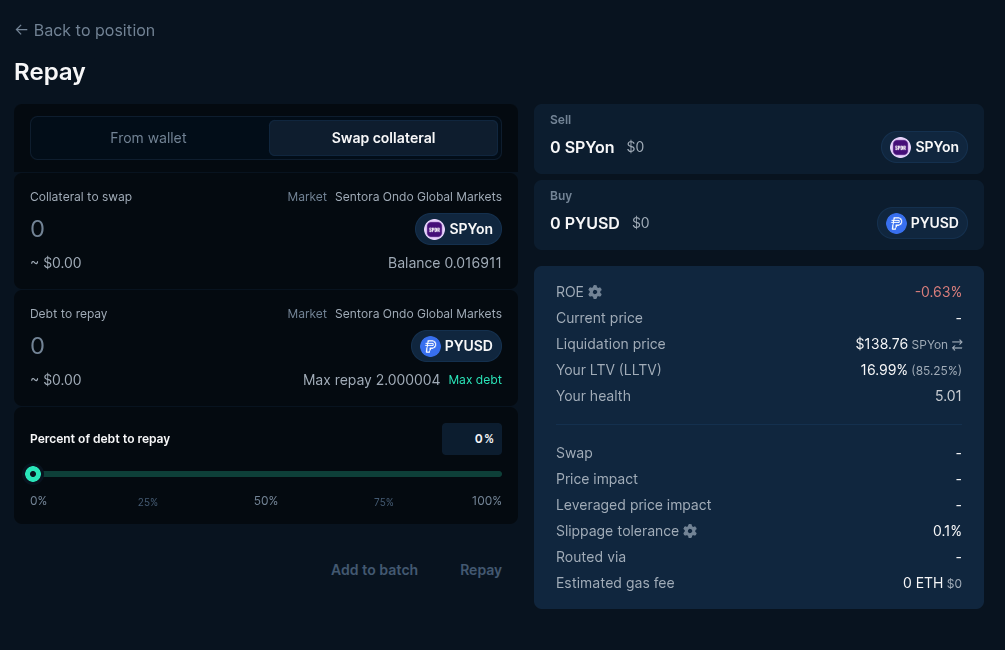
Using the repay form, you can use the tokens from your wallet to repay or by selecting the ‘Swap collateral’ tab you can use your supplied collateral to repay the borrowed tokens.
On the Swap collateral repay form, you can enter the amount you want to swap to repay your tokens. We will use the ‘From wallet’ tab to repay the tokens for this example.
Enter the amount you want repay then click ‘Repay’.
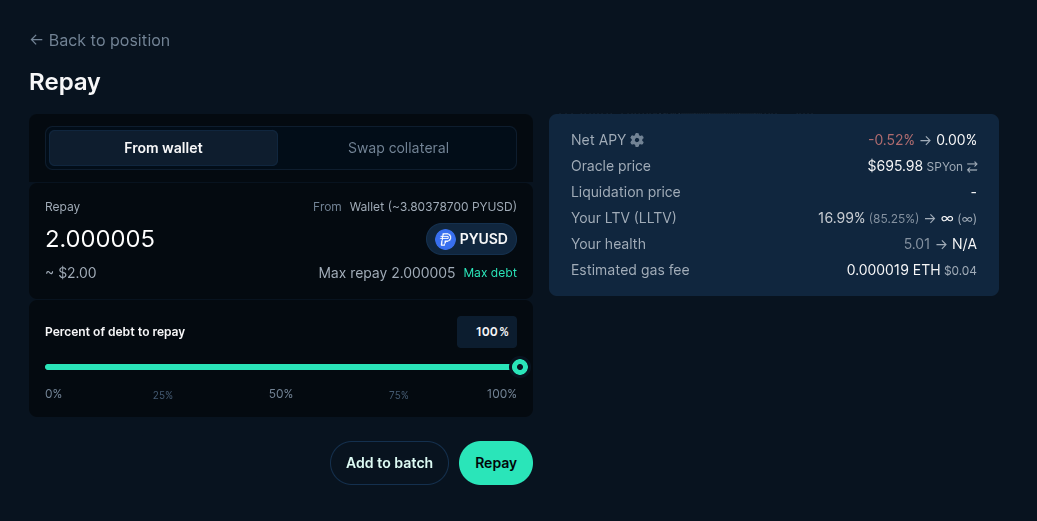
This will initiate the batch transaction to approve and repay your tokens.
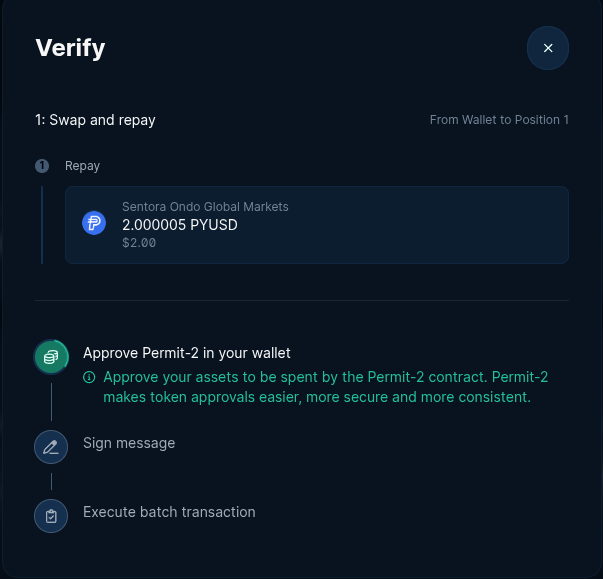
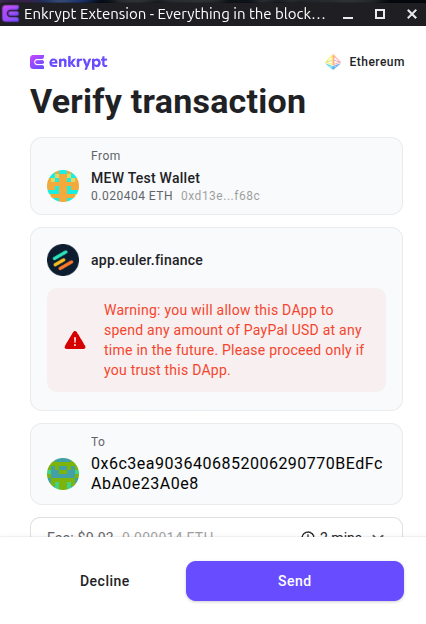
On the Enkrypt pop up, confirm the approval transaction by clicking the ‘Send’ button.
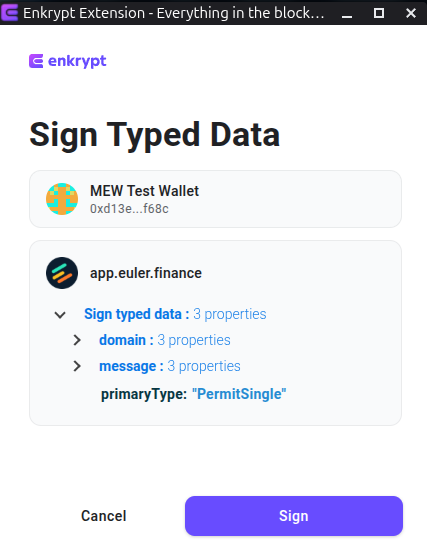
Then sign the permit message on the Enkrypt pop up by clicking ‘Sign’.
Confirm the repayment transaction on the Enkrypt pop up by clicking ‘Send’.
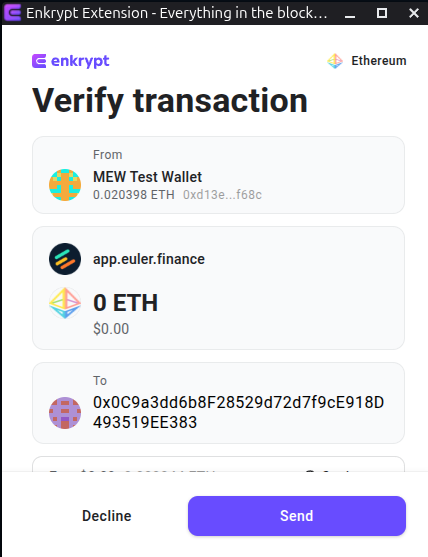
There will be a pop up stating your transaction is pending. This may take a few minutes depending on network congestion.
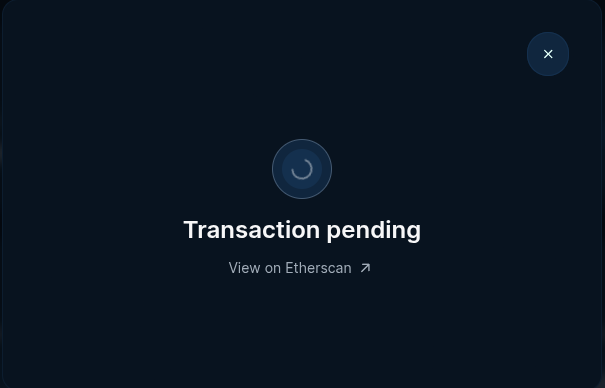
Once the transaction is confirmed on the blockchain, the pop up will state that the transaction is complete. Click ‘Done’ or the ‘X’ to close the pop up.
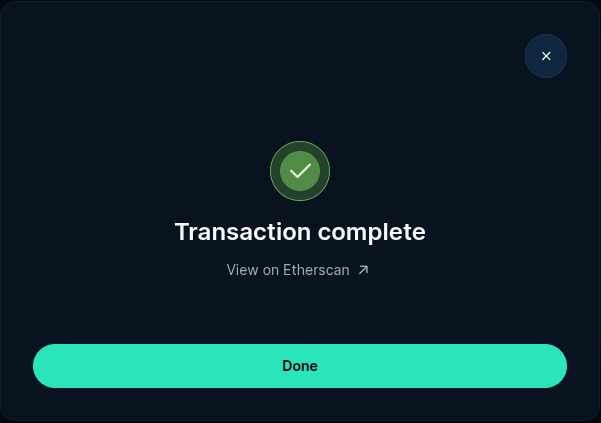
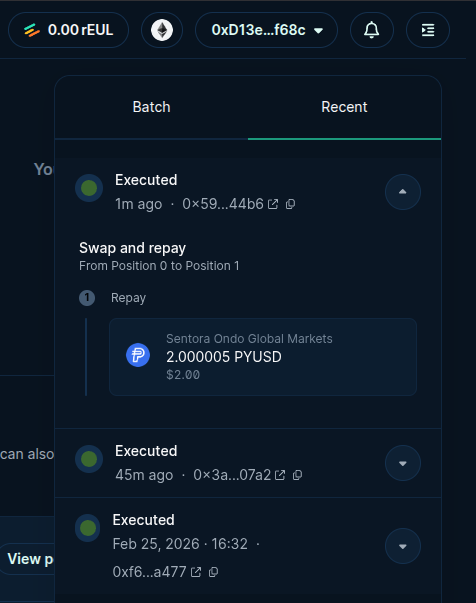
Alternatively, you can view the progress of your transaction by clicking the side menu then going to ‘Recent’.
Withdrawing your supplied tokens
To withdraw your supplied tokens, you can click the ‘Portfolio’ dropdown then click on the open position you want to withdraw or ‘View your portfolio’.
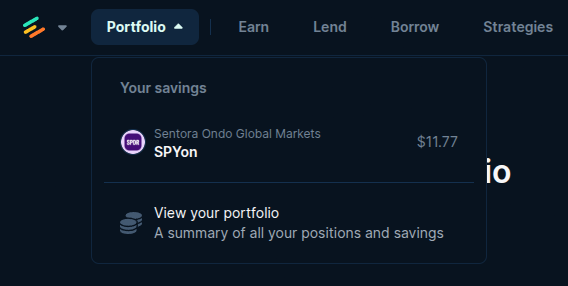
You should be able to see all your supplied assets on this page.
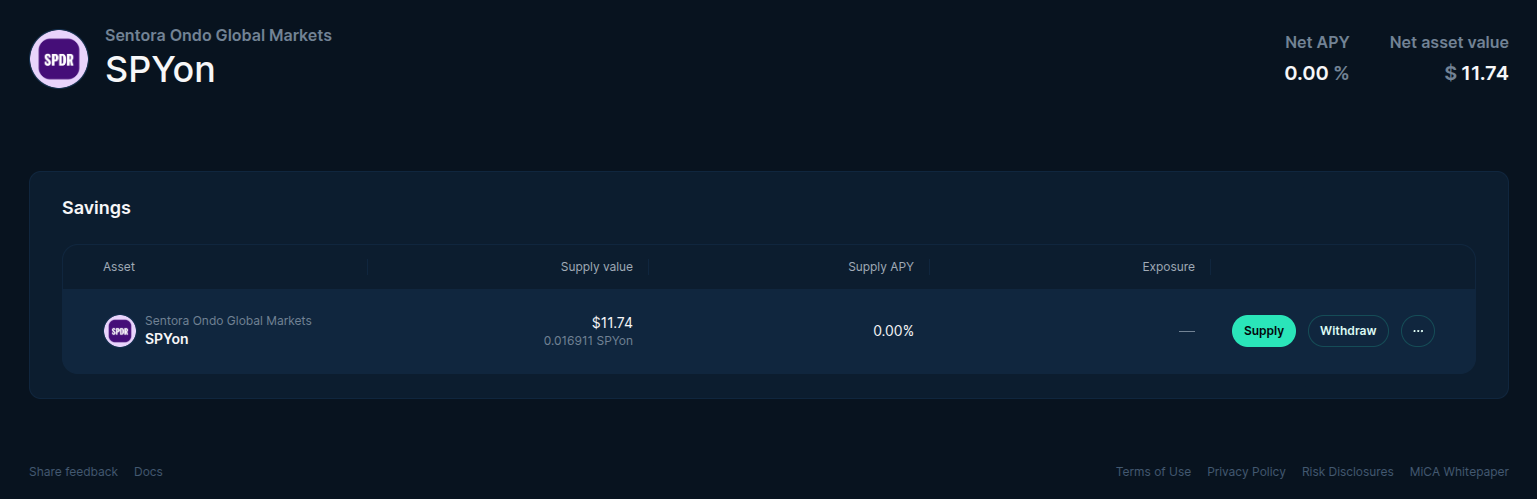
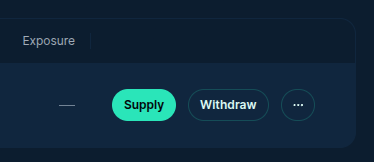
On the right side of the token you want to withdraw, click on the ‘Withdraw’ button.
Enter the amount you want to withdraw then click ‘Withdraw’.
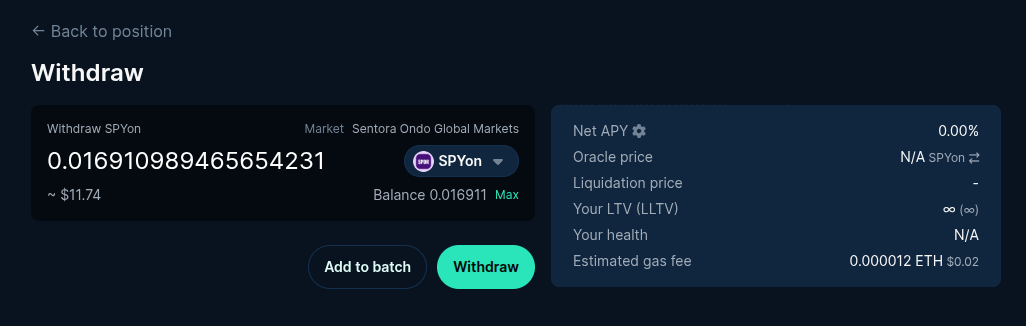
This will initiate the withdrawal process.
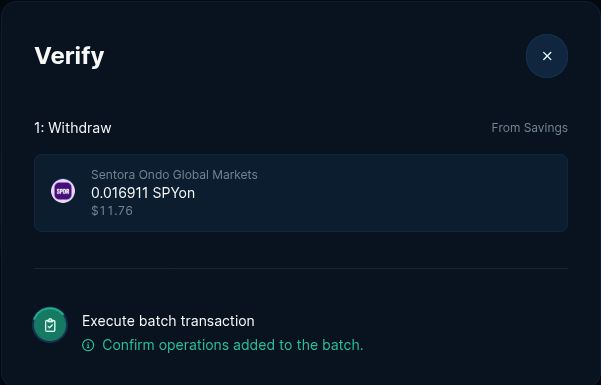
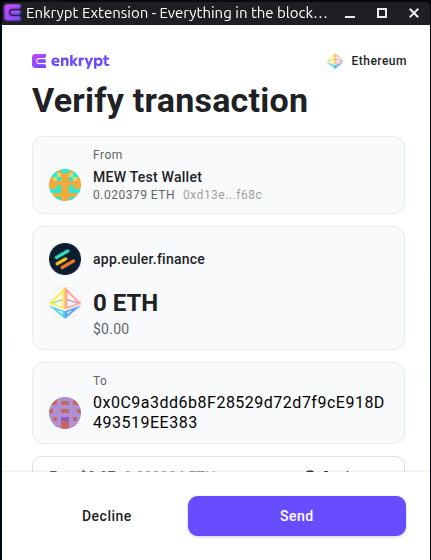
On the Enkrypt pop up, confirm the transaction by clicking the ‘Send’ button.
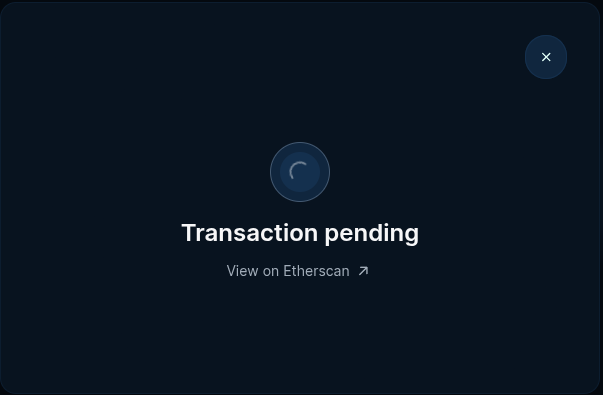
There will be a pop up stating your transaction is pending. This may take a few minutes depending on network congestion.
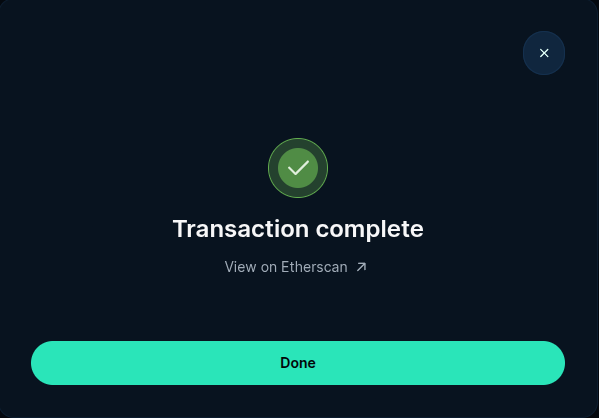
Once the transaction is confirmed on the blockchain, the pop up will state that the transaction is complete. Click ‘Done’ or the ‘X’ to close the pop up.
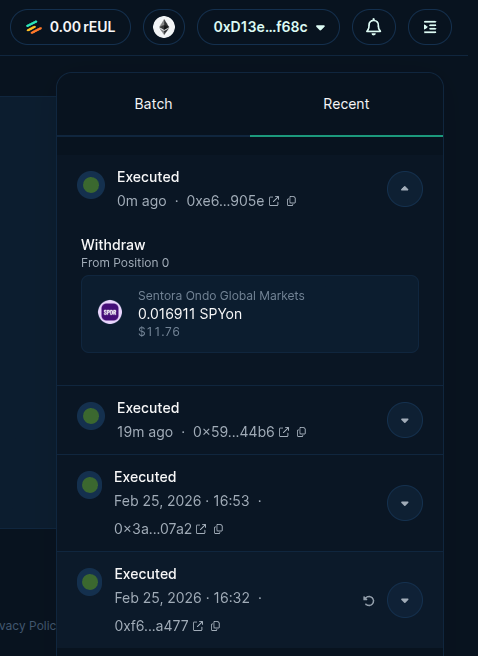
Alternatively, you can view the progress of your transaction by clicking the side menu then going to ‘Recent’.
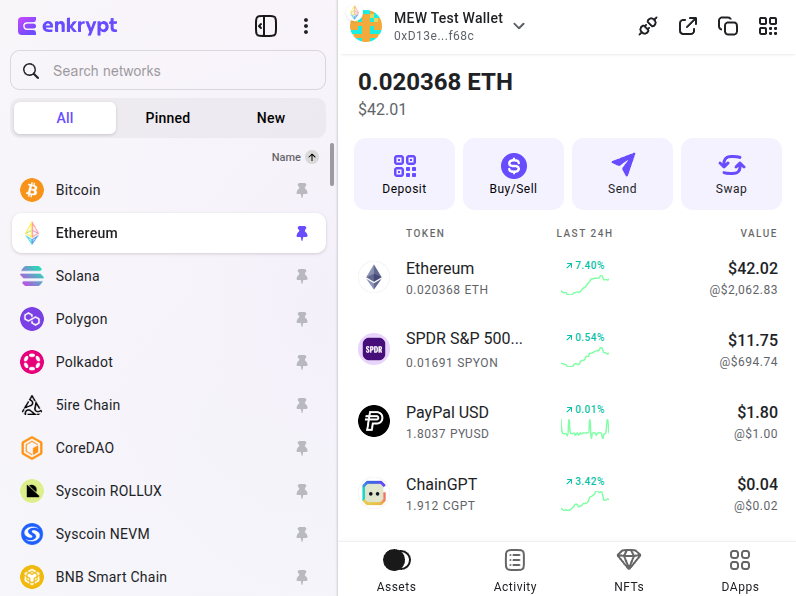
You should be able to see your tokens back in your Enkrypt wallet.
Thank you for checking out our guide on How to use Ondo Tokens on Euler Finance with Enkrypt! Don't forget to download Enkrypt for a seamless web3 multichain wallet experience. We would love to hear from you on our social media about any guide suggestions you have for the future. Also, if you enjoy using mobile cryptocurrency wallets, give our MEW Mobile app a try, it's available on both iOS and Android platforms!