
How to Use Gauntlet with Enkrypt

Gauntlet is a decentralized finance (DeFi) risk-management and optimization platform that uses data, simulations, and economic models to help protocols improve safety, capital efficiency, and performance. It provides insights and automated recommendations for parameters like interest rates, collateral requirements, and incentives to help DeFi platforms operate more efficiently and reduce risks for users.
Enkrypt is a multichain, non-custodial, and open-source web3 browser wallet built by the team behind MEW (MyEtherWallet). With Enkrypt, users and developers can generate accounts, manage tokens and NFTs, and interact with DApps on Ethereum, Solana, as well as Bitcoin, Substrate and any EVM chains. Follow the instructions in this guide on how to use Enkrypt with Gauntlet!
Connecting your wallet
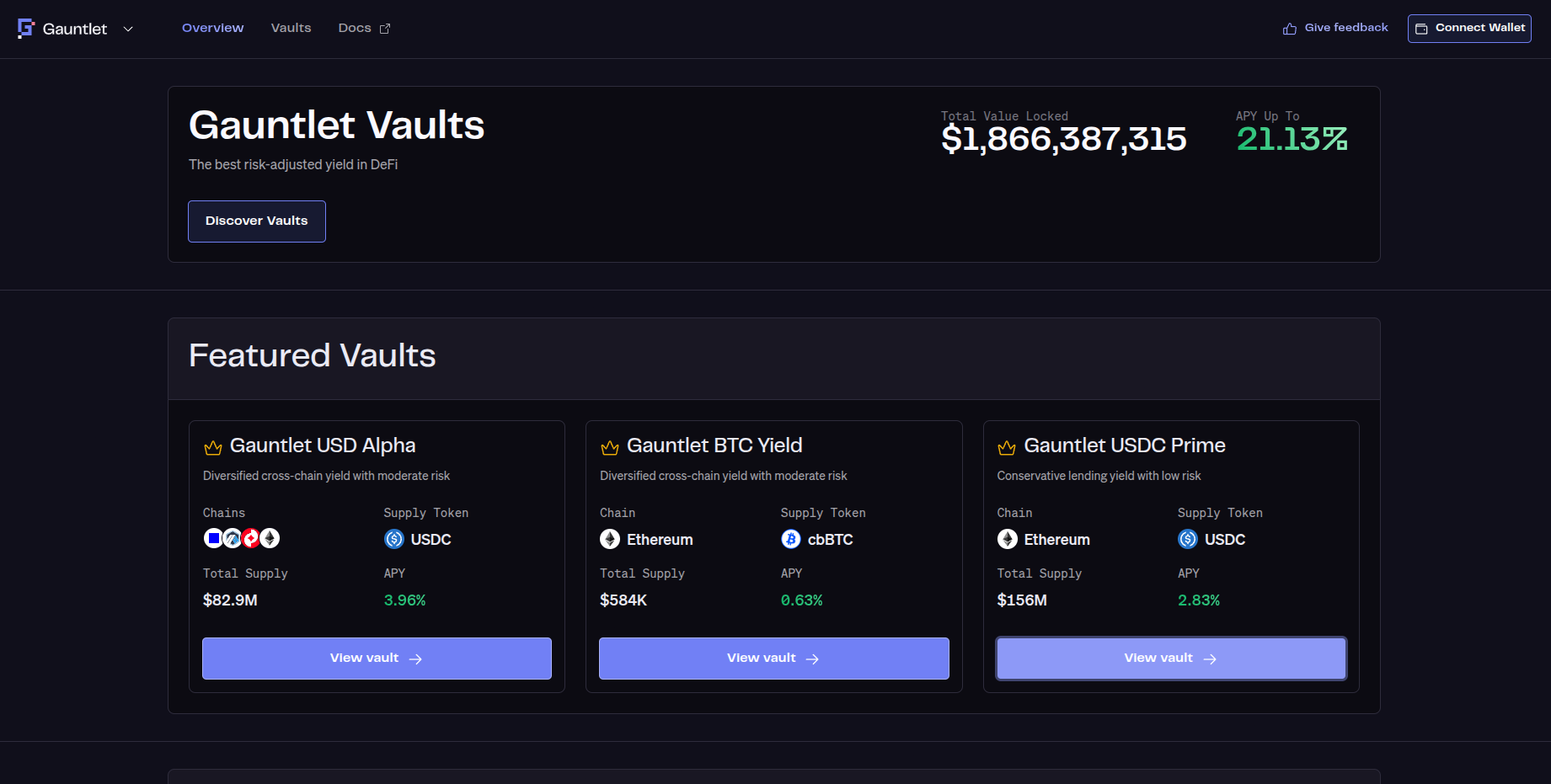
First, head to the Gauntlet website then click ‘Connect Wallet’ at the top right.
Disclaimer: Keep in mind Gauntlet is a third-party DApp and is not affiliated with MEW in any way. Using DeFi involves some inherent risk. Please do your research and proceed at your own discretion.
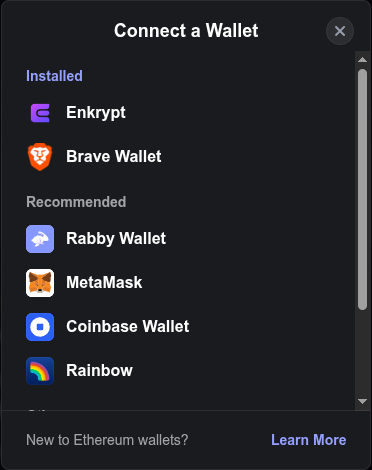
Select the Enkrypt option.
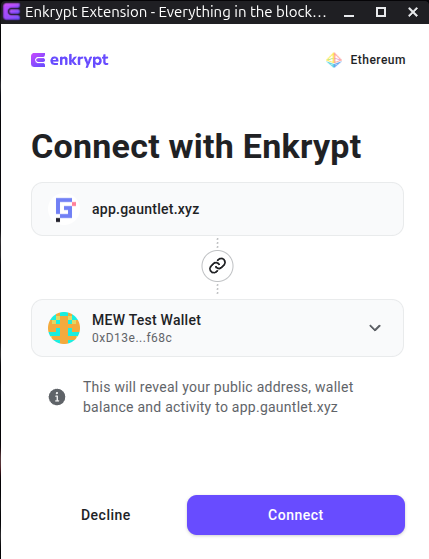
On the Enkrypt pop up, select the account you want to connect with then click ‘Connect’.
Now you should see your wallet address at the top right of the page.

Supplying your tokens
On the navigation menu at the top left, click on ‘Vaults’.

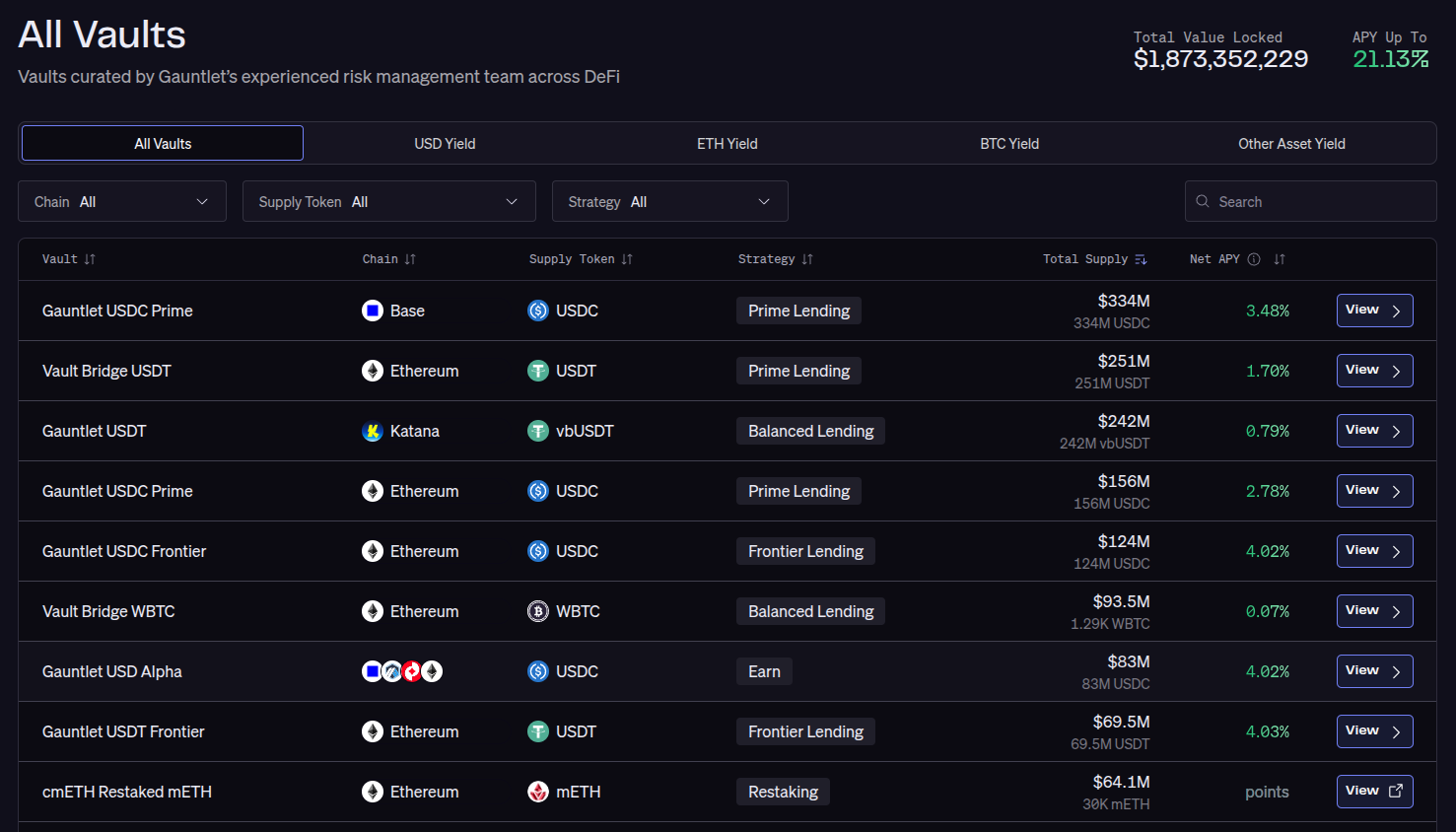
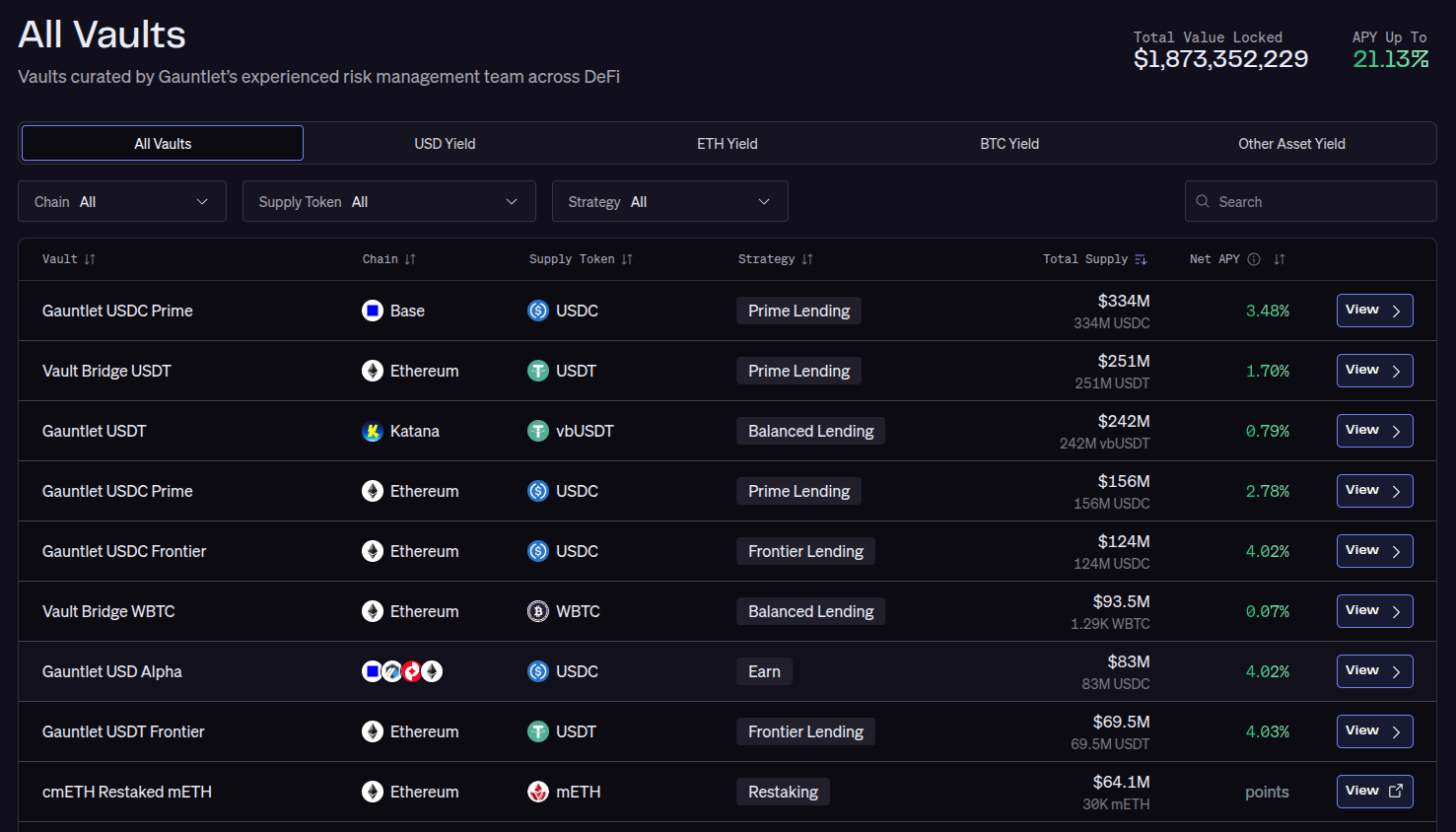
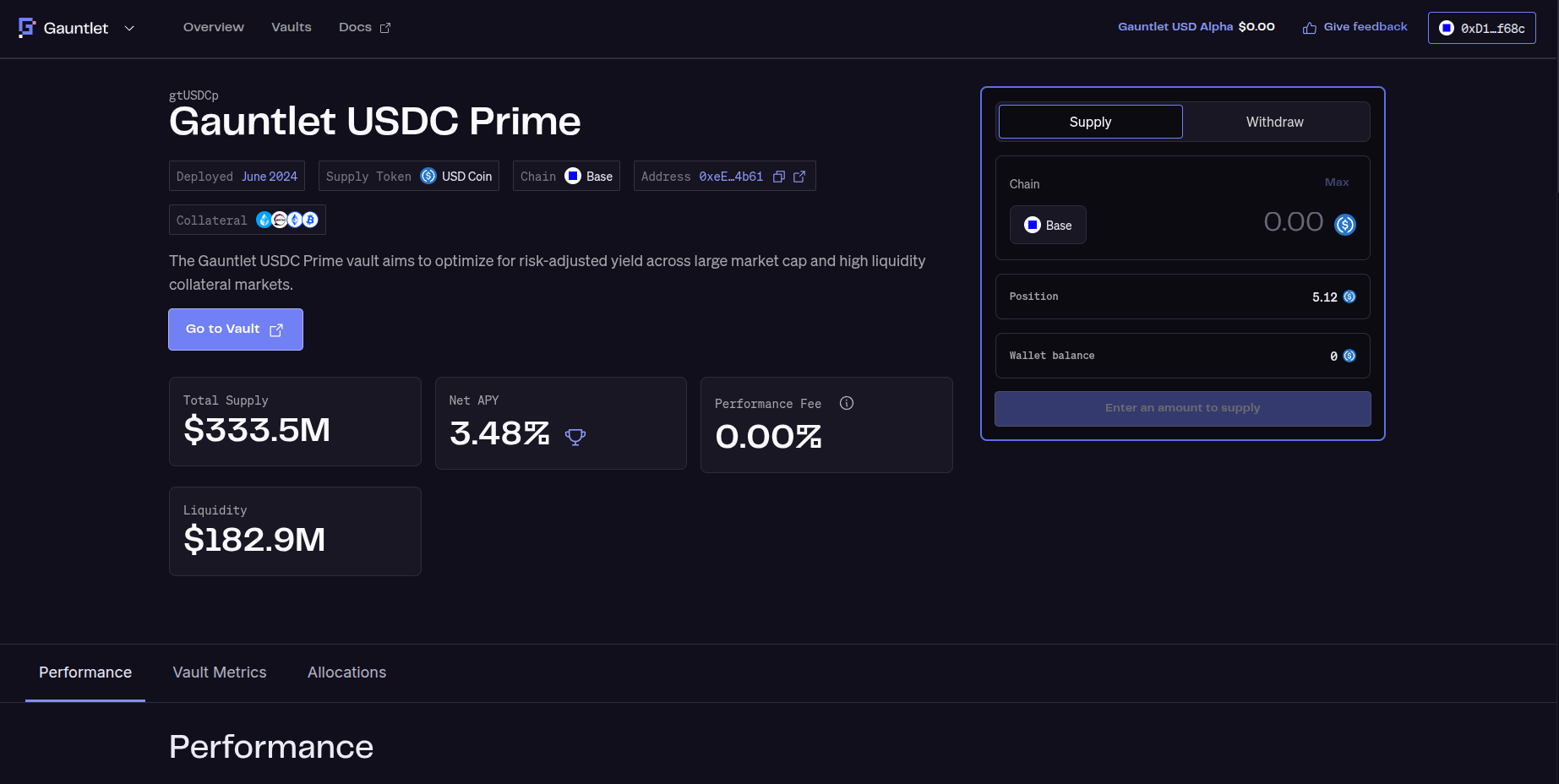
Here you can see all the available vaults curated by Gauntlet. Click on the vault you want to supply your tokens into. We will select the ‘Gauntlet USDC Prime’ vault on Base network for this example.
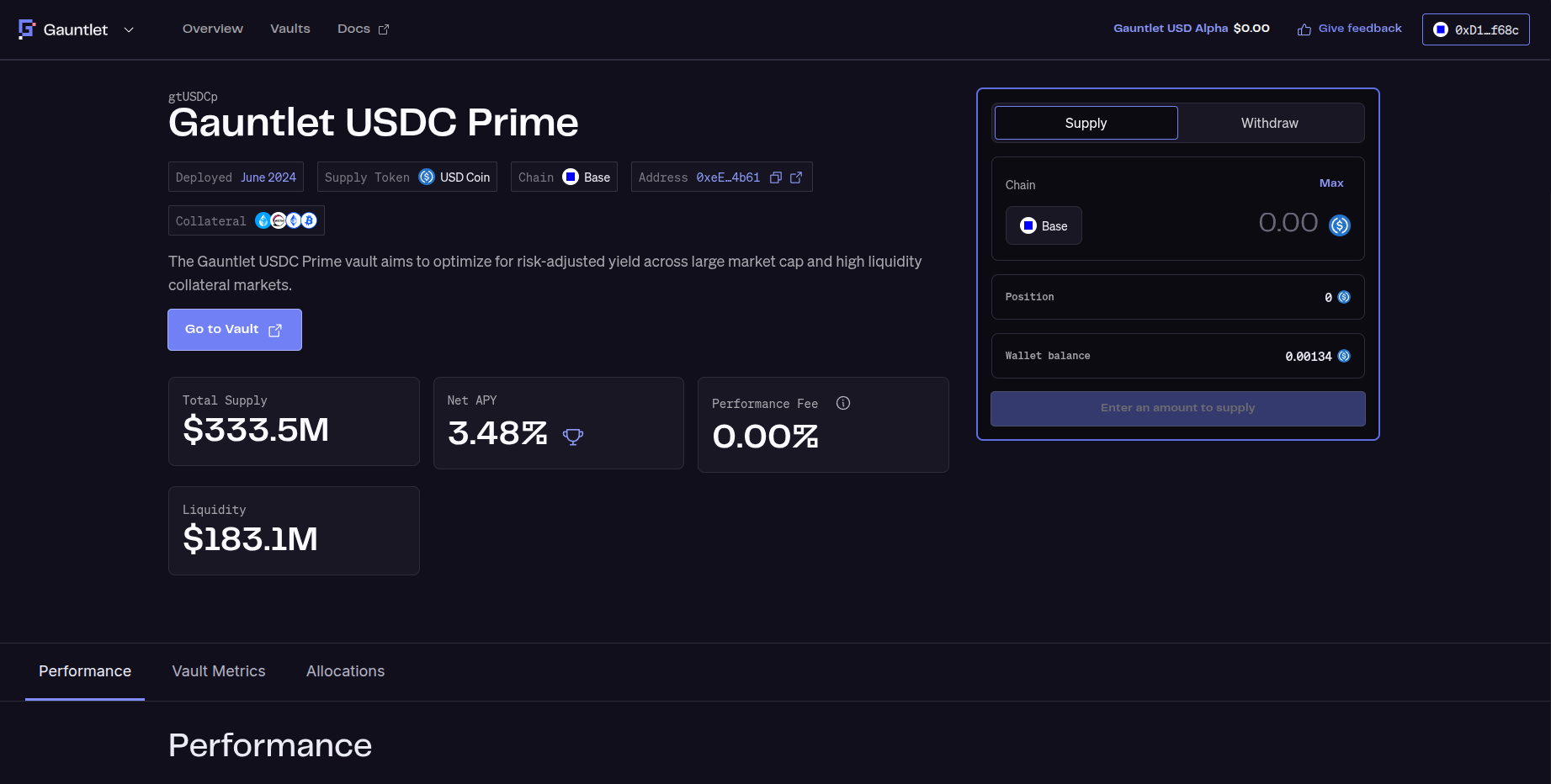
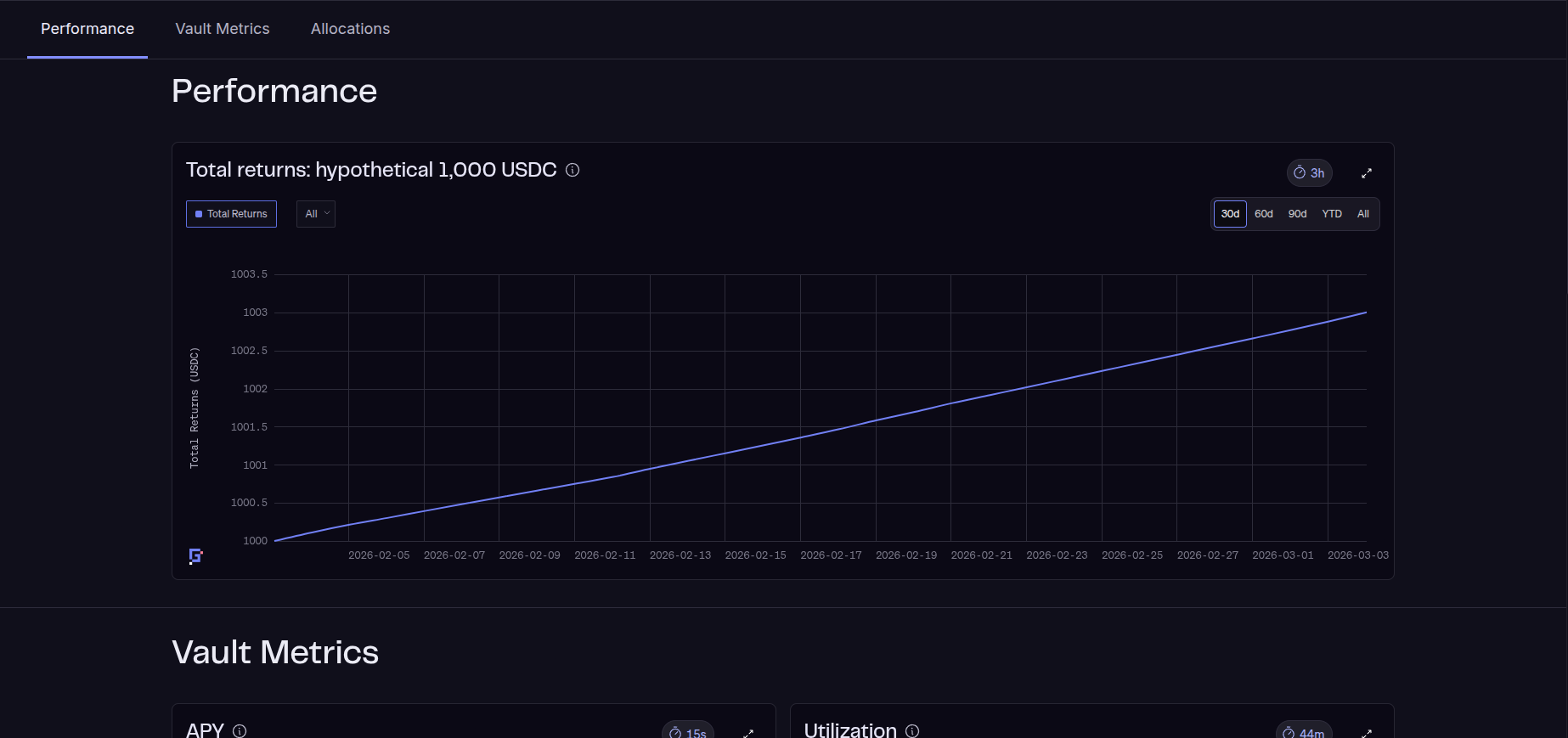
Here you can see more details on the vault if you scroll down and on the right is the supply and withdraw form.
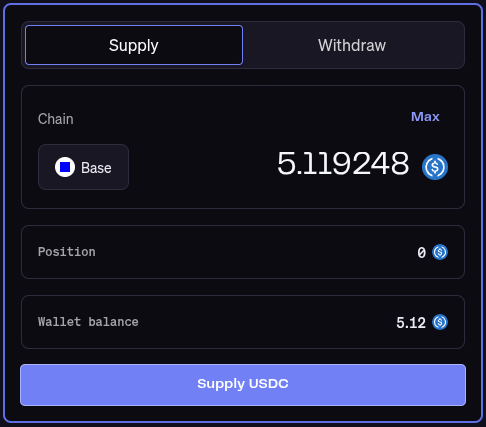
On the supply form, enter the amount you want to supply into the vault then click ‘Supply’.
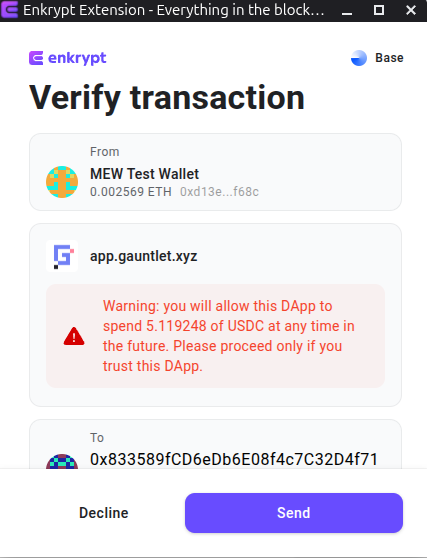
On the Enkrypt pop up, confirm the approval transaction by clicking ‘Send’.
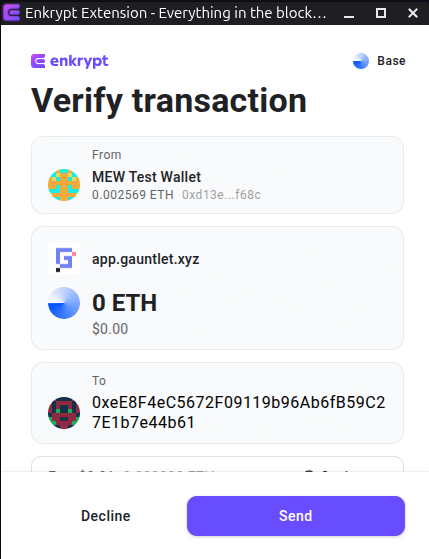
Next, confirm the supply transaction by clicking on the ‘Send’ button on the Enkrypt pop up.
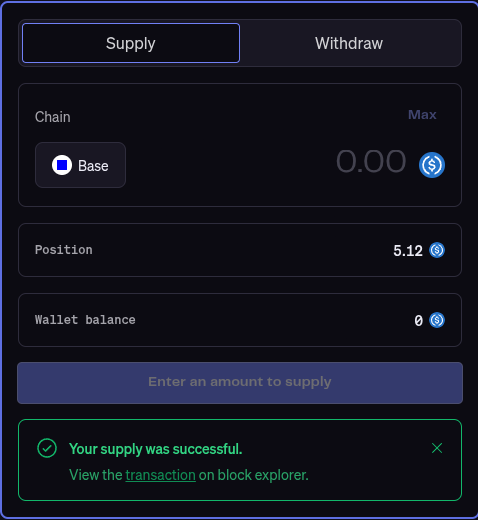
At the bottom of the supply form, there should be a pop up stating ‘Your supply was successful’.
Withdrawing your tokens
On the navigation menu at the top left, click on ‘Vaults’.

Select the vault that you have supplied tokens to. We will select ‘Gauntlet USDC Prime’ on the Base network for this example.
On the right hand side of the page on the supply form, click the ‘Withdraw’ tab.
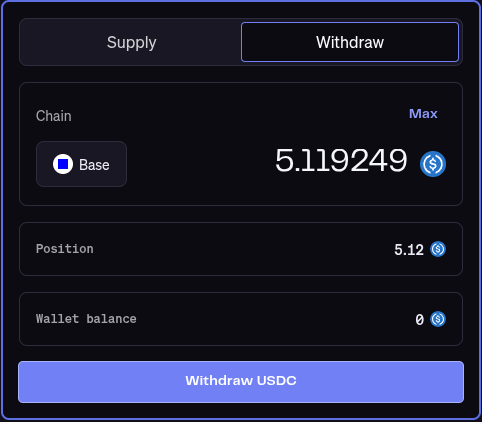
Enter the amount you want to withdraw from the vault then click ‘Withdraw’.
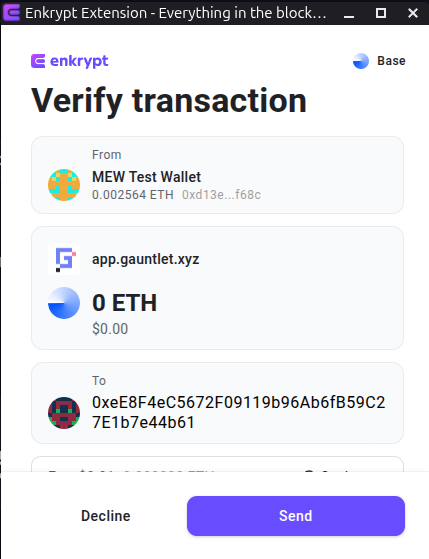
On the Enkrypt pop up, confirm the withdrawal transaction by clicking the ‘Send’ button.
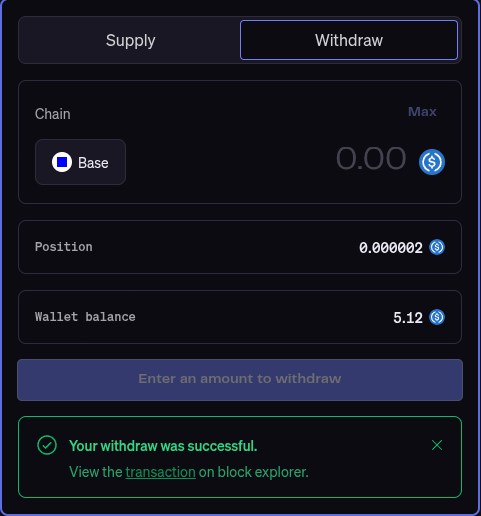
At the bottom of the Withdraw form, there should be a pop up that states ‘Your withdraw was successful’.
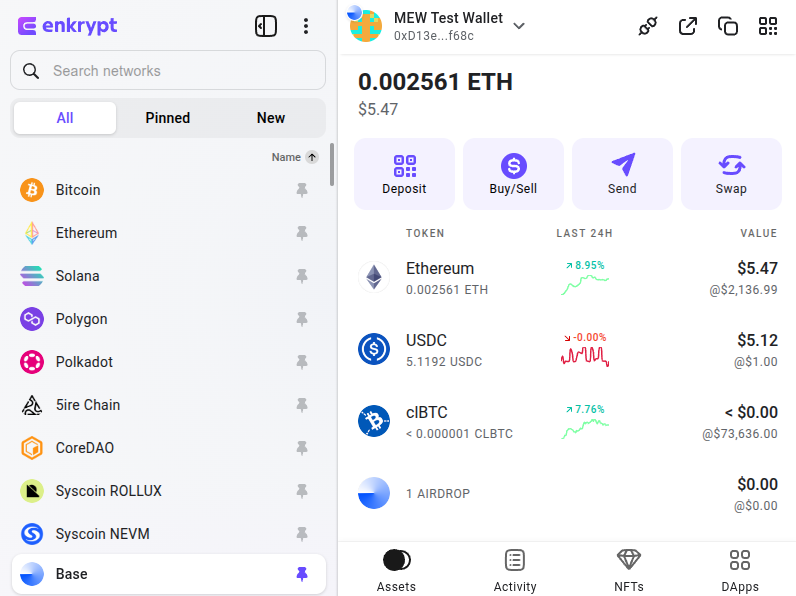
You should also be able to see your tokens in your Enkrypt wallet.
Thank you for checking out our guide on How to use Gauntlet with Enkrypt! Make sure to follow us on X(Twitter) and let us know your thoughts. Sign up for our newsletter to stay up to date with MEW releases, and check out our weekly podcast Crypto Currents for the latest news in crypto.