
How to use Bronto with Enkrypt

Bronto Finance is a DeFi protocol built specifically for the MegaETH blockchain that offers token swaps, liquidity provision, staking, and governance — all with features designed to maximize efficiency and yield. It uses a concentrated-liquidity model to reduce slippage and improve capital efficiency, and a ve(3,3) tokenomics structure that lets users lock tokens for voting power, revenue share, and governance.
Connecting to Bronto
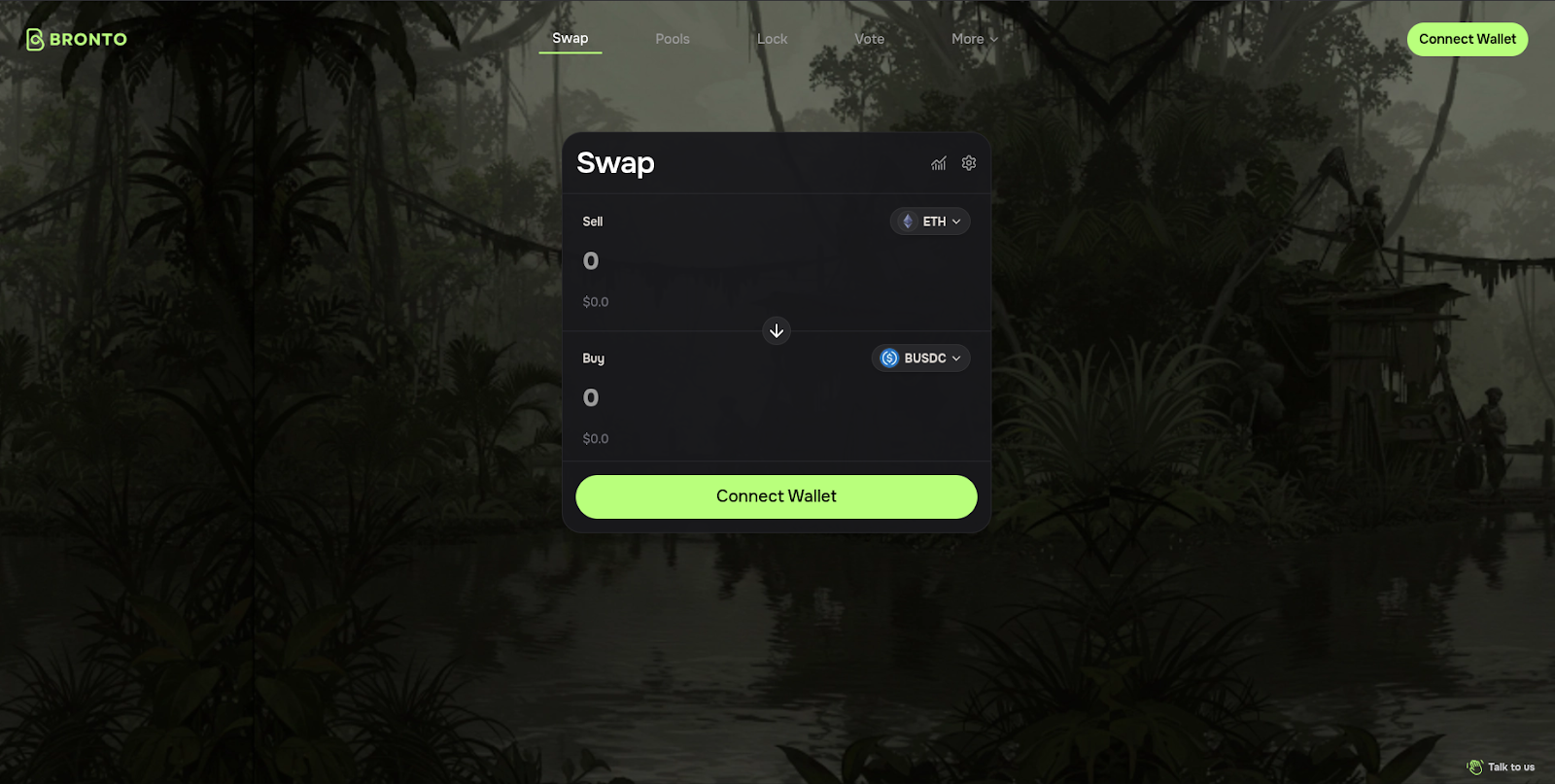
First, head to the Bronto dApp then click ‘Connect Wallet’.
Disclaimer: Keep in mind Bronto is a third-party DApp and is not affiliated with MEW in any way. Using DeFi involves some inherent risk. Please do your research and proceed at your own discretion.
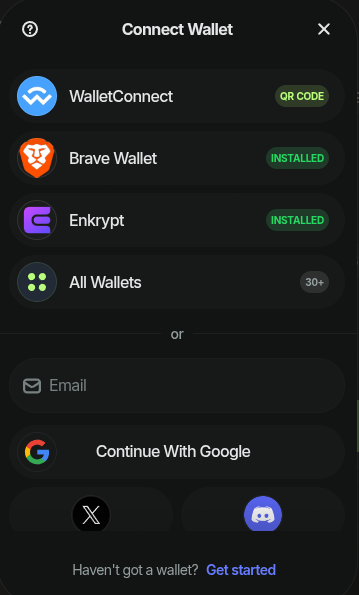
Select the ‘Enkrypt’ option.
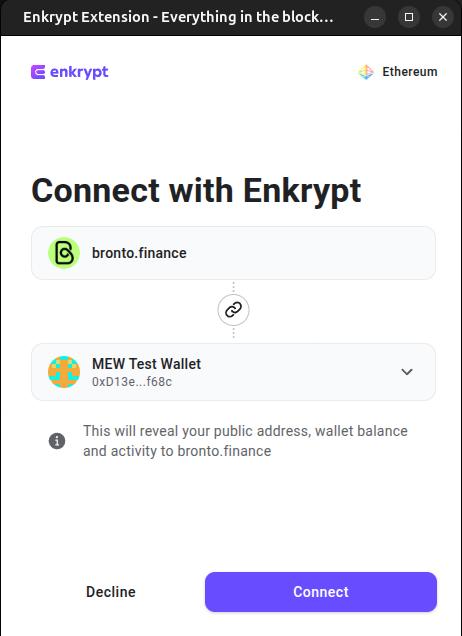
On the Enkrypt pop up, Select the wallet you want to use then click ‘Connect’.
Now you are ready to swap!
Swapping Tokens
On the swap form, click the Sell token dropdown to open the token list.
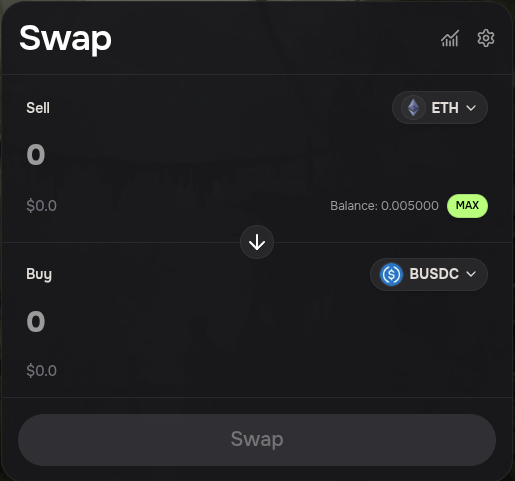
Select the token you want to swap. We will choose ETH for this example.
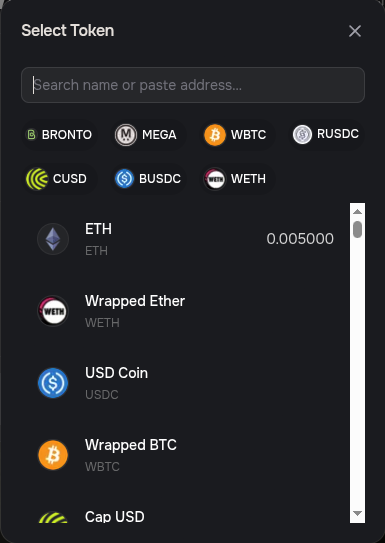
Click the Buy token dropdown to open the token list.
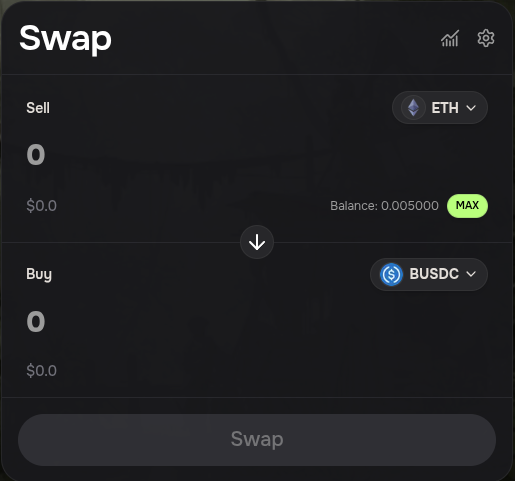
Select the token you want to receive. We will choose the USDC token for this example.
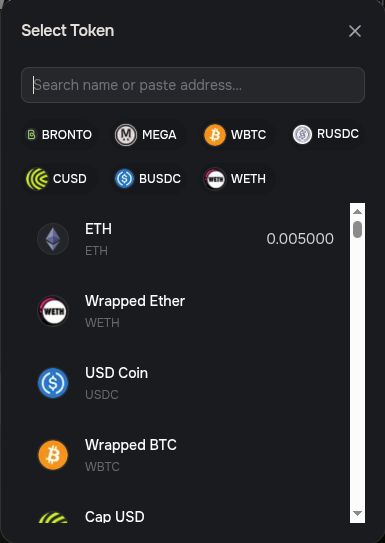
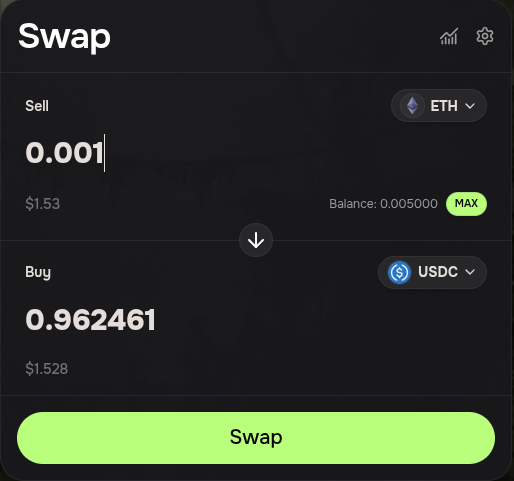
Enter the amount you want to swap then click ‘Swap’.
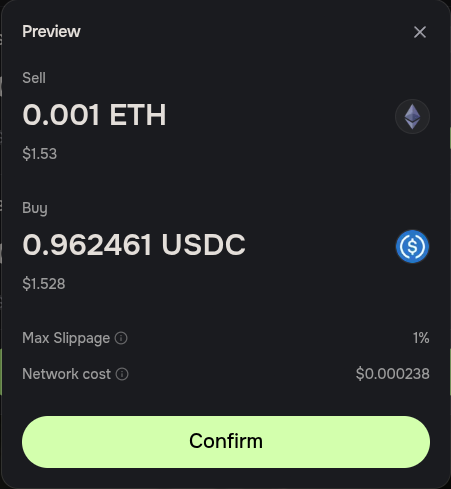
Review the swap details then click ‘Confirm’ to proceed with the swap.
Since we are swapping from ETH, there will be 3 transactions that will need to be confirmed.
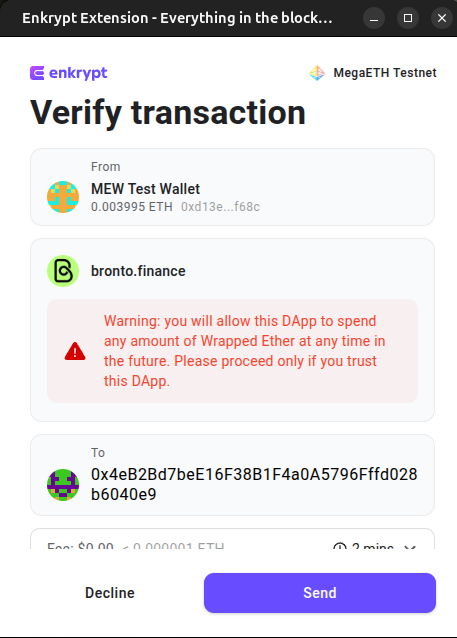
The first transaction will wrap ETH to Wrapped ETH (WETH). Confirm the transaction on the Enkrypt pop up by clicking the ‘Send’ button.

The second transaction is the approval to use our WETH tokens in the swap transaction.
Confirm the transaction on Enkrypt by clicking ‘Send’
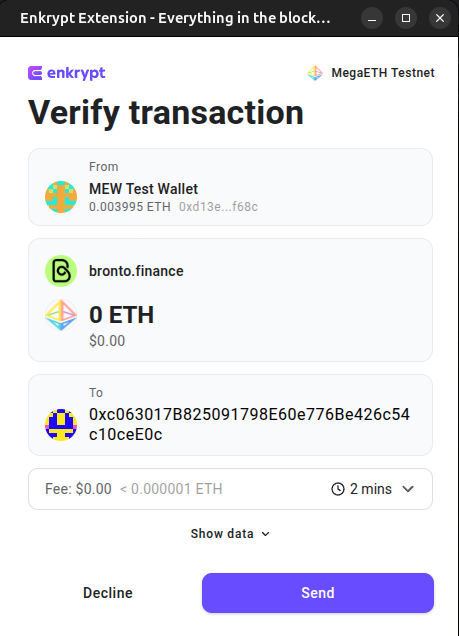
The last transaction will be the actual swap transaction.
On the Enkrypt pop up, click ‘Send’ to confirm the transaction.
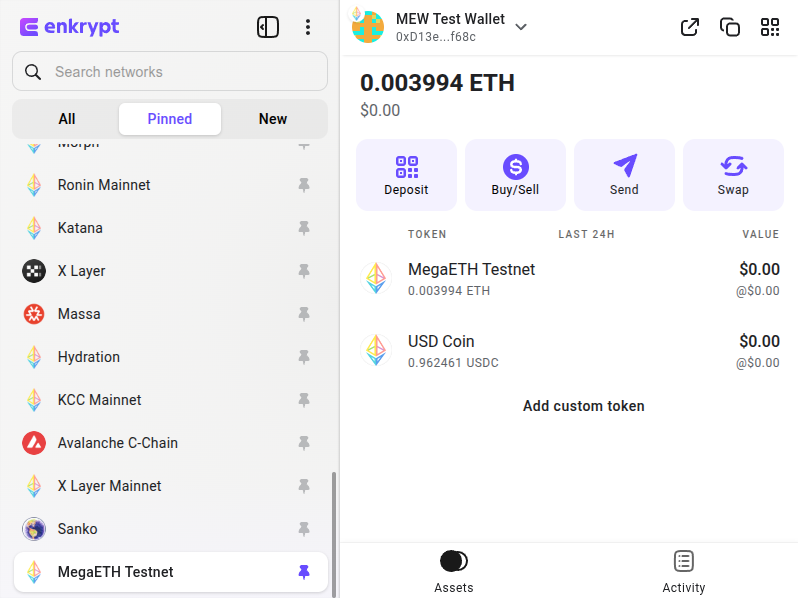
Once the transaction is confirmed, you can view the tokens in your wallet but you may have to add the token as a custom token. To learn how to add a custom token you can follow this guide and the MegaETH Testnet Explorer.
Adding Liquidity
First, head to Bronto dApp then click ‘Pools’ in the navigation menu.
Disclaimer: Keep in mind Bronto is a third-party DApp and is not affiliated with MEW in any way. Using DeFi involves some inherent risk. Please do your research and proceed at your own discretion.

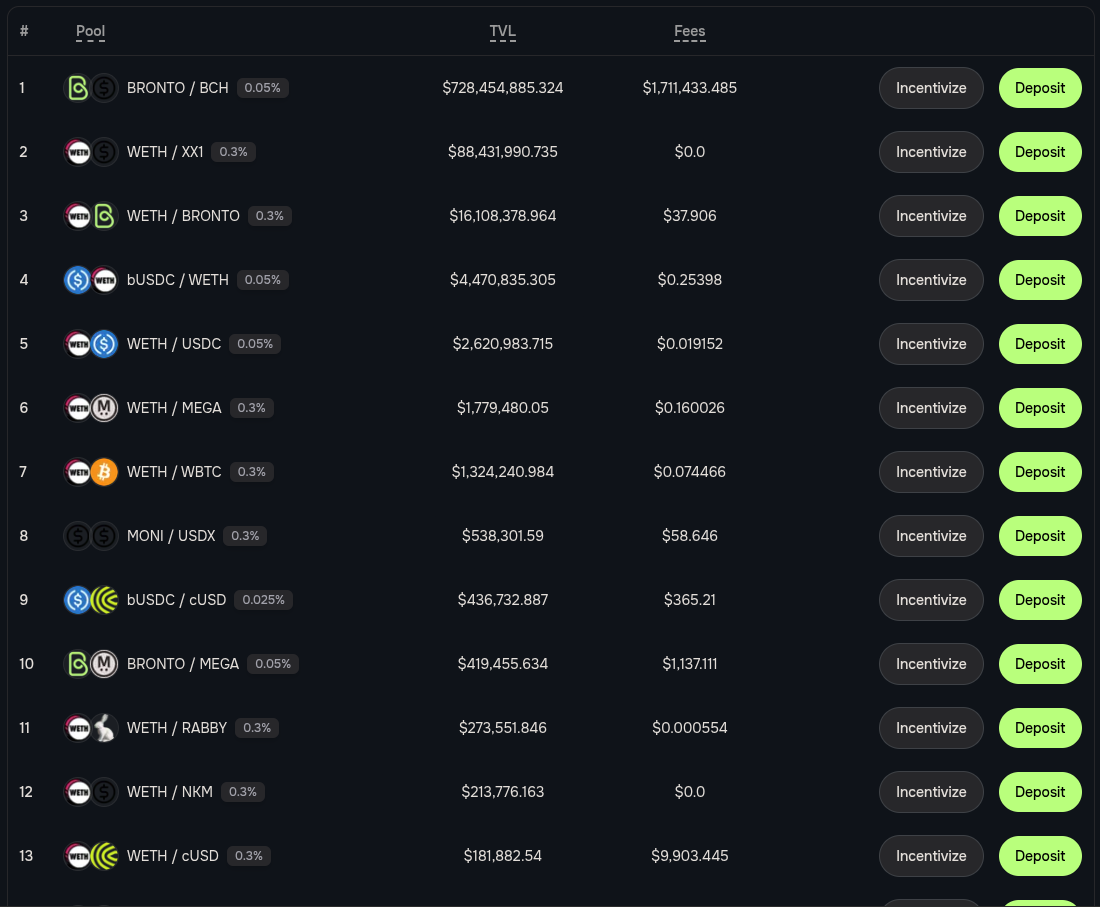
Select the liquidity pool you want to deposit your tokens into. We will choose the WETH/USDC liquidity pool for this example.
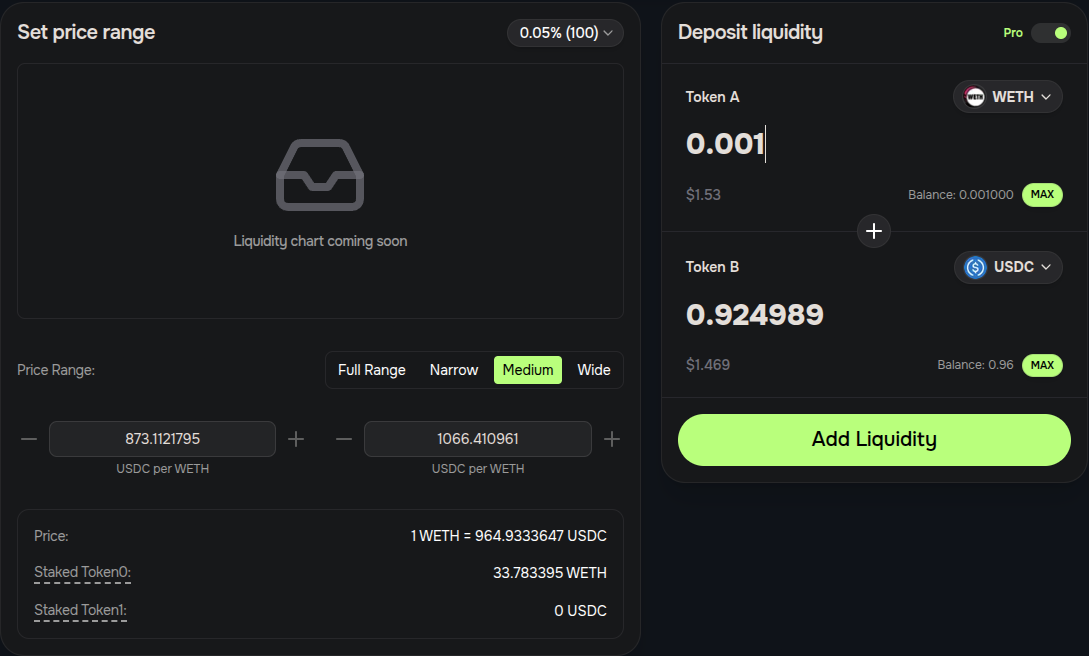
On the left side of the page you can set the price range, we will leave it on the default settings.
On the right side of the page, you can enter the amount you want to deposit into the pool then click ‘Add Liquidity’.
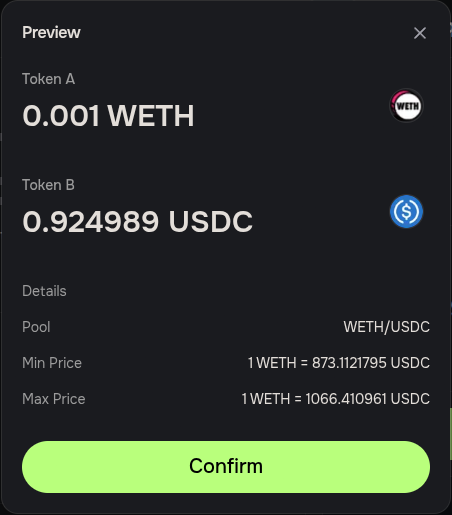
Review the deposit details then click ‘Confirm’.
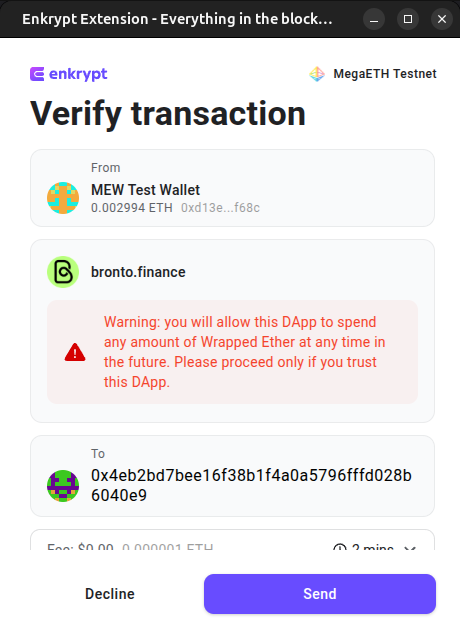
We will need to approve the dApp to use our WETH. Confirm the transaction on the Enkrypt pop up by clicking ‘Send’.
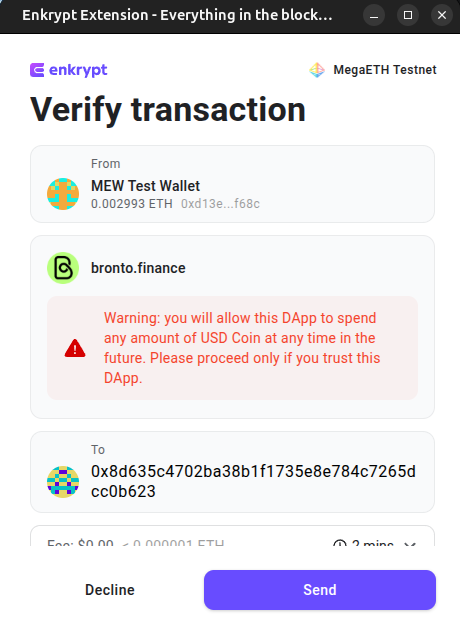
Next, we will need to approve the dApp to use our USDC tokens. Confirm the transaction on the Enkrypt pop up by clicking ‘Send’.
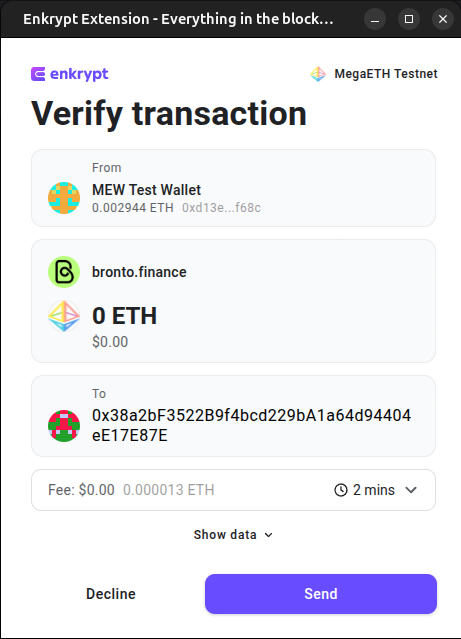
Finally, we can deposit our tokens into the liquidity pool. Confirm the transaction on the Enkrypt pop up by clicking ‘Send’.
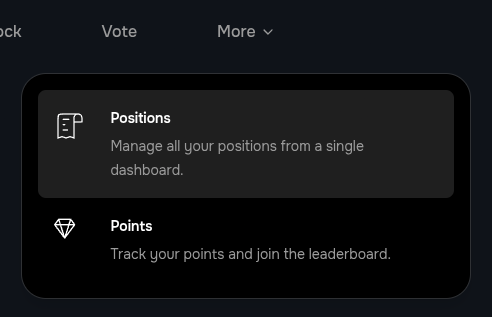
After the transaction is confirmed, you can view your position by clicking the ‘More’ dropdown in the navigation menu then select ‘Positions’.
Here you can view your positions and manage your position by clicking ‘Manage’. We will click ‘Manage’ on the WETH/USDC pool.
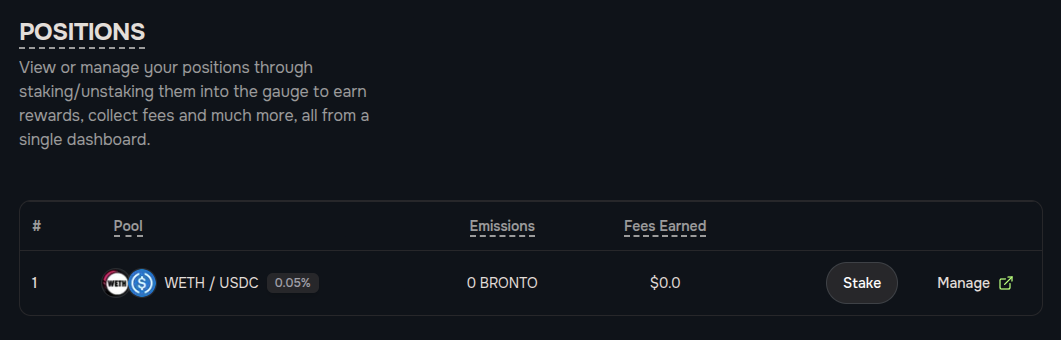
Here you can add more liquidity, remove all or some of your liquidity or claim the fees earned so far.

Thank you for checking out our guide on How to use Bronto with Enkrypt! Don't forget to download Enkrypt for a seamless web3 multichain wallet experience. We would love to hear from you on our social media about any guide suggestions you have for the future. Also, if you enjoy using mobile cryptocurrency wallets, give our MEW Mobile app a try, it's available on both iOS and Android platforms!