
Enkrypt Wallet with MEW Portfolio for Crypto and Stocks
Connect your Enkrypt wallet to MEW Portfolio which now offers crypto swaps and tokenized stock trading without a brokerage, minimums, or KYC.

Enkrypt is a multichain, non-custodial, and open-source web3 browser wallet built by the team behind MEW (MyEtherWallet). With Enkrypt, users and developers can generate accounts, hold and manage crypto across dozens of networks, trade stocks and swap tokens, and interact with DApps on Ethereum, Solana, and any EVM chains. Follow the instructions in this guide on how to use Enkrypt with the new updated MEW Portfolio!
MyEtherWallet (MEW) is a non-custodial platform that lets users create, access, and manage crypto wallets directly, staying in full control their private keys and assets. MEW allows users to send and receive ETH, BTC, tokens on multiple networks, interact with decentralized applications (dApps), swap crypto and stake ETH. The new updated dashboard introduces the trading of tokenized stocks without relying on a broker or a centralized platform.
Connecting Your Wallet
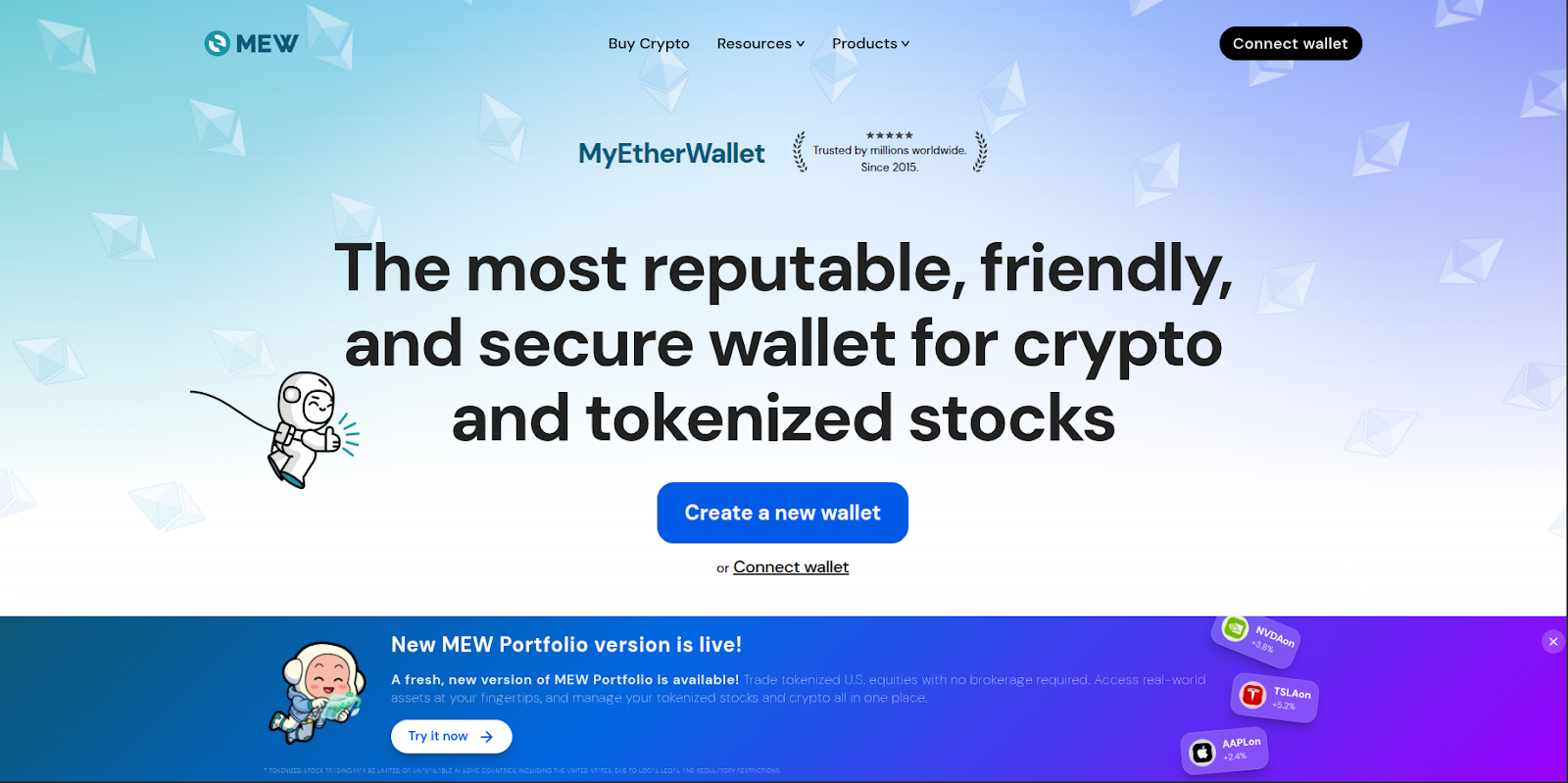
First, head on over to the MyEtherWallet website then click ‘Connect wallet’ at the top right or below the ‘Create a new wallet’ button.
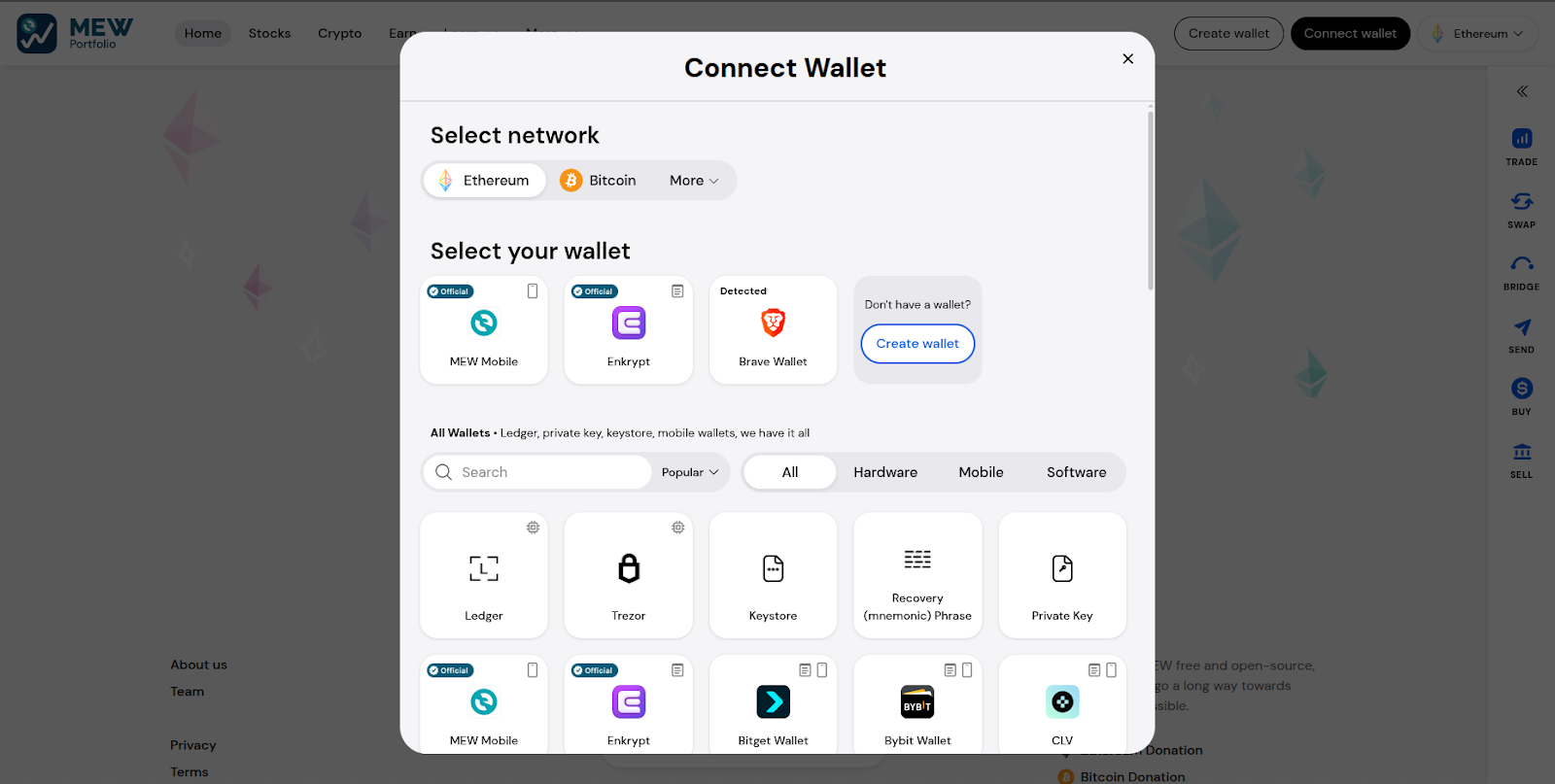
Select the ‘Enkrypt’ option in the pop up.
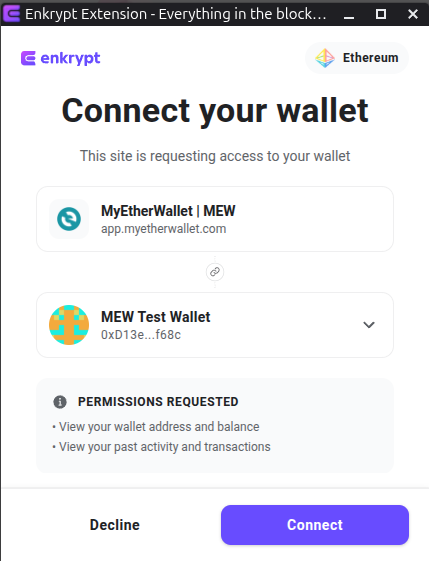
On the Enkrypt pop up, select the account you want to connect to MEW Portfolio then click ‘Connect’.
Your wallet is now connected and you should see your colorful account card along with details about your wallet.
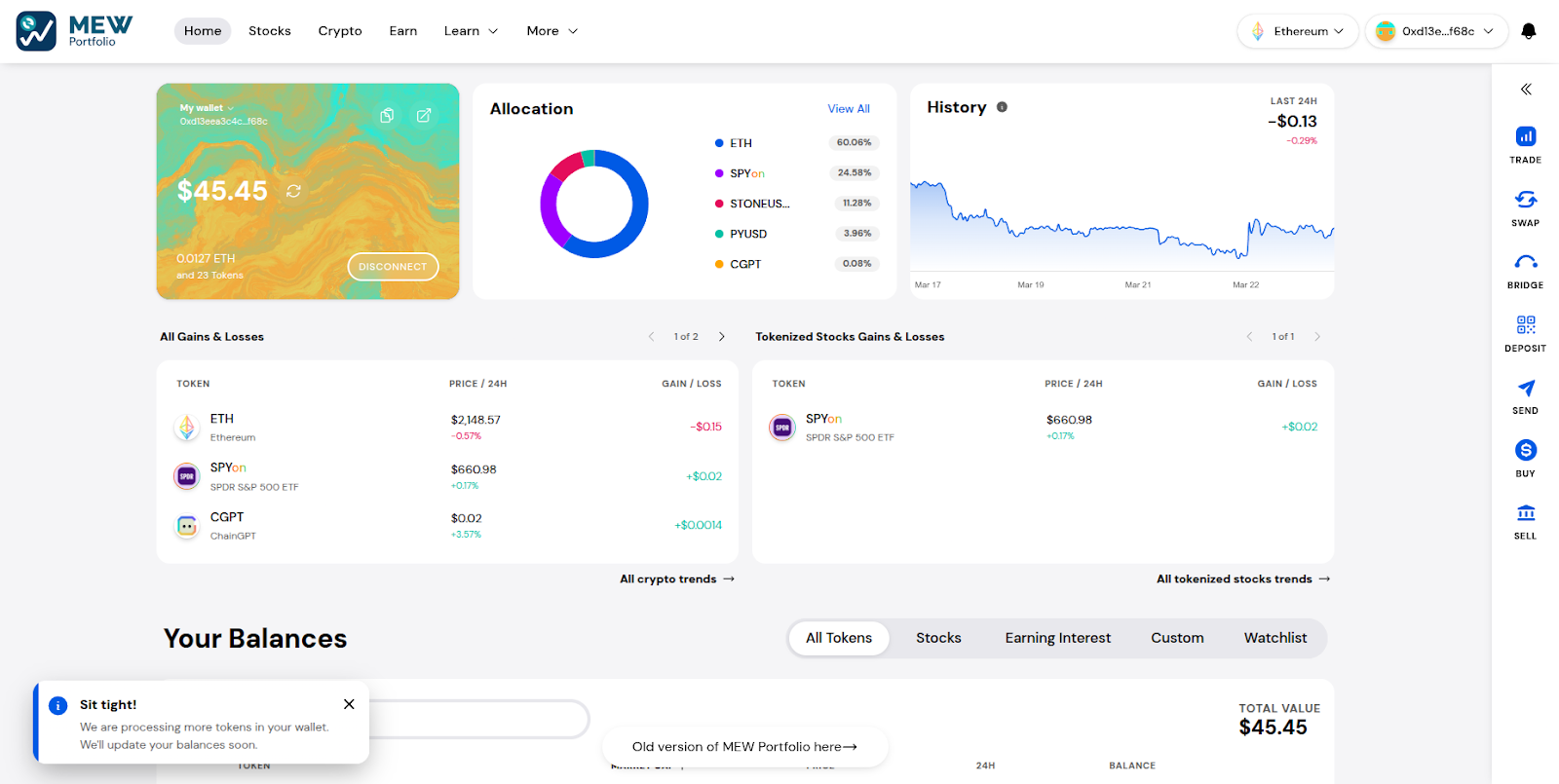
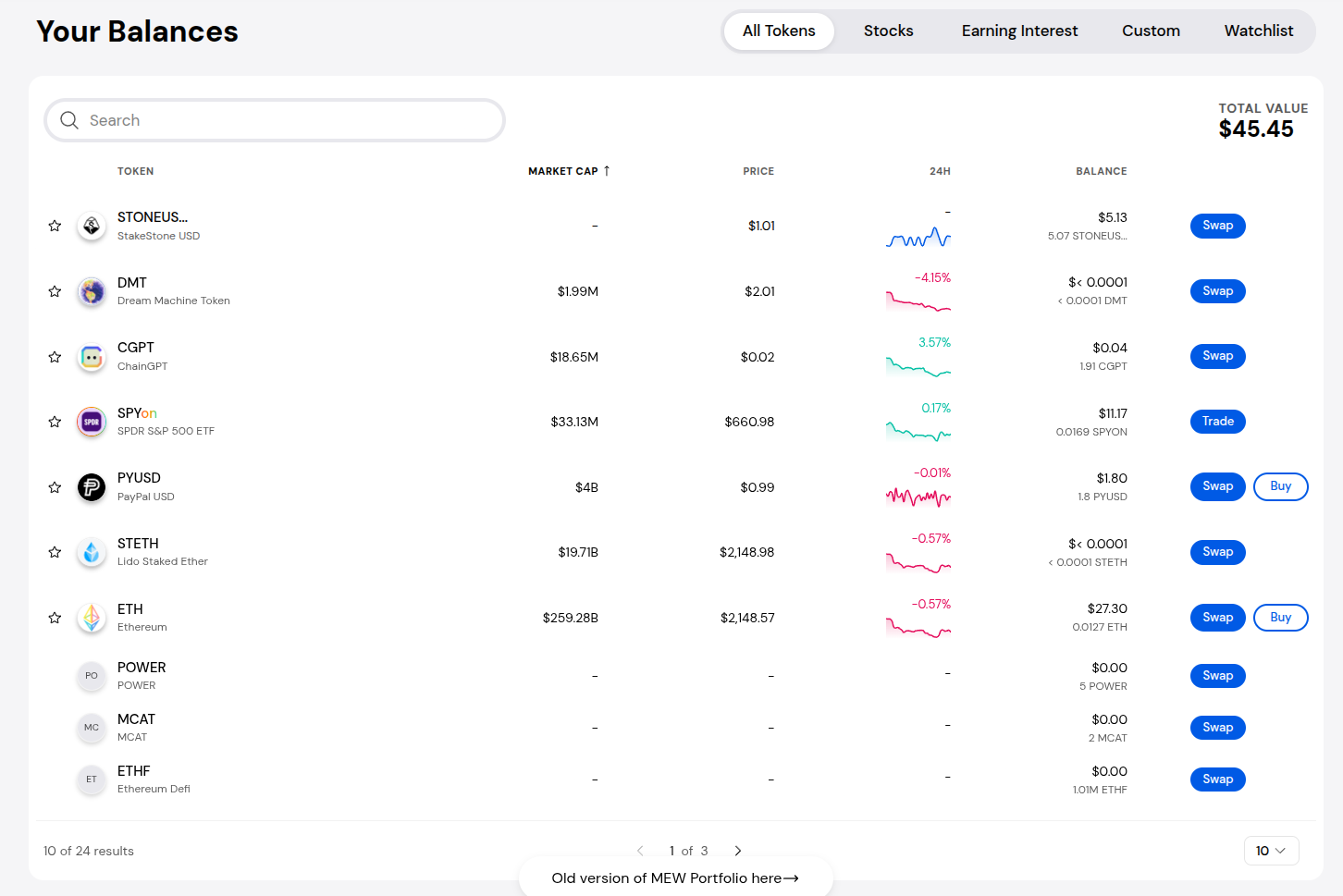
You can view your token balances by scrolling down. You can use the tabs at the top right of the token balance list to filter between the different token types.
Trade Stocks
Tokenized stocks are a distinct asset class that provide exposure to traditional markets through Real-World Asset (RWA) Tokenization. With MEW Portfolio, users can easily access and manage both in one place, making it simple to move between crypto and stock exposure and diversify without switching platforms.
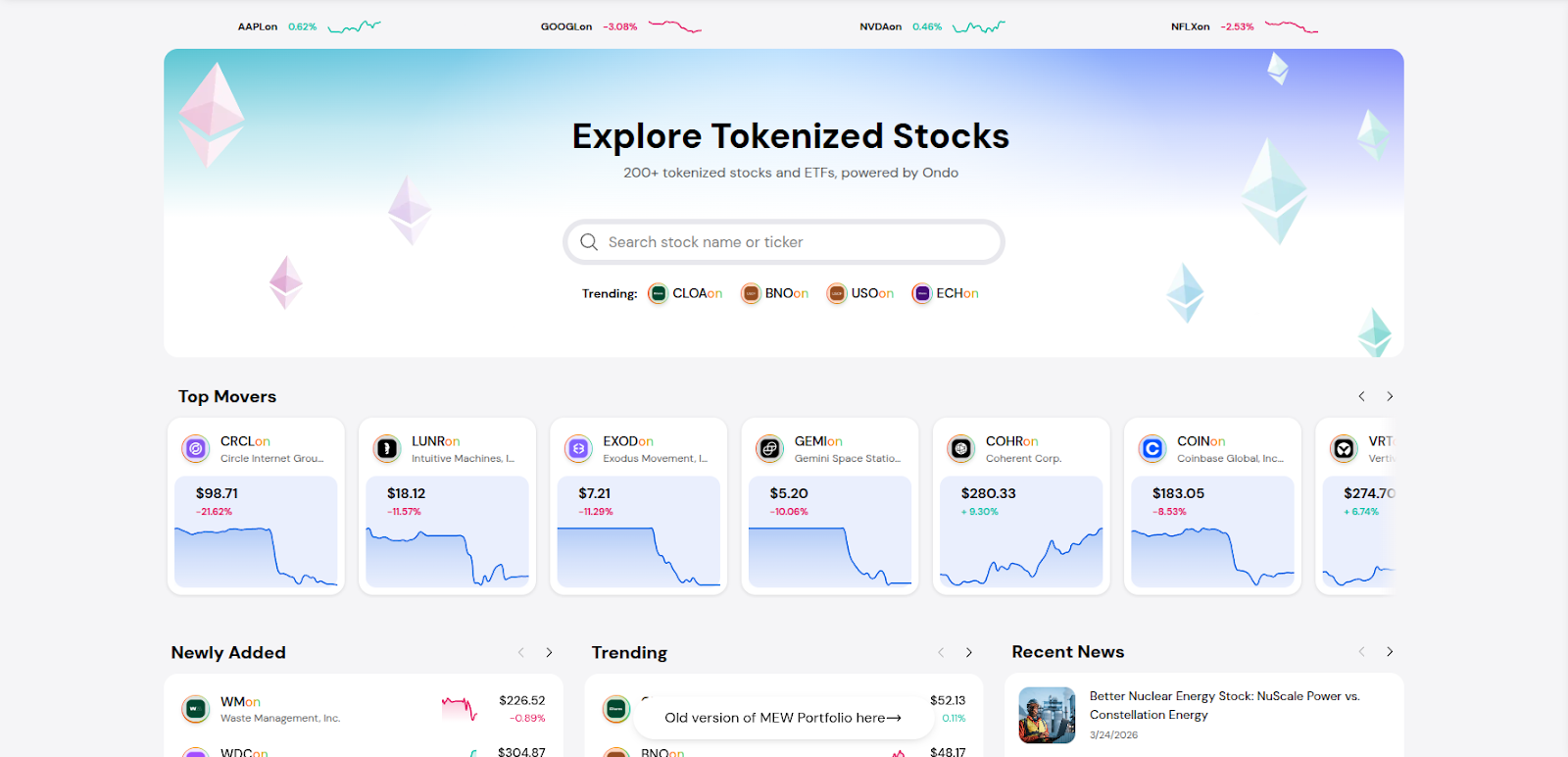
Click on the ‘Stocks’ option in the navigation bar located at the top of the page.

Here you can view all the available tokenized stock by Ondo GM. You can scroll through the list of stocks or use the search bar to find a specific stock.
Once you click on a stock, you will see more details about the tokenized stock and the trade form on the right side.
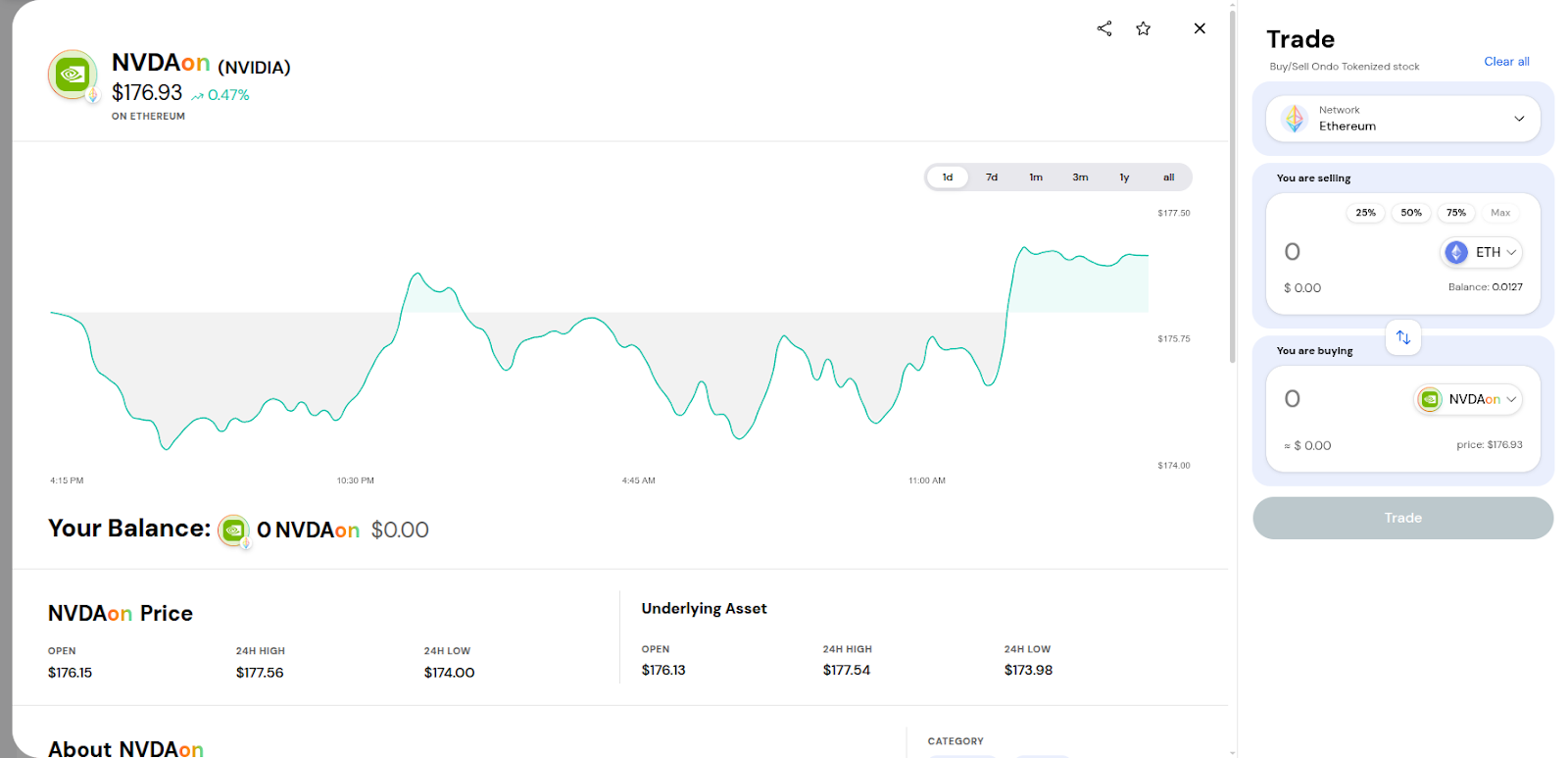
Using the trade form, you can select the network and enter the amount you want to trade.
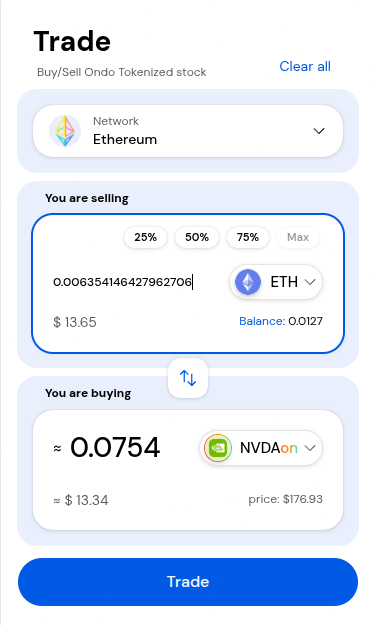
Swapping Tokens
Swapping tokens means exchanging one token for another on the same blockchain, such as swapping ETH for USDC on Ethereum. It changes the asset you hold but keeps you on the same network.
To swap tokens, click ‘Swap’ on the right hand side menu.
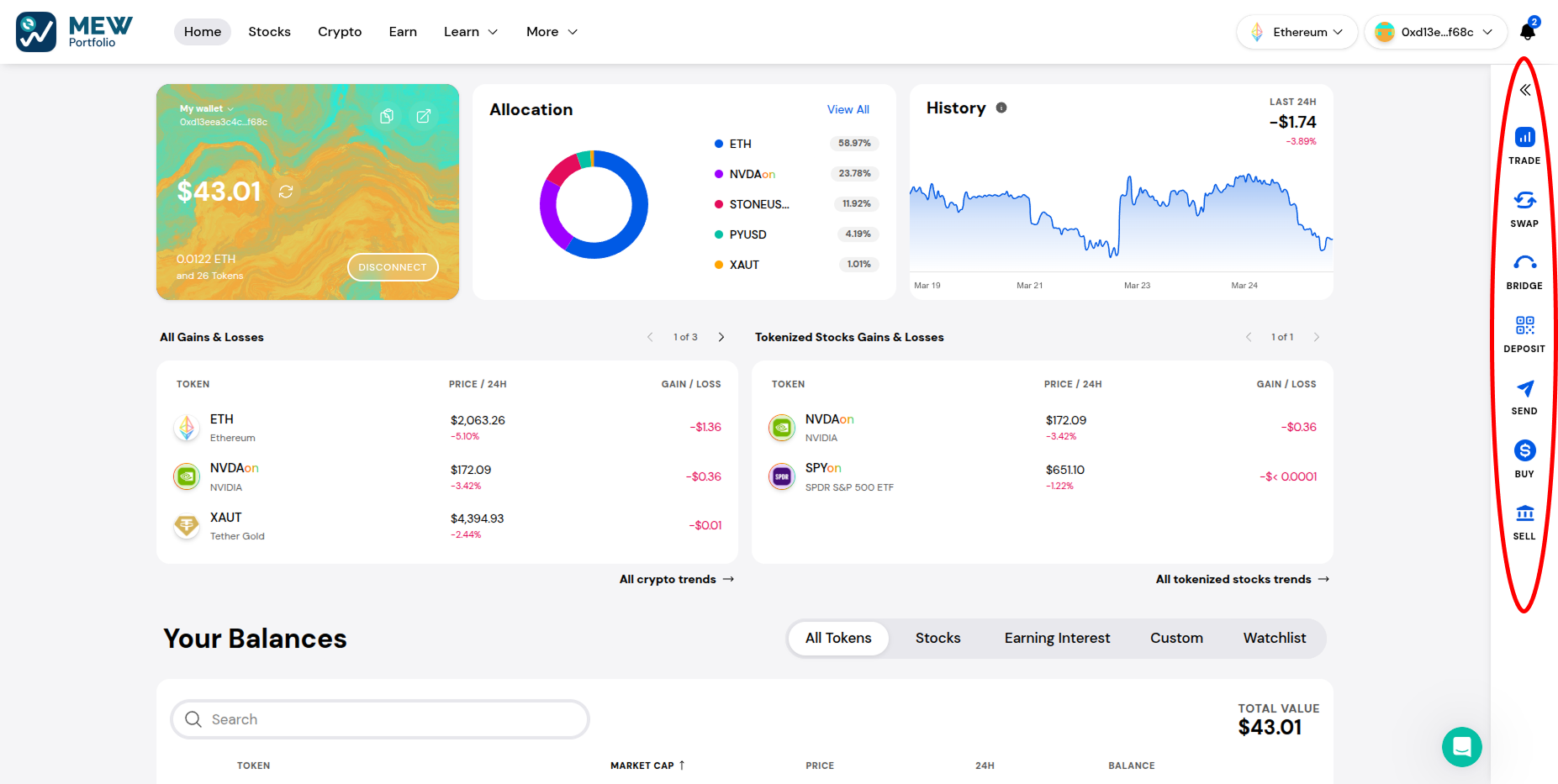
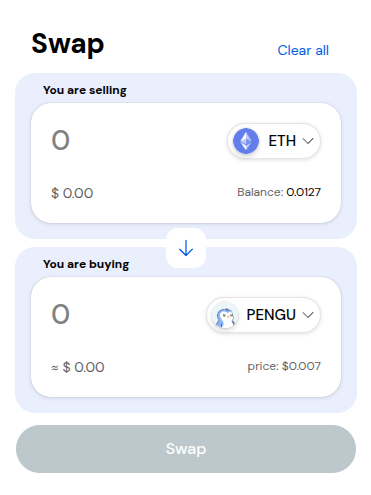
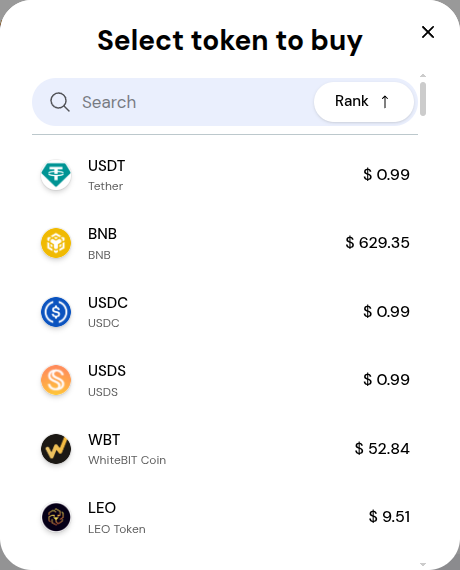
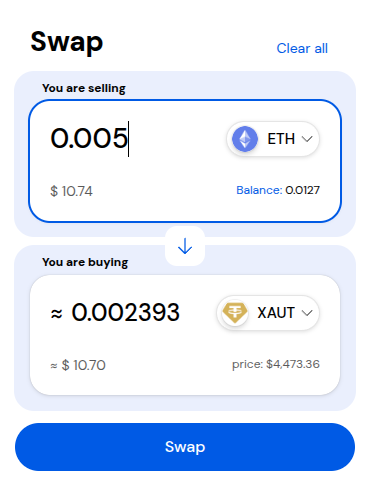
This will show the swap form on the right side of the page. You can click the token dropdowns to open the token selection menu.
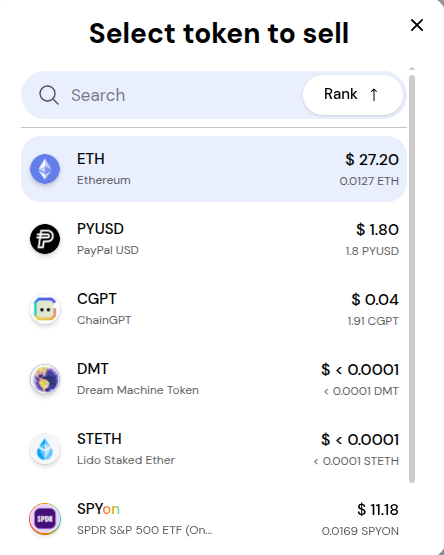
In the token selection menu, you can select the token you want to swap.
Once you select the tokens you want to trade, enter the amount to swap then click ‘Swap’.
Bridging Tokens
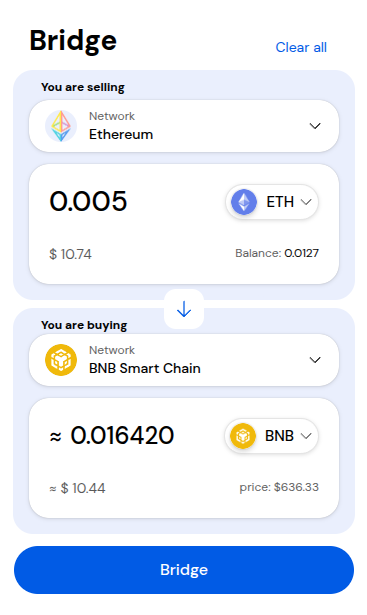
Bridging tokens is used to move assets between different blockchains, allowing you to use your tokens on another network. One type of bridging is when you're keeping the same token, but just changing the network it's on – like moving ETH from Ethereum to Arbitrum. It's also possible to bridge and swap in one step, such as bridging ETH from Ethereum into BNB on BNB Smart Chain.
To bridge tokens, click ‘Bridge’ on the right hand side menu.

The bridge form will pop up on the right hand side of the page.
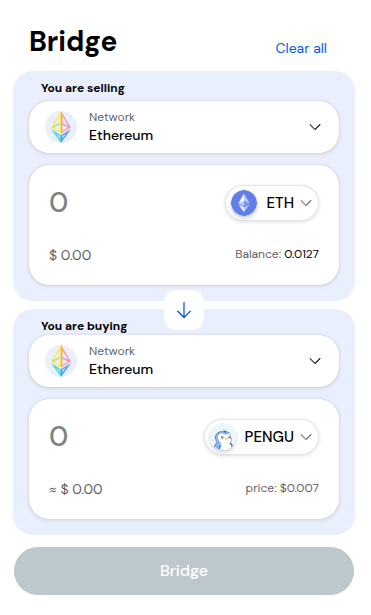
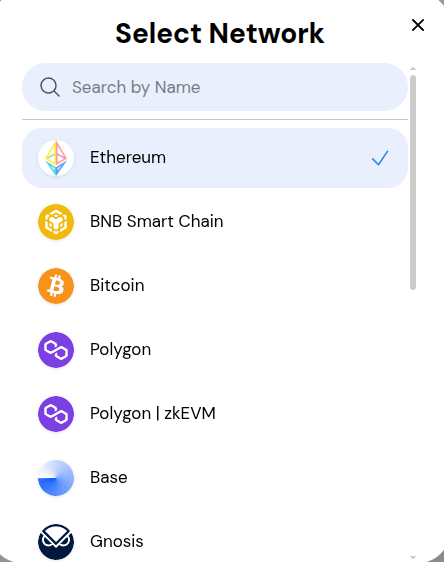
Clicking on the network dropdown will bring up the network selection menu.
Clicking on the token dropdown will bring up the token selection menu.
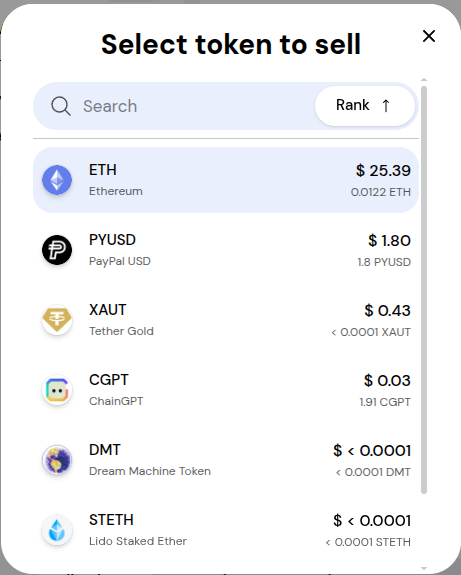
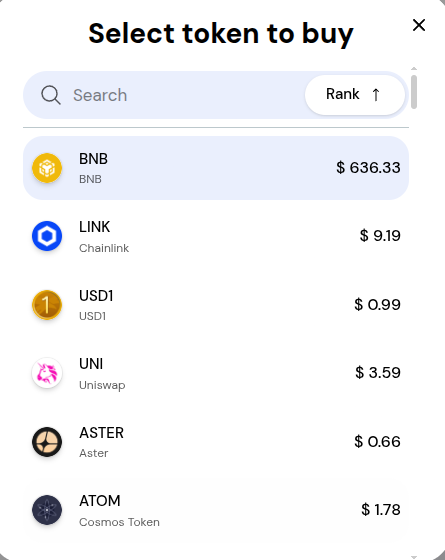
Enter the amount you want to bridge then click ‘Bridge’.
Deposit Tokens
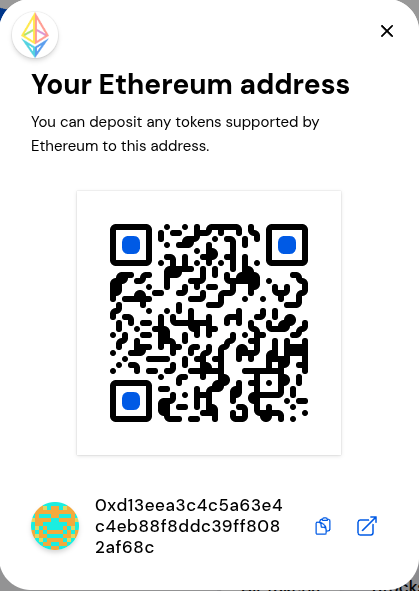
To deposit tokens into your wallet, click ‘Deposit’ on the right hand menu.

This will pop up the QR code for your address and you can copy your full address at the bottom.
Remember that your wallet address can be different across networks. Always make sure you’ve selected the correct network at the top right before copying or using your deposit address.
Sending Tokens
To send tokens to another wallet, click the ‘Send’ option in the right hand menu.

The send form should pop up on the right side of the page. You can click the token dropdown to change the token to send and clicking the two people icon in the address field it will open your Address book.
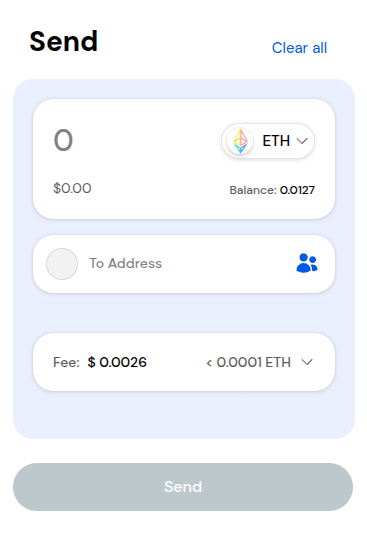
In the address book it will show the addresses you have recently interacted with and saved. You can add an address to your address book by clicking ‘Add’.
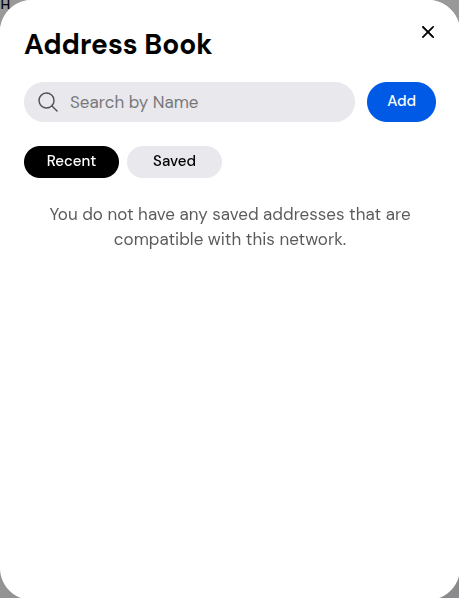
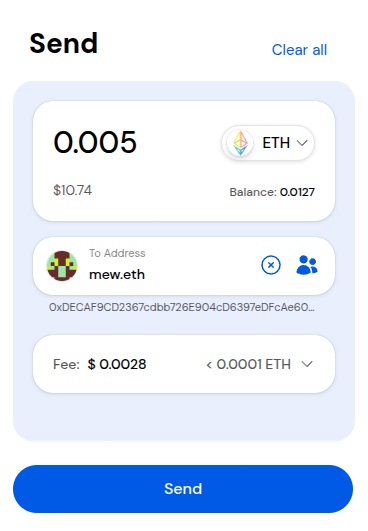
Enter the amount you want to send and the address of the wallet you want to send to. The address field supports using ENS domain names to make sending even more simple!
Buying and Selling Tokens
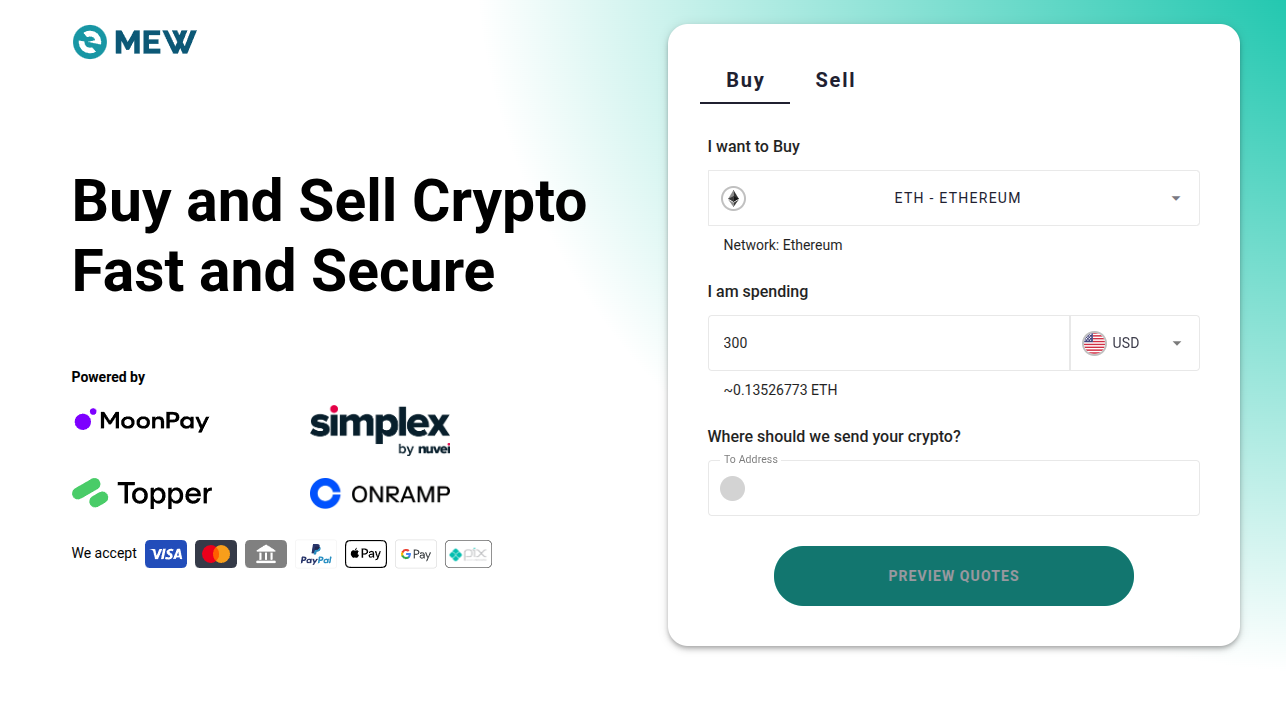
To Buy or Sell any tokens, you can click ‘Buy’ or ‘Sell’ on the right side menu.

This will bring you to the page to buy or sell your tokens.
Signing a Message
You might be asked to sign a message to prove you own your wallet when logging into a dApp, confirming your identity, or authorizing an action, without sending a transaction or paying gas.
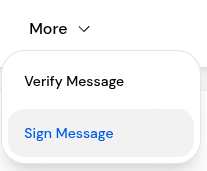
Hover over the ‘More’ option on the navigation bar at the top of the page then click ‘Sign Message’.
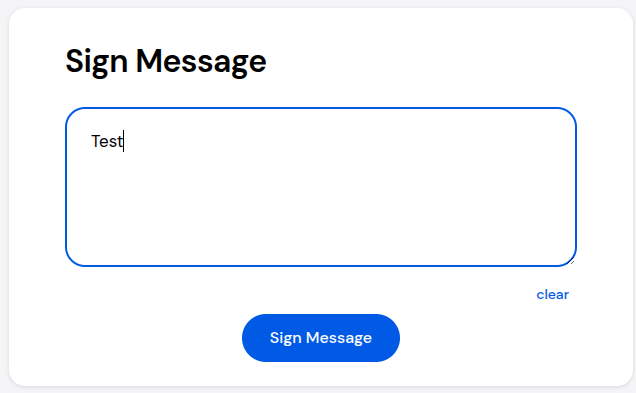
Enter the message you want to sign then click ‘Sign Message’.
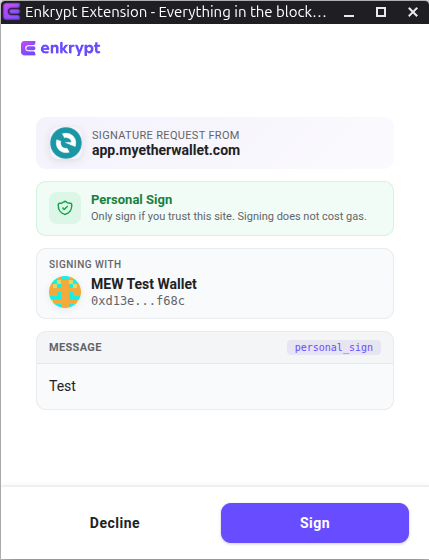
Sign the message on the Enkrypt pop up by clicking the ‘Sign’ button.
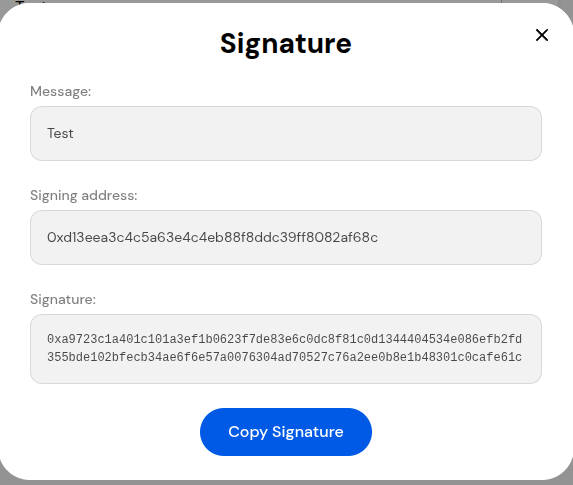
Then your signed message should pop up with the message, the signing address and the signature. You can copy the signature and send it to whoever requires proof that you own this wallet.
Verifying a Message
You might need to verify a message to check that a signature truly came from a specific wallet address, such as confirming someone’s identity, validating a claim, or ensuring a message hasn’t been altered.
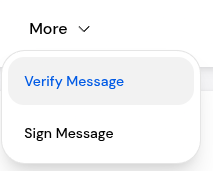
Hover over the ‘More’ option on the navigation bar at the top of the page then click ‘Verify Message’.
Paste the signature of the message in the ‘Signature’ field then click ‘Verify Message’.
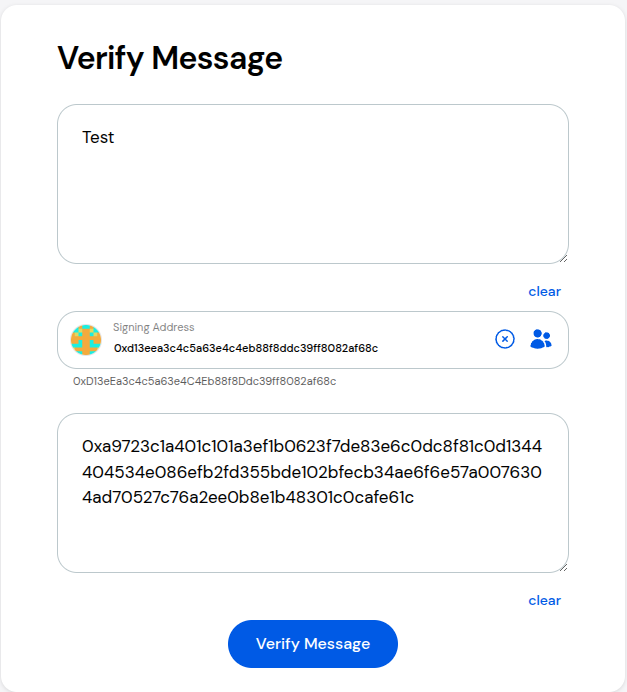
If the signature is valid you should see at the bottom of the form a confirmation message.

Thank you for checking out our guide on Interacting with MEW Portfolio with Enkrypt! Make sure to follow us on X(Twitter) and let us know your thoughts. Sign up for our newsletter to stay up to date with MEW releases, and check out our weekly podcast Crypto Currents for the latest news in crypto.